Introduction
Meetings often contain important information that is difficult to capture accurately through handwritten notes.
A customer may describe a product requirement in precise language. An interview participant may explain a complex experience. A project team may discuss technical decisions that require later verification.
When employees rely entirely on memory, important details can be lost or misinterpreted.
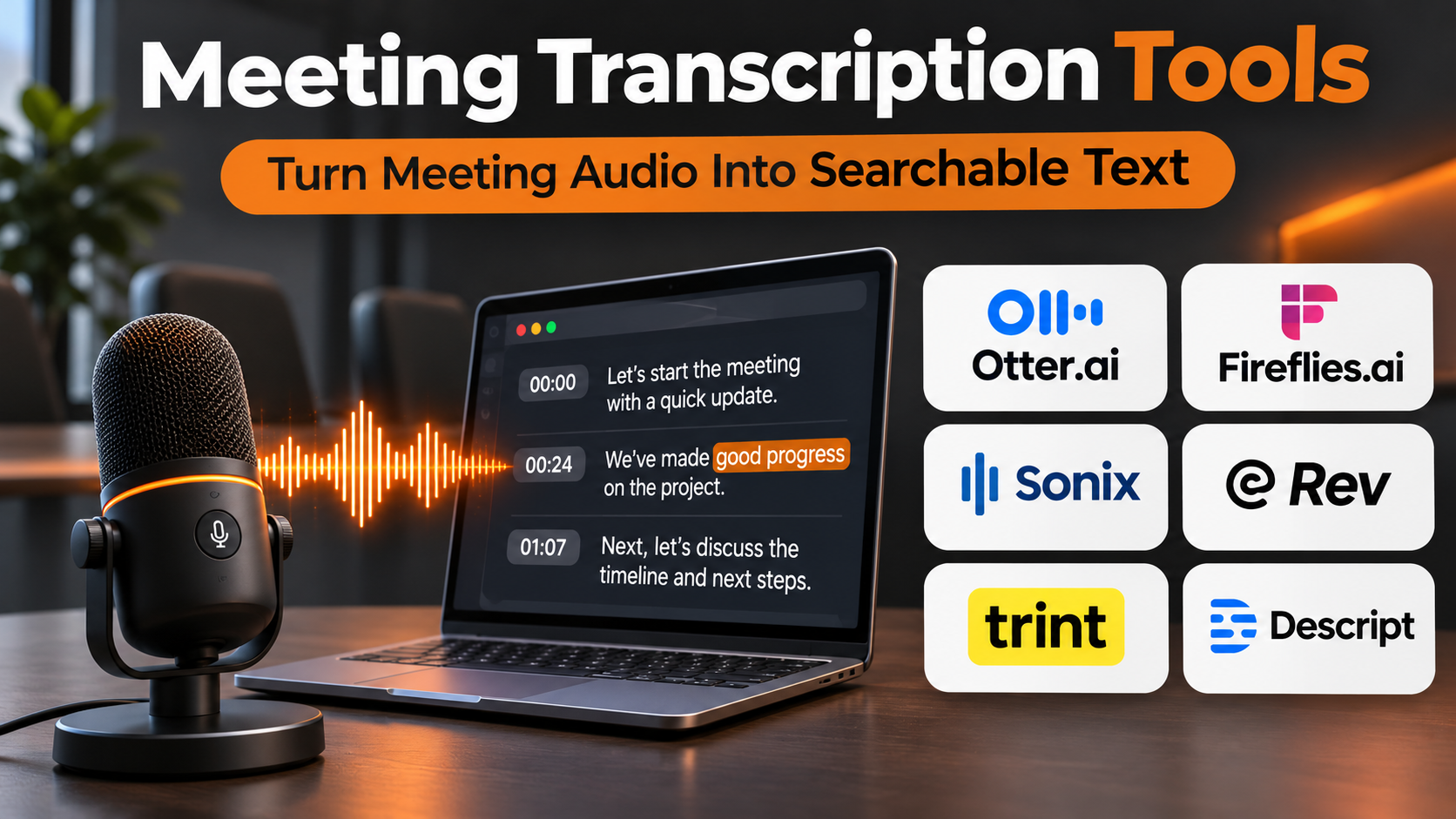
Meeting transcription tools help preserve spoken conversations as written text.
These applications use automatic speech recognition, human transcription services, or combinations of both to produce records of meetings and recordings.
Some tools transcribe conversations in real time. Others process uploaded audio or video after a meeting ends.
Many also provide speaker labels, timestamps, search, editing, subtitles, translations, and AI-generated summaries.
However, transcription is not a perfect representation of speech.
Background noise, overlapping speakers, technical vocabulary, accents, microphone quality, and language switching can affect accuracy.
Automated systems may also introduce punctuation errors or incorrectly attribute statements.
These limitations become particularly important when transcripts support legal documentation, research, healthcare, financial decisions, or official records.
Organizations should therefore distinguish between an automatically generated transcript and a verified transcript.
The right platform depends on the recording environment, language requirements, accuracy expectations, review process, security controls, and intended use of the resulting text.
This guide compares ten meeting transcription tools and explains how to evaluate them systematically.
What Are Meeting Transcription Tools?
Meeting transcription tools are software applications or services that convert spoken meeting content into written text.
They may work with:
- Live video meetings.
- Recorded online meetings.
- Uploaded audio files.
- Uploaded video files.
- In-person conversations.
- Interviews.
- Workshops.
- Webinars.
- Customer calls.
- Research discussions.
Automatic Speech Recognition
Automatic speech recognition, or ASR, converts audio into text using computational models.
The output is often available quickly but may contain errors.
Human Transcription
Human transcription involves a person listening to audio and producing or reviewing the written record.
It can provide additional quality control but usually requires more time and expense.
Hybrid Transcription
Some services combine automatic transcription with human review.
This can be useful when the organization needs both speed and higher confidence in important passages.
Real-time vs. Post-meeting Transcription
Real-time transcription produces text during the conversation.
Post-meeting transcription processes a completed recording.
Real-time tools are useful for immediate reference, while post-meeting workflows may provide more opportunities for editing and review.
How Meeting Transcription Works
Step 1: Capture Audio
The organization records or processes audio using an authorized method.
Step 2: Prepare the Recording
Audio quality, file format, and channel configuration are checked.
Step 3: Select the Language
The transcription service applies supported language settings or detection.
Step 4: Process Speech
Speech recognition generates draft text.
Step 5: Identify Speakers
Where supported, the system attempts to distinguish participants.
Step 6: Add Timestamps
The transcript may connect text segments to recording positions.
Step 7: Review Accuracy
An authorized reviewer checks important passages.
Step 8: Correct Terminology
Names, technical terms, numbers, and specialized vocabulary are verified.
Step 9: Export the Transcript
The reviewed document is saved in an appropriate format.
Step 10: Apply Retention Rules
The organization manages access and deletion according to its policies.
Why Meeting Transcription Tools Matter
Better Information Preservation
Transcripts provide a more detailed record than memory alone.
Searchable Conversations
Users can locate relevant statements without replaying an entire meeting.
Improved Documentation
Transcripts can support reports, meeting summaries, and research records.
Accessibility Support
Written text may help participants who benefit from text-based information, although automated transcripts should not be assumed to satisfy every accessibility requirement.
Faster Content Production
Media teams can use transcripts to create articles, subtitles, and related materials.
Easier Quality Review
Reviewers can compare statements against original recordings.
Improved Collaboration
Authorized colleagues can examine important meeting information asynchronously.
These benefits depend on accuracy, appropriate access, and reliable review procedures.
Essential Transcription Evaluation Criteria
Accuracy
Evaluate word errors, names, numbers, terminology, and punctuation.
Speaker Diarization
Speaker diarization identifies which voice is speaking.
It may not correctly determine the person’s identity.
Language Support
Test the specific languages and accents used by the organization.
Timestamps
Timestamps make it easier to locate and verify passages.
Editing
A practical editor should support correction without damaging the relationship between text and audio.
Export Formats
Common requirements include text documents, subtitle files, and structured transcript formats.
Privacy and Security
Review recording consent, data retention, processing locations, access controls, and contractual terms.
Human Review
Important transcripts may require independent checking.
Top 10 Meeting Transcription Tools
1. Otter.ai
Best For: Teams requiring live meeting transcription and searchable conversation records.
Overview
Otter.ai is a transcription and meeting documentation platform designed around spoken conversations.
It supports transcription for relevant meeting environments and provides searchable records.
For example, a project manager may need to review a technical discussion after a meeting.
Otter can help preserve the conversation and make specific passages easier to locate.
Its AI meeting features also support summaries and related documentation.
However, users should distinguish the transcript from the generated summary.
The transcript attempts to reproduce speech, while the summary interprets and condenses it.
Both require verification when accuracy is important.
Key Features
- Live Transcription: Produces text during supported meetings.
- Meeting Recording: Captures relevant audio.
- Speaker Identification: Separates selected voices.
- Timestamps: Connects text with recording positions.
- Searchable Transcripts: Helps retrieve specific passages.
- Transcript Editing: Supports corrections.
- AI Summaries: Generates condensed meeting information.
- Meeting Integrations: Supports relevant conferencing platforms.
- Sharing: Provides controlled access to records.
Benefits
Otter can help teams create searchable meeting records with limited manual effort.
Pros
- Strong live meeting orientation.
- Searchable transcripts.
- Useful AI summaries.
- Supports speaker labels.
- Relevant collaboration features.
- Suitable for recurring meetings.
Cons
- Automatic transcripts contain errors.
- Language coverage varies.
- Speaker identification may be incorrect.
- Usage allowances depend on plan.
- Sensitive meetings require careful governance.
Practical Use Cases
- Project meetings.
- Interviews.
- Team discussions.
- Research conversations.
Best For: Teams needing live transcription and meeting documentation.
2. Fireflies.ai
Best For: Organizations connecting meeting transcripts with collaboration and business workflows.
Overview
Fireflies.ai provides meeting recording, transcription, and AI-assisted documentation.
It is relevant to organizations that want transcripts to become searchable information within existing workflows.
For example, a customer success team may need to retrieve exact statements from previous account discussions.
Fireflies can help preserve those conversations and connect relevant information with supported applications.
Its integration orientation is useful when transcription forms part of a broader business process.
However, organizations should avoid automatically sharing complete transcripts with audiences who do not need access.
Key Features
- Meeting Transcription: Converts supported conversations into text.
- Recording: Preserves relevant meeting audio.
- Speaker Labels: Attempts to distinguish participants.
- Conversation Search: Retrieves specific topics.
- AI Summaries: Provides condensed notes.
- Meeting Highlights: Identifies relevant sections.
- CRM Integrations: Supports customer workflows.
- Collaboration Integrations: Connects relevant workplace tools.
- Administrative Controls: Manages selected access and recording settings.
Benefits
Fireflies can help organizations connect transcription with searchable meeting knowledge.
Pros
- Broad meeting capture capabilities.
- Useful integrations.
- Searchable transcripts.
- Supports AI summaries.
- Relevant to customer-facing teams.
Cons
- Transcription accuracy varies.
- Recording bots may require participant approval.
- Sensitive content needs access restrictions.
- Storage allowances depend on plan.
- Automated insights require review.
Practical Use Cases
- Customer calls.
- Sales meetings.
- Internal collaboration.
- Recruitment discussions.
Best For: Teams integrating transcripts with business systems.
3. Sonix
Best For: Organizations transcribing uploaded audio and video with editing and multilingual requirements.
Overview
Sonix is an automated transcription platform focused on processing recorded audio and video.
It is relevant to organizations that work with interviews, recorded meetings, and media files.
For example, a research organization may collect several recorded interviews and need searchable transcripts.
Sonix can help convert the files into editable text.
Its editor and language capabilities make it useful for post-recording workflows.
However, language availability and transcription quality should be tested with representative recordings.
Technical terminology and overlapping voices may still require substantial correction.
Key Features
- Audio Transcription: Processes supported audio files.
- Video Transcription: Converts video speech into text.
- Multilingual Support: Handles selected languages.
- Transcript Editor: Supports text correction.
- Timestamps: Connects text to recording positions.
- Speaker Labeling: Separates speakers where supported.
- Search: Locates transcript content.
- Export Formats: Supports relevant documents and subtitles.
- Workflow Integrations: Connects selected applications.
Benefits
Sonix can help organizations process and edit recorded conversations efficiently.
Pros
- Strong file transcription orientation.
- Useful transcript editor.
- Supports multiple languages.
- Relevant export formats.
- Suitable for interviews and media.
Cons
- Accuracy varies by recording.
- Usage costs depend on processing requirements.
- Human review remains necessary.
- Specialized vocabulary can create errors.
- Real-time meeting needs may favor alternatives.
Practical Use Cases
- Recorded interviews.
- Research transcription.
- Webinars.
- Media production.
Best For: Teams processing recorded audio and video.
4. Rev
Best For: Organizations requiring automated transcription with access to human transcription services.
Overview
Rev provides transcription services that include automated and human-supported workflows.
It is relevant to organizations where transcription accuracy and review requirements vary by project.
For example, a research team may use automatic transcription for internal discussions but request human transcription for important interviews.
Rev can support different approaches depending on the required level of review.
Its service orientation distinguishes it from products focused exclusively on live meeting assistance.
However, human transcription does not eliminate all errors.
Important names, technical terminology, and numerical statements may still require verification.
Key Features
- AI Transcription: Generates automatic transcripts.
- Human Transcription: Provides human-supported services.
- Audio Upload: Processes recorded files.
- Video Upload: Supports relevant video transcription.
- Transcript Delivery: Provides completed text records.
- Caption Services: Supports selected media accessibility workflows.
- Editing and Review: Enables relevant corrections.
- Export Options: Provides supported transcript formats.
- Service Management: Supports transcription requests.
Benefits
Rev offers flexibility when different recordings require different levels of review.
Pros
- Automated and human transcription options.
- Useful for accuracy-sensitive workflows.
- Supports recorded media.
- Relevant captioning services.
- Flexible project requirements.
Cons
- Human services increase cost.
- Turnaround times vary.
- Review remains necessary.
- Not primarily a calendar-based meeting assistant.
- Sensitive recordings require contractual and security review.
Practical Use Cases
- Research interviews.
- Legal-adjacent documentation.
- Media transcription.
- Important recorded meetings.
Best For: Organizations requiring transcription review options.
5. Trint
Best For: Newsrooms, research teams, and organizations collaborating on recorded interviews.
Overview
Trint is a transcription and collaborative content platform designed for recorded audio and video.
It is particularly relevant to journalists and content teams.
For example, a newsroom may record interviews with several sources and need to locate accurate quotations quickly.
Trint can help generate transcripts and support collaborative review.
Its editing and content organization capabilities are useful when multiple people work with the same recording.
However, journalists and researchers must verify quotations against the original audio.
An automated transcript should never be treated as conclusive evidence of exact wording without review.
Key Features
- Automatic Transcription: Processes supported recordings.
- Transcript Editor: Supports text correction.
- Collaborative Review: Enables team workflows.
- Speaker Identification: Helps distinguish voices.
- Search: Retrieves specific statements.
- Highlighting: Marks important passages.
- Multilingual Support: Processes selected languages.
- Content Organization: Supports research and editorial workflows.
- Export: Produces relevant text and media formats.
Benefits
Trint can help teams turn recorded interviews into searchable and editable content.
Pros
- Strong collaborative transcription.
- Relevant to journalism and research.
- Useful editing tools.
- Supports highlighting.
- Helps manage recorded material.
Cons
- May exceed simple meeting transcription needs.
- Commercial costs require evaluation.
- Automatic quotations need verification.
- Language accuracy varies.
- Sensitive source material requires protection.
Practical Use Cases
- Journalism interviews.
- Documentary research.
- Qualitative research.
- Editorial collaboration.
Best For: Teams reviewing and reusing recorded speech.
6. Happy Scribe
Best For: Multilingual transcription, subtitles, and media localization.
Overview
Happy Scribe provides transcription and subtitle-related capabilities.
It is relevant to organizations that need written records and caption outputs for recorded content.
For example, an international training team may record a workshop and need transcripts and subtitles.
Happy Scribe can support these workflows using relevant automated and review options.
Its media orientation makes it useful beyond conventional business meetings.
However, translation and transcription are separate processes.
A transcript may accurately represent speech in the original language while a translation introduces different wording or interpretation.
Organizations should review both when accuracy matters.
Key Features
- Automatic Transcription: Converts supported recordings into text.
- Subtitle Generation: Produces relevant caption files.
- Multilingual Support: Handles selected languages.
- Transcript Editing: Supports corrections.
- Subtitle Editing: Adjusts timing and text.
- Human Review Options: Supports relevant quality workflows.
- Export Formats: Provides documents and subtitle files.
- Collaboration: Supports selected team workflows.
- Translation Capabilities: Helps create multilingual outputs.
Benefits
Happy Scribe can combine transcription and subtitle production in one workflow.
Pros
- Strong multilingual orientation.
- Supports subtitles.
- Useful editing tools.
- Relevant to training and media.
- Offers review options.
Cons
- Accuracy varies by language.
- Human review may increase cost.
- Translation requires separate validation.
- Meeting-specific integrations may be less central.
- Usage limits depend on plan.
Practical Use Cases
- International workshops.
- Training recordings.
- Webinars.
- Multilingual media.
Best For: Organizations combining transcription and localization.
7. Descript
Best For: Teams editing audio and video through transcripts.
Overview
Descript is an audio and video editing platform with transcription capabilities.
It is particularly relevant to content creators who want to edit recordings using written text.
For example, a podcast producer may record a discussion and need to remove irrelevant sections.
Descript can support editing workflows connected to the transcript.
This makes it different from tools designed primarily for searchable corporate meeting records.
Its strength is content production.
However, organizations seeking formal meeting documentation, structured approvals, or enterprise retention policies should evaluate whether additional systems are necessary.
Key Features
- Automatic Transcription: Converts recorded speech into text.
- Text-based Editing: Supports media editing through transcript changes.
- Audio Editing: Provides relevant production tools.
- Video Editing: Supports recorded video workflows.
- Speaker Labels: Helps organize multi-speaker recordings.
- Transcript Correction: Enables text editing.
- Content Export: Produces relevant media and text outputs.
- Collaboration: Supports team editing.
- AI Production Features: Provides selected content editing assistance.
Benefits
Descript can simplify editing recorded conversations and creating publishable content.
Pros
- Strong text-based editing.
- Combines transcription and media production.
- Useful for podcasts.
- Supports collaborative editing.
- Relevant AI production features.
Cons
- Not primarily a meeting management system.
- Advanced editing requires learning.
- Transcripts need verification.
- Media processing costs vary.
- Formal documentation may need other tools.
Practical Use Cases
- Podcast editing.
- Video interviews.
- Training content.
- Recorded presentations.
Best For: Content teams working with recorded speech.
8. Notta
Best For: Teams requiring multilingual meeting transcription and searchable records.
Overview
Notta provides transcription capabilities for supported live and recorded conversations.
It is relevant to international teams and professionals who need written meeting records.
For example, a company may conduct interviews in different languages and require transcripts for internal review.
Notta can help capture and organize those discussions.
Its meeting-oriented features can also support summaries and documentation.
However, multilingual support should be evaluated using the exact languages, accents, and terminology the organization encounters.
Key Features
- Meeting Transcription: Converts speech into text.
- Recording Support: Captures supported conversations.
- Language Options: Handles selected languages.
- Speaker Identification: Attempts to separate participants.
- Transcript Editing: Supports correction.
- AI Summaries: Produces relevant meeting overviews.
- Search: Retrieves transcript information.
- Export: Provides supported output formats.
- Meeting Integrations: Connects relevant conferencing services.
Benefits
Notta can help international teams organize spoken information.
Pros
- Meeting transcription orientation.
- Supports multiple languages.
- Useful transcript editing.
- Provides summaries.
- Relevant export options.
Cons
- Accuracy varies by language.
- Speaker labels require checking.
- Usage allowances depend on plan.
- Privacy configuration is important.
- Complex specialist terminology may require review.
Practical Use Cases
- International meetings.
- Interviews.
- Research discussions.
- Team documentation.
Best For: Teams needing multilingual meeting transcription.
9. Verbit
Best For: Enterprises and institutions requiring transcription and captioning services with specialized workflows.
Overview
Verbit provides transcription and captioning-related services for organizations with substantial accessibility and documentation requirements.
It is relevant to education, enterprise, media, and other institutional environments.
For example, a university may need transcripts and captions for recorded lectures and events.
Verbit can support relevant workflows through its transcription and captioning offerings.
Its institutional orientation makes it different from lightweight personal meeting assistants.
However, buyers should verify the precise service model, available human review, supported languages, and contractual requirements.
Accessibility obligations vary by context, and selecting a transcription provider does not automatically establish compliance.
Key Features
- Transcription Services: Converts supported speech into text.
- Captioning: Supports accessible media workflows.
- Recorded Content Processing: Handles relevant audio and video.
- Live Service Options: Supports selected real-time use cases.
- Review Workflows: Provides relevant quality processes.
- Enterprise Administration: Supports organizational service management.
- Integrations: Connects supported institutional systems.
- Output Formats: Provides relevant transcript and caption files.
- Service Support: Addresses specialized organizational requirements.
Benefits
Verbit can help institutions manage transcription and captioning at organizational scale.
Pros
- Institutional service orientation.
- Relevant accessibility workflows.
- Supports transcription and captions.
- Suitable for large organizations.
- Offers specialized service options.
Cons
- May exceed ordinary meeting needs.
- Commercial arrangements require evaluation.
- Service availability varies.
- Review processes affect turnaround.
- Compliance responsibilities remain with the organization.
Practical Use Cases
- Educational recordings.
- Enterprise events.
- Accessible media.
- Institutional documentation.
Best For: Organizations requiring managed transcription and captioning services.
10. MacWhisper
Best For: Mac users seeking local transcription workflows.
Overview
MacWhisper is a transcription application for macOS that uses speech recognition models to process audio.
It is relevant to users who prefer local transcription workflows rather than relying entirely on cloud processing.
For example, a researcher may need to transcribe recorded interviews on a Mac.
MacWhisper can support transcription of compatible recordings using locally available processing capabilities.
This approach can provide greater control over where transcription processing occurs.
However, local processing does not automatically guarantee privacy.
Users must still consider recording consent, device security, file storage, backups, and any optional cloud features they enable.
Key Features
- Local Transcription: Supports on-device processing workflows.
- Audio Import: Processes compatible recordings.
- Speech Recognition Models: Uses supported transcription models.
- Language Support: Handles selected languages.
- Transcript Editing: Supports relevant corrections.
- Timestamps: Provides timing information where available.
- Export: Saves supported transcript formats.
- Mac Integration: Operates within the macOS environment.
- Processing Configuration: Provides relevant model and workflow choices.
Benefits
MacWhisper can help Mac users transcribe recordings while retaining more direct control over local processing.
Pros
- Local processing options.
- Relevant to privacy-conscious workflows.
- Useful for recorded interviews.
- Supports multiple languages.
- Does not require a full meeting platform.
Cons
- Primarily intended for Mac users.
- Performance depends on hardware and model.
- Some workflows may use optional cloud services.
- Human review remains necessary.
- Enterprise administration may be limited.
Practical Use Cases
- Local interview transcription.
- Research recordings.
- Personal meeting documentation.
- Offline transcription workflows.
Best For: Mac users prioritizing local transcription.
Meeting Transcription Tools Comparison Table
| Platform | Primary Strength | Best-Fit User | Main Consideration |
|---|---|---|---|
| Otter.ai | Live meeting transcripts | Business teams | Accuracy review |
| Fireflies.ai | Meeting integrations | Customer-facing teams | Capture governance |
| Sonix | Recorded file transcription | Researchers | Processing costs |
| Rev | Human and AI services | Accuracy-sensitive teams | Turnaround and cost |
| Trint | Collaborative transcript editing | Newsrooms | Specialist workflow |
| Happy Scribe | Multilingual subtitles | Media and training teams | Translation review |
| Descript | Text-based media editing | Content creators | Meeting management depth |
| Notta | Multilingual meetings | International teams | Language accuracy |
| Verbit | Institutional transcription | Enterprises and education | Service configuration |
| MacWhisper | Local transcription | Mac users | Device capabilities |
How to Choose the Right Meeting Transcription Tool
Step 1: Define the Intended Use
Determine whether transcripts support ordinary meeting notes, research, media production, accessibility, or formal records.
Step 2: Identify Recording Sources
List video meeting services, audio file formats, mobile recordings, and in-person capture methods.
Step 3: Establish Accuracy Requirements
Decide which content requires human verification.
Names, numbers, quotations, and technical statements deserve particular attention.
Step 4: Test Actual Audio
Use representative recordings containing the organization’s normal accents, vocabulary, and speaking conditions.
Step 5: Evaluate Language Support
Confirm the exact languages required.
Do not rely solely on a vendor’s total supported-language count.
Step 6: Assess Speaker Identification
Test overlapping speech and multi-person conversations.
Step 7: Review Editing Tools
Check whether reviewers can correct text efficiently while listening to the recording.
Step 8: Examine Export Formats
Verify compatibility with the intended documentation and publishing workflows.
Step 9: Review Security and Privacy
Assess consent, storage, processing locations, access controls, and retention.
Step 10: Evaluate Human Review Options
Determine whether the organization needs an external transcription service or an internal quality assurance process.
Step 11: Calculate Total Cost
Consider subscriptions, processing minutes, storage, human review, and administration.
Step 12: Run a Controlled Pilot
Measure accuracy and editing time before committing to a larger deployment.
Best Meeting Transcription Tools by User Type
| User Type | Suitable Platforms | Primary Requirement |
|---|---|---|
| Business meeting teams | Otter.ai, Fireflies.ai | Live meeting records |
| Research organizations | Sonix, Trint | Recorded interviews |
| Accuracy-sensitive workflows | Rev | Human review options |
| Multilingual content teams | Happy Scribe, Notta | Language support |
| Podcast producers | Descript | Transcript-based editing |
| Educational institutions | Verbit | Transcription and captions |
| Mac professionals | MacWhisper | Local processing |
Practical Example: Transcribing Customer Research Interviews
A product research team conducts 25 recorded customer interviews.
The team needs searchable transcripts and verified quotations.
Step 1: Define the Output
Each interview requires a transcript with speaker labels and timestamps.
Step 2: Establish Consent
Explain recording and transcription arrangements to participants.
Step 3: Select Candidate Tools
Compare Sonix, Trint, Rev, and other suitable options.
Step 4: Prepare Test Recordings
Choose interviews with different speakers, accents, and audio conditions.
Step 5: Run Automatic Transcription
Process the sample recordings.
Step 6: Measure Accuracy
Compare selected passages against careful human review.
Step 7: Check Technical Terminology
Verify product names, numbers, and specialized expressions.
Step 8: Review Speaker Labels
Correct attribution errors.
Step 9: Select the Workflow
Choose the platform that balances accuracy, editing effort, privacy, and cost.
Step 10: Process the Remaining Interviews
Apply consistent transcription settings.
Step 11: Verify Quotations
Check every quotation intended for publication or formal reporting against the original audio.
Step 12: Organize Files
Use consistent identifiers and secure storage.
Step 13: Apply Retention Rules
Delete or archive recordings according to approved policies.
Step 14: Evaluate the Project
Review transcription costs, correction time, and researcher satisfaction.
Common Meeting Transcription Mistakes
1. Assuming Automatic Transcripts Are Perfect
Even advanced speech recognition systems make mistakes.
2. Ignoring Audio Quality
Poor microphones and background noise can reduce accuracy.
3. Failing to Verify Numbers
Dates, amounts, percentages, and measurements require careful checking.
4. Trusting Speaker Labels Without Review
Automatic diarization can confuse voices.
5. Confusing Transcription With Translation
A translated transcript introduces additional interpretation.
6. Recording Without Appropriate Authorization
Consent and recording rules must be respected.
7. Overlooking Sensitive Information
Transcripts may contain personal, confidential, or commercially sensitive details.
8. Using Inaccurate Quotes
Important quotations should be checked against the recording.
9. Selecting Tools Only by Claimed Accuracy
Vendor accuracy figures may use different test conditions.
10. Ignoring Editing Costs
A low transcription price may not be economical if extensive correction is required.
Frequently Asked Questions About Meeting Transcription Tools
1. What is meeting transcription software?
It converts spoken meeting content into written text.
2. What is automatic speech recognition?
It is technology that converts speech into text computationally.
3. What is live transcription?
It produces text during a conversation.
4. What is post-meeting transcription?
It processes a recording after the conversation ends.
5. What is human transcription?
It involves a person producing or reviewing a transcript.
6. Is AI transcription always accurate?
No. Accuracy varies with audio and language conditions.
7. What is speaker diarization?
It separates speech according to different speakers.
8. Does diarization always identify people correctly?
No. Speaker labels may require manual correction.
9. What are transcript timestamps?
They connect text to positions in the recording.
10. Can transcription tools handle multiple languages?
Many support selected languages.
11. Can they handle mixed-language conversations?
Some can, but accuracy should be tested.
12. What affects transcription accuracy?
Audio quality, accents, vocabulary, overlapping speech, and model capabilities.
13. Can transcription tools recognize technical terms?
Some support relevant vocabulary features, but verification remains important.
14. What is the difference between transcription and captioning?
Transcription produces written speech; captioning also involves timed on-screen presentation and may include relevant non-speech information.
15. What is an SRT file?
It is a common subtitle format containing text and timing information.
16. Which tool is suitable for live meetings?
Otter.ai is a relevant option.
17. Which tool is suitable for uploaded recordings?
Sonix and Trint address relevant workflows.
18. Which service offers human transcription?
Rev provides relevant human transcription services.
19. Which tool is suitable for podcast editing?
Descript combines transcription with media editing.
20. Which tools support multilingual workflows?
Happy Scribe, Sonix, and Notta provide relevant capabilities.
21. Which tool supports local Mac transcription?
MacWhisper is a relevant option.
22. Can transcripts be searched?
Many products support text search.
23. Can transcripts be edited?
Most professional transcription platforms provide correction tools.
24. Can AI create summaries from transcripts?
Several products provide AI-generated summaries.
25. Are transcripts legally reliable?
Their evidentiary or official status depends on context, applicable rules, and verification.
26. Can transcripts contain confidential information?
Yes. They may preserve sensitive details spoken during meetings.
27. Should recordings be deleted after transcription?
Retention should follow applicable requirements and legitimate organizational needs.
28. How should transcription quality be evaluated?
Compare representative output against a carefully reviewed reference transcript.
29. What is word error rate?
It is a measure of transcription differences involving substitutions, deletions, and insertions relative to reference text.
30. What is the most important transcription principle?
Verify important content against the original recording before relying on it.
Final Thoughts
Meeting transcription tools help organizations preserve spoken information and make conversations easier to search, review, and reuse.
Otter.ai and Fireflies.ai are relevant to live business meetings.
Sonix and Trint support recorded audio workflows, while Rev provides automated and human transcription options.
Happy Scribe and Notta address multilingual requirements.
Descript combines transcription with media editing, Verbit supports institutional transcription and captioning, and MacWhisper provides local processing options for Mac users.
The best choice depends on recording sources, language requirements, accuracy expectations, security, and the amount of review required.
A transcript is valuable only when its limitations are understood.
Organizations should prioritize reliable audio capture, appropriate consent, careful verification, and responsible information management.