Introduction
Meeting rooms are valuable shared resources, yet organizations frequently struggle to manage them efficiently.
Employees may reserve rooms and fail to arrive. Others may occupy rooms without making reservations. A team may walk through several floors looking for an available space while another room remains unused because its booking was never released.
These problems become more complicated in hybrid workplaces.
Employees may attend the office only on selected days, making room demand unpredictable. Organizations may also have rooms with different capacities, equipment, accessibility features, and booking policies.
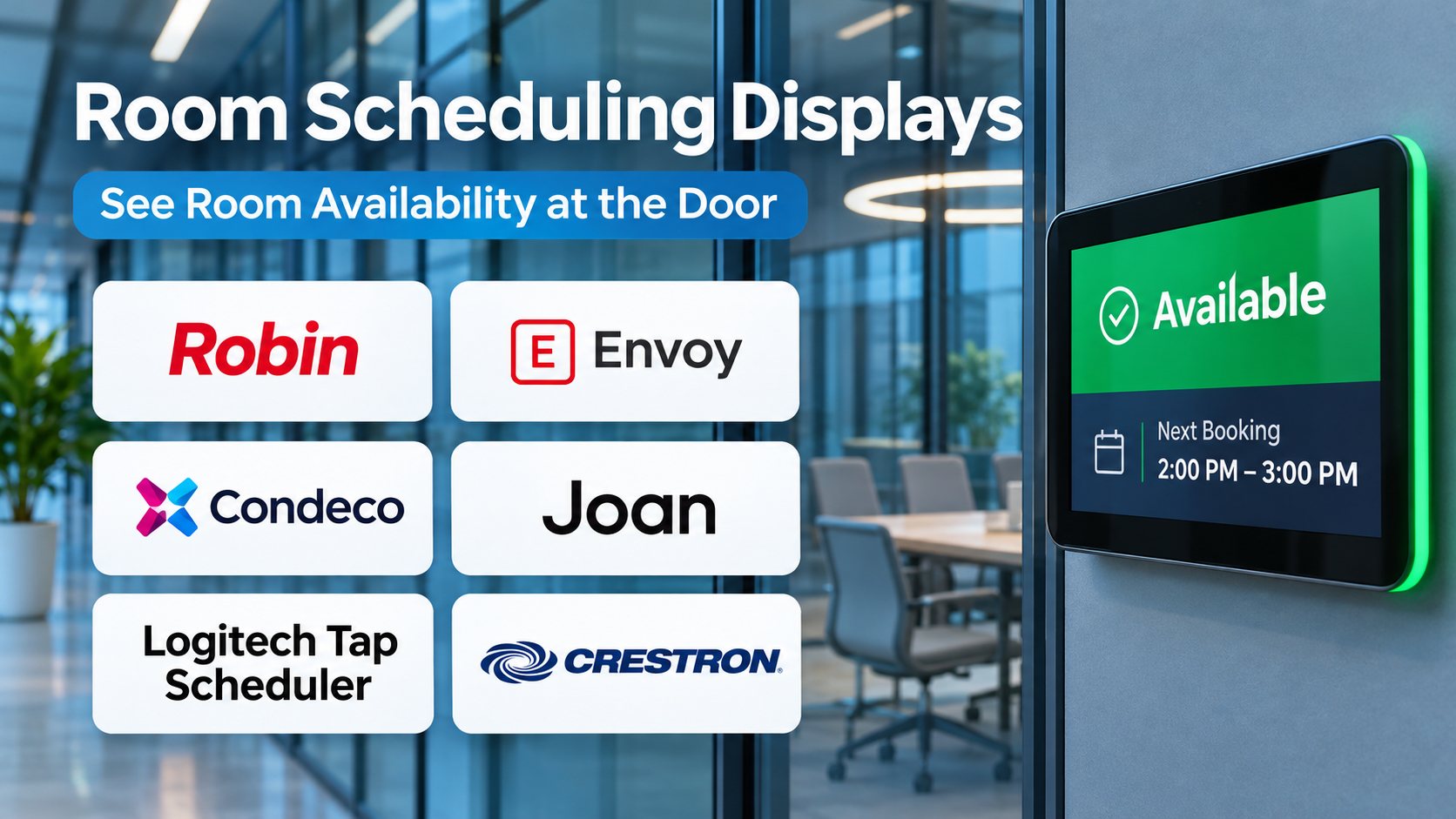
Room scheduling displays help connect physical meeting spaces with digital reservation systems.
They are typically installed outside conference rooms and show whether a space is available, occupied, or reserved for an upcoming meeting.
Depending on the solution, employees may also be able to book a room directly, check in, extend a reservation, or release unused time.
Some solutions combine dedicated touchscreen hardware with scheduling software. Others use e-paper displays, tablets, or existing commercial devices.
The distinction between hardware and software is important.
A physical scheduling panel may depend on a separate room booking application, calendar resource, and device management platform.
Organizations should therefore evaluate the complete system rather than comparing screen specifications alone.
This guide examines ten room scheduling display solutions, explains their capabilities, and provides a step-by-step framework for planning a reliable deployment.
What Are Room Scheduling Displays?
Room scheduling displays are digital panels or display applications positioned near meeting spaces to communicate reservation information.
They commonly show:
- Room name.
- Current availability.
- Upcoming bookings.
- Meeting start and end times.
- Available reservation slots.
- Check-in controls.
- Booking extensions.
- Room capacity.
- Equipment information.
- Reservation status indicators.
- Touchscreen booking options.
- Calendar synchronization.
Some solutions also provide workplace analytics, occupancy integration, and centralized device administration.
Room Scheduling Displays vs. Room Booking Software
Room booking software manages reservations, availability rules, and calendar information.
A room scheduling display presents relevant information at the physical location.
The display may also allow employees to interact with the booking system.
Room Scheduling Displays vs. Room Controllers
A scheduling display is generally positioned outside the room.
A room controller is typically installed inside and manages video conferencing or audiovisual equipment.
Some vendors offer both categories.
E-paper vs. LCD Displays
E-paper displays emphasize low power consumption and readable static information.
LCD touchscreens generally support richer interaction, color interfaces, and more dynamic content.
The right choice depends on installation requirements, interaction needs, power availability, and maintenance.
How Room Scheduling Displays Work
Step 1: Create Room Resources
Administrators establish each room as a bookable resource in a supported calendar or workplace system.
Step 2: Define Booking Rules
Policies specify who can reserve rooms, permitted durations, and applicable restrictions.
Step 3: Select the Display Platform
The organization chooses compatible scheduling software and hardware.
Step 4: Install the Device
A display is mounted outside the room with appropriate power and connectivity.
Step 5: Connect the Room Calendar
The panel is linked to the correct room resource.
Step 6: Configure Information Visibility
Administrators determine whether meeting titles, organizer names, or only availability should appear.
Step 7: Enable Booking Controls
Supported displays may allow immediate reservations, check-in, and release.
Step 8: Configure No-show Policies
Some systems can release bookings when employees fail to check in.
Step 9: Monitor Device Health
IT teams review connectivity, software updates, and hardware status.
Step 10: Analyze Room Usage
Facilities teams examine reservation patterns and available occupancy information.
Benefits of Room Scheduling Displays
Faster Room Discovery
Employees can identify available spaces without opening several calendar applications.
Reduced Scheduling Confusion
A visible reservation status helps clarify whether a room is currently booked.
More Efficient Space Use
Check-in and release workflows can reduce abandoned reservations.
Better Hybrid Workplace Support
Employees can locate rooms during changing office attendance patterns.
Improved Meeting Experience
Room information can reduce interruptions and accidental room conflicts.
More Reliable Facility Planning
Usage information may help identify underused or overcrowded spaces.
Better Workplace Navigation
Displays can provide room names, capacities, and equipment information.
However, reservation data does not always reflect actual occupancy. Organizations should distinguish bookings from observed room use.
Top 10 Room Scheduling Display Solutions
1. Joan Workplace
Best For: Organizations seeking dedicated room displays with flexible workplace scheduling.
Overview
Joan Workplace provides room scheduling and workplace management capabilities.
It is particularly associated with dedicated room displays, including e-paper options.
For example, a company may have meeting rooms along a corridor without convenient electrical outlets near each entrance.
A low-power display can be attractive where extensive cabling would be difficult.
Joan’s workplace scheduling approach can connect room availability with supported calendar environments.
Its broader workplace capabilities may also be relevant to organizations managing desks and shared spaces.
However, buyers should evaluate the complete deployment requirements.
Hardware selection, software licensing, battery maintenance, connectivity, and calendar compatibility all influence long-term costs.
Key Features
- Room Availability Displays: Shows relevant reservation status.
- E-paper Hardware Options: Supports low-power display installations.
- Calendar Integration: Connects supported scheduling systems.
- On-device Booking: Enables selected room reservation actions.
- Workplace Scheduling: Supports relevant shared-space workflows.
- Room Information: Displays appropriate meeting details.
- Central Administration: Manages supported devices.
- Booking Policies: Applies relevant reservation rules.
- Usage Insights: Supports selected workplace analysis.
Benefits
Joan can help organizations deploy visible room scheduling with flexible hardware arrangements.
Pros
- Dedicated room display focus.
- E-paper options.
- Useful workplace scheduling features.
- Relevant calendar integrations.
- Suitable for varied office layouts.
- Centralized management options.
Cons
- Hardware and software costs must be considered together.
- Battery maintenance may be necessary.
- Display capabilities vary by model.
- Integration compatibility requires testing.
- E-paper interaction differs from full-color touchscreens.
Practical Use Cases
- Corporate meeting rooms.
- Hybrid offices.
- Shared workspaces.
- Buildings with limited cabling.
Best For: Organizations prioritizing dedicated room display systems.
2. Logitech Tap Scheduler 2
Best For: Enterprises seeking purpose-built touchscreen hardware compatible with leading room scheduling platforms.
Overview
Logitech Tap Scheduler 2 is a dedicated scheduling panel intended for installation outside meeting rooms.
It is designed to work with compatible room booking software rather than acting as a complete standalone reservation platform.
For example, an organization using Microsoft Teams Panels or Zoom’s room scheduling environment may want consistent hardware across meeting spaces.
Tap Scheduler 2 provides a physical interface for the supported scheduling application.
Its touchscreen design and visible availability indicators can help employees identify room status.
However, purchasing the panel does not automatically provide every scheduling capability.
The organization must confirm compatible software, licensing, network infrastructure, and device management requirements.
Key Features
- Dedicated Touchscreen: Provides an interactive room interface.
- Availability Indicators: Communicates room status visually.
- Platform Compatibility: Supports selected scheduling applications.
- Room-side Installation: Mounts near meeting room entrances.
- Power over Ethernet: Uses supported wired power and networking.
- Device Management: Supports relevant Logitech administration.
- Booking Interaction: Depends on the configured scheduling platform.
- Enterprise Deployment: Supports standardized room installations.
- Hardware Integration: Works within supported workplace ecosystems.
Benefits
Tap Scheduler 2 provides a consistent hardware interface for compatible scheduling systems.
Pros
- Purpose-built room hardware.
- Broad platform compatibility.
- Visible room status.
- Professional installation options.
- Relevant device administration.
- Suitable for enterprise standardization.
Cons
- Requires compatible scheduling software.
- Power and network infrastructure must be planned.
- Software licensing is separate in some deployments.
- Hardware installation adds cost.
- Capabilities depend on the selected application.
Practical Use Cases
- Microsoft Teams room environments.
- Zoom-enabled meeting rooms.
- Enterprise conference rooms.
- Standardized audiovisual deployments.
Best For: Organizations needing dedicated scheduling panel hardware.
3. Microsoft Teams Panels
Best For: Microsoft 365 organizations managing meeting room reservations.
Overview
Microsoft Teams Panels provides a room scheduling experience on compatible certified devices.
It is relevant to organizations that use Microsoft 365 and Teams for meeting coordination.
For example, employees may reserve a conference room through Outlook and see the corresponding availability outside the room.
A compatible Teams panel can display reservation information and support relevant booking interactions.
The value comes from integration with the organization’s existing Microsoft environment.
However, deployment requires appropriate room resource configuration, compatible hardware, and licensing.
Organizations should verify which features are supported by their room accounts and selected panel devices.
Key Features
- Room Calendar Integration: Connects relevant Microsoft room resources.
- Availability Display: Shows room status.
- Booking Interface: Supports selected room reservations.
- Meeting Information: Presents configured booking details.
- Room Check-in: Supports relevant attendance confirmation workflows.
- Device Compatibility: Runs on supported certified panels.
- Microsoft Administration: Connects with relevant management tools.
- Room Identification: Displays appropriate room information.
- Scheduling Policies: Uses configured Microsoft resource rules.
Benefits
Teams Panels can simplify room scheduling for organizations already invested in Microsoft 365.
Pros
- Strong Microsoft ecosystem fit.
- Familiar booking environment.
- Relevant room resource integration.
- Supports compatible hardware.
- Useful centralized administration.
Cons
- Microsoft-oriented deployment.
- Licensing must be verified.
- Hardware compatibility varies.
- Room mailbox configuration requires care.
- Some advanced workplace analytics require other products.
Practical Use Cases
- Microsoft 365 offices.
- Teams-enabled conference rooms.
- Corporate room reservations.
- Hybrid workplace scheduling.
Best For: Microsoft-centered organizations.
4. Zoom Rooms Scheduling Display
Best For: Organizations using Zoom Rooms for meeting space management.
Overview
Zoom Rooms Scheduling Display provides room scheduling functionality through supported devices and Zoom room resources.
It is relevant to organizations that already use Zoom for conference room meetings.
For example, employees may need to see whether a Zoom-enabled meeting room is available before entering.
A scheduling display can communicate the current reservation and support relevant booking actions.
This creates a consistent experience between room scheduling and the broader Zoom environment.
However, organizations should distinguish the room’s conferencing license from the scheduling requirements for the display.
Exact deployment arrangements depend on the supported hardware and Zoom configuration.
Key Features
- Room Availability: Displays relevant booking status.
- Scheduling Interface: Supports room reservations.
- Zoom Integration: Connects with supported Zoom room environments.
- Calendar Connections: Uses configured room calendars.
- Meeting Details: Presents appropriate reservation information.
- Room-side Display: Supports compatible devices.
- Check-in Workflows: Provides selected attendance-related functionality.
- Administrative Settings: Supports relevant room configuration.
- Room Management: Connects scheduling with the Zoom ecosystem.
Benefits
Zoom scheduling displays can provide a familiar experience for Zoom-centered workplaces.
Pros
- Relevant Zoom integration.
- Consistent room experience.
- Supports room availability visibility.
- Works with compatible display hardware.
- Useful for hybrid meeting spaces.
Cons
- Requires appropriate Zoom configuration.
- Licensing needs review.
- Hardware compatibility varies.
- Not a universal workplace management system.
- Advanced facilities analytics may require other tools.
Practical Use Cases
- Zoom Rooms offices.
- Hybrid conference spaces.
- Room availability displays.
- Corporate meeting facilities.
Best For: Organizations standardized on Zoom.
5. Robin
Best For: Hybrid workplaces combining room scheduling with broader office coordination.
Overview
Robin provides workplace management capabilities that include room scheduling and office resource coordination.
It is relevant to organizations seeking visibility into shared workplace spaces.
For example, a hybrid company may want employees to reserve rooms and understand office availability before arriving.
Robin can support relevant workplace booking workflows.
Its room display capabilities can help connect digital reservations with physical meeting spaces.
The broader workplace focus may be valuable when room scheduling is part of a larger hybrid work strategy.
However, organizations should assess whether they need the complete platform or only a simple scheduling panel.
Key Features
- Room Booking: Manages relevant meeting space reservations.
- Room Displays: Shows availability on supported devices.
- Calendar Integration: Connects supported calendar systems.
- Workplace Scheduling: Coordinates shared office resources.
- Employee Booking Experience: Helps users locate spaces.
- Room Information: Presents relevant capacity and equipment details.
- Workplace Analytics: Supports selected usage reporting.
- Administrative Controls: Manages spaces and policies.
- Hybrid Work Features: Supports relevant office coordination.
Benefits
Robin can help organizations manage meeting rooms within a broader workplace platform.
Pros
- Strong hybrid workplace orientation.
- Room booking and display capabilities.
- Relevant workplace analytics.
- Useful shared-space coordination.
- Supports calendar integration.
Cons
- Broader platform may increase cost.
- Deployment requires workplace configuration.
- Hardware compatibility needs review.
- Analytics should not be confused with occupancy proof.
- May exceed small-office requirements.
Practical Use Cases
- Hybrid offices.
- Corporate room scheduling.
- Shared workspace management.
- Workplace utilization analysis.
Best For: Organizations managing hybrid office resources.
6. Appspace
Best For: Enterprises combining room displays with digital signage and workplace communications.
Overview
Appspace provides workplace experience capabilities that include room scheduling and digital signage.
It is relevant to organizations that want consistent displays across meeting spaces and other workplace areas.
For example, a corporate headquarters may use digital signage for internal communications and scheduling panels outside conference rooms.
Appspace can support these related workplace display requirements.
Its broader content and workplace orientation distinguishes it from dedicated room-only products.
However, organizations should confirm the compatibility of the selected hardware and the features included in their subscription.
Key Features
- Room Scheduling Displays: Presents relevant availability.
- Calendar Integration: Connects supported scheduling systems.
- Digital Signage: Manages workplace screen content.
- Room Booking: Supports selected reservation actions.
- Device Management: Administers compatible displays.
- Workplace Communications: Publishes relevant information.
- Space Management: Supports shared workplace workflows.
- Administrative Policies: Configures access and presentation.
- Workplace Analytics: Provides selected usage information.
Benefits
Appspace can help enterprises manage room scheduling alongside workplace displays.
Pros
- Combines scheduling and digital signage.
- Relevant enterprise capabilities.
- Supports workplace communications.
- Useful centralized management.
- Suitable for multi-location organizations.
Cons
- Broader than simple room displays.
- Implementation may require specialists.
- Hardware compatibility varies.
- Costs depend on modules and deployment.
- Requires clear ownership between IT and facilities.
Practical Use Cases
- Corporate campuses.
- Enterprise digital signage.
- Room scheduling.
- Workplace communications.
Best For: Enterprises seeking an integrated workplace display environment.
7. Envoy Rooms
Best For: Organizations coordinating room reservations with workplace management.
Overview
Envoy Rooms provides meeting room scheduling capabilities within the Envoy workplace ecosystem.
It is relevant to organizations managing rooms, workplace attendance, and visitor-related processes.
For example, a company may want employees to reserve conference rooms and see availability at the entrance.
Envoy Rooms can support relevant reservation and display workflows.
Its connection with broader workplace operations may appeal to facilities teams that prefer a coordinated platform.
However, organizations should verify the exact display hardware requirements and software features.
Key Features
- Room Reservations: Supports booking meeting spaces.
- Availability Displays: Shows relevant room status.
- Calendar Integration: Connects supported room resources.
- Room Check-in: Supports selected attendance confirmation.
- Booking Release: Helps manage unused reservations where configured.
- Workplace Integration: Connects relevant office workflows.
- Room Information: Displays suitable space details.
- Administrative Controls: Manages booking rules.
- Usage Reporting: Supports relevant room analysis.
Benefits
Envoy Rooms can help organizations coordinate meeting spaces within workplace operations.
Pros
- Workplace platform integration.
- Supports room availability.
- Useful booking workflows.
- Relevant calendar connections.
- Appropriate for modern offices.
Cons
- Features depend on product configuration.
- Hardware compatibility requires verification.
- Subscription costs vary.
- Room data may not reflect actual occupancy.
- Broader workplace tools may be unnecessary.
Practical Use Cases
- Corporate offices.
- Shared meeting rooms.
- Hybrid workplace operations.
- Room utilization review.
Best For: Organizations using integrated workplace management.
8. Eptura Room Scheduling
Best For: Large organizations managing complex room booking and workplace resources.
Overview
Eptura provides workplace and facility management capabilities, including room scheduling through relevant products and integrations.
Its portfolio includes technology associated with enterprise workplace booking.
For example, a multinational organization may manage hundreds of meeting rooms across several offices.
An enterprise scheduling system can help standardize booking policies and provide visibility into available spaces.
Eptura’s broader workplace orientation is relevant to organizations with complex facility requirements.
However, buyers should identify the exact product and deployment configuration being offered.
Enterprise workplace portfolios may contain multiple modules with different licensing and integration arrangements.
Key Features
- Room Booking: Manages relevant space reservations.
- Scheduling Displays: Supports compatible room panels.
- Calendar Integration: Connects supported scheduling resources.
- Workplace Resource Management: Coordinates selected spaces.
- Booking Policies: Applies organizational rules.
- Space Information: Presents relevant room details.
- Utilization Reporting: Supports workplace analysis.
- Administrative Controls: Manages multi-site configurations.
- Enterprise Integrations: Connects relevant workplace systems.
Benefits
Eptura can help large organizations standardize room scheduling across complex facilities.
Pros
- Enterprise workplace orientation.
- Supports multi-site requirements.
- Relevant room scheduling capabilities.
- Broad facilities context.
- Useful administrative controls.
Cons
- Product selection can be complex.
- Implementation may require specialist support.
- Licensing requires detailed review.
- Hardware integration needs validation.
- May be excessive for small offices.
Practical Use Cases
- Multinational offices.
- Corporate campuses.
- Enterprise room booking.
- Workplace utilization management.
Best For: Enterprises with complex room scheduling requirements.
9. Crestron Scheduling Panels
Best For: Organizations integrating room scheduling with enterprise audiovisual infrastructure.
Overview
Crestron provides professional audiovisual and workplace technology, including scheduling panel hardware.
It is relevant to organizations that already use Crestron systems in conference rooms.
For example, a corporate headquarters may standardize meeting room audiovisual equipment and want compatible scheduling panels outside each room.
Crestron panels can provide a dedicated interface for supported scheduling applications.
This can simplify hardware procurement and administration within a consistent audiovisual environment.
However, the hardware does not necessarily include every room booking capability independently.
Organizations must verify the supported scheduling application, licensing, and integration arrangements.
Key Features
- Dedicated Scheduling Panels: Provides room-side displays.
- Touchscreen Interaction: Supports relevant booking actions.
- Availability Indicators: Communicates room status.
- Scheduling Integrations: Works with supported applications.
- Enterprise Hardware: Supports professional installations.
- Central Management: Provides relevant administration.
- Room Information: Displays appropriate booking details.
- AV Ecosystem Integration: Fits selected Crestron environments.
- Deployment Options: Supports varied room configurations.
Benefits
Crestron panels can help organizations standardize room scheduling hardware within enterprise audiovisual systems.
Pros
- Professional hardware orientation.
- Relevant AV integration.
- Suitable for enterprise installations.
- Supports dedicated room displays.
- Useful centralized administration.
Cons
- Hardware investment required.
- Installation may need specialist support.
- Software compatibility must be verified.
- Licensing varies by application.
- Not a standalone booking platform in every configuration.
Practical Use Cases
- Corporate conference rooms.
- Enterprise AV deployments.
- Meeting room modernization.
- Multi-room installations.
Best For: Organizations standardizing audiovisual infrastructure.
10. Yealink RoomPanel E2
Best For: Organizations seeking dedicated touchscreen scheduling hardware for compatible room systems.
Overview
Yealink RoomPanel E2 is a room scheduling display designed for installation outside meeting spaces.
It is relevant to organizations that need a purpose-built panel connected to supported scheduling software.
For example, a business may want employees to see room availability and reserve appropriate spaces without opening a desktop calendar.
A dedicated touchscreen can make those interactions accessible near the room.
Yealink’s broader meeting hardware ecosystem may appeal to organizations already using compatible equipment.
However, the selected scheduling application determines many user-facing capabilities.
Buyers should verify current hardware certifications, management requirements, and supported platforms.
Key Features
- Room Scheduling Touchscreen: Provides a dedicated display.
- Availability Status: Communicates reservation information.
- Room-side Booking: Supports relevant scheduling interactions.
- Platform Compatibility: Works with supported software.
- Room Information: Presents configured details.
- Device Administration: Supports relevant management.
- Installation Options: Mounts near meeting spaces.
- Enterprise Deployment: Supports standardized installations.
- Scheduling Integration: Connects to relevant room resources.
Benefits
Yealink RoomPanel E2 can provide a consistent room scheduling interface within supported environments.
Pros
- Purpose-built scheduling hardware.
- Professional touchscreen interface.
- Relevant enterprise deployment options.
- Useful room availability display.
- Fits compatible meeting ecosystems.
Cons
- Requires compatible scheduling software.
- Licensing and certification need verification.
- Hardware installation adds cost.
- Functionality depends on configuration.
- Device management requires planning.
Practical Use Cases
- Office meeting rooms.
- Enterprise conference spaces.
- Room scheduling modernization.
- Compatible Yealink environments.
Best For: Organizations deploying dedicated room scheduling panels.
Room Scheduling Displays Comparison Table
| Solution | Type | Primary Strength | Main Consideration |
|---|---|---|---|
| Joan Workplace | Software and dedicated displays | E-paper and room booking | Hardware maintenance |
| Logitech Tap Scheduler 2 | Hardware | Multi-platform compatibility | Separate software |
| Microsoft Teams Panels | Software experience on certified hardware | Microsoft integration | Licensing |
| Zoom Rooms Scheduling Display | Scheduling software on compatible devices | Zoom integration | Room configuration |
| Robin | Workplace platform | Hybrid office coordination | Platform scope |
| Appspace | Workplace platform | Scheduling and signage | Implementation |
| Envoy Rooms | Workplace platform | Integrated room booking | Hardware compatibility |
| Eptura | Enterprise workplace platform | Multi-site scheduling | Product complexity |
| Crestron Scheduling Panels | Hardware | AV integration | Software dependencies |
| Yealink RoomPanel E2 | Hardware | Dedicated room display | Platform compatibility |
How to Choose Room Scheduling Displays
Step 1: Inventory Meeting Rooms
Record the number of rooms, capacities, locations, and existing equipment.
Step 2: Identify the Calendar System
Determine whether reservations are managed through Microsoft 365, Google Workspace, Zoom, or another platform.
Step 3: Decide on Hardware Requirements
Compare touchscreens, e-paper displays, and supported tablets.
Step 4: Assess Power and Connectivity
Review Ethernet, Power over Ethernet, wireless connectivity, and battery requirements.
Step 5: Define Booking Policies
Establish permitted durations, advance booking rules, and cancellation requirements.
Step 6: Evaluate Check-in
Determine whether employees must confirm their arrival.
Step 7: Review No-show Handling
Decide whether unused reservations should be released automatically.
Step 8: Protect Meeting Privacy
Avoid displaying confidential titles or participant details unnecessarily.
Step 9: Test Accessibility
Check screen readability, mounting height, interaction methods, and physical access.
Step 10: Review Device Administration
Evaluate updates, remote troubleshooting, monitoring, and replacement procedures.
Step 11: Calculate Total Cost
Include hardware, mounting, cabling, licenses, installation, and support.
Step 12: Pilot Several Rooms
Test different room sizes and booking scenarios.
Step 13: Measure Outcomes
Review room conflicts, abandoned reservations, device reliability, and employee feedback.
Best Room Scheduling Displays by User Type
| User Type | Suitable Solutions | Primary Need |
|---|---|---|
| Offices seeking e-paper displays | Joan Workplace | Flexible installation |
| Multi-platform enterprises | Logitech Tap Scheduler 2 | Hardware compatibility |
| Microsoft 365 organizations | Teams Panels | Microsoft scheduling |
| Zoom organizations | Zoom Rooms Scheduling Display | Zoom room booking |
| Hybrid offices | Robin, Envoy Rooms | Workplace coordination |
| Digital signage environments | Appspace | Integrated displays |
| Large enterprises | Eptura | Multi-site management |
| AV-focused organizations | Crestron | Hardware standardization |
| Dedicated touchscreen deployments | Yealink RoomPanel E2 | Room-side interaction |
Practical Example: Deploying Displays Across 20 Meeting Rooms
A company operates 20 meeting rooms across three floors.
Employees frequently report room conflicts and abandoned reservations.
Step 1: Measure Existing Problems
Record double bookings, no-shows, and room availability complaints.
Step 2: Inventory the Rooms
Document each room’s capacity, equipment, and location.
Step 3: Review Calendar Resources
Confirm that every room has a correctly configured booking resource.
Step 4: Select Candidate Solutions
Compare Teams Panels, Joan, and Logitech-compatible scheduling systems.
Step 5: Test Hardware Compatibility
Verify the selected software works with the intended displays.
Step 6: Plan Installation
Review mounting, power, connectivity, and accessibility.
Step 7: Configure Privacy
Show availability without exposing unnecessary meeting information.
Step 8: Define Check-in Rules
Determine whether reservations require confirmation.
Step 9: Pilot Three Rooms
Choose rooms with different capacities and usage patterns.
Step 10: Test Booking Scenarios
Try immediate reservations, cancellations, extensions, and recurring meetings.
Step 11: Test Failure Recovery
Disconnect the network and verify how the panel recovers.
Step 12: Train Employees
Explain booking and check-in procedures.
Step 13: Deploy Remaining Rooms
Use standardized device settings.
Step 14: Review Utilization
Compare reservation and occupancy-related information where available.
Step 15: Improve Policies
Adjust booking rules based on observed problems and employee feedback.
Common Room Scheduling Display Mistakes
- Buying hardware before selecting software: Compatibility should be established first.
- Ignoring calendar resource configuration: Incorrect room calendars cause unreliable displays.
- Underestimating installation costs: Power, cabling, and mounting add expense.
- Displaying confidential meeting details: Availability can often be shown without sensitive information.
- Confusing reservations with occupancy: A booked room may be empty.
- Ignoring accessibility: Displays should be usable by employees with different needs.
- Failing to configure no-show policies: Abandoned reservations may remain unresolved.
- Neglecting device updates: Unmanaged panels can create security and reliability problems.
- Using inconsistent room names: Employees may book the wrong space.
- Skipping pilot testing: Calendar and hardware problems are easier to resolve before full deployment.
Frequently Asked Questions About Room Scheduling Displays
1. What is a room scheduling display?
It is a digital panel that shows meeting room reservation information.
2. Where are scheduling displays installed?
They are commonly mounted outside meeting rooms.
3. Can employees book rooms from the display?
Many solutions support relevant booking interactions.
4. Do room displays require booking software?
Most depend on a compatible scheduling platform or calendar system.
5. What is a room resource calendar?
It is a calendar associated with a bookable meeting space.
6. What is an e-paper scheduling display?
It is a low-power display using electronic paper technology.
7. What is a touchscreen scheduling panel?
It is an interactive display for viewing and managing room reservations.
8. What is Power over Ethernet?
It supplies network connectivity and electrical power through compatible Ethernet infrastructure.
9. Can room displays work with Microsoft Teams?
Compatible panels and software can support Microsoft Teams scheduling.
10. Can they work with Zoom?
Several compatible solutions support Zoom scheduling workflows.
11. Can they work with Google Calendar?
Many workplace platforms support Google calendar resources.
12. What is room check-in?
It confirms that a reserved room is being used.
13. What is automatic room release?
It frees a reservation when configured conditions indicate a no-show.
14. Can room displays show upcoming meetings?
Many display relevant future bookings.
15. Can meeting titles be hidden?
Some platforms support privacy-oriented display settings.
16. Which solution offers e-paper options?
Joan Workplace is a relevant option.
17. Which hardware works with several scheduling platforms?
Logitech Tap Scheduler 2 is designed for compatible multi-platform use.
18. Which solution suits Microsoft 365?
Microsoft Teams Panels is a relevant option.
19. Which solution suits Zoom Rooms?
Zoom Rooms Scheduling Display is a relevant option.
20. Which platforms combine room booking with workplace management?
Robin, Envoy, Appspace, and Eptura address relevant use cases.
21. What is room utilization?
It describes how meeting spaces are used over time.
22. Is booking data the same as occupancy data?
No. Reservations do not necessarily establish actual room use.
23. Can scheduling displays reduce meeting conflicts?
They can help when calendars and booking policies are configured correctly.
24. Can scheduling displays support hybrid workplaces?
Yes. They can help employees find and reserve shared spaces.
25. Do displays require internet connectivity?
Connectivity requirements depend on the hardware and platform.
26. How are scheduling displays maintained?
Through device management, updates, monitoring, and hardware support.
27. What is the difference between a room panel and room controller?
A panel commonly manages scheduling outside the room; a controller manages equipment inside.
28. Are room scheduling displays expensive?
Total cost depends on hardware, software, installation, and support.
29. How should organizations evaluate deployment success?
Review conflicts, room availability, no-shows, device reliability, and user feedback.
30. What is the most important selection criterion?
Choose a compatible hardware and software system that supports the organization’s room booking process.
Final Thoughts
Room scheduling displays connect physical meeting spaces with digital reservation information.
Joan Workplace offers dedicated scheduling displays, including e-paper options.
Logitech, Crestron, and Yealink provide purpose-built hardware for compatible scheduling environments.
Microsoft Teams Panels and Zoom Rooms Scheduling Display support their respective collaboration ecosystems.
Robin, Appspace, Envoy Rooms, and Eptura connect room scheduling with broader workplace management.
The right solution depends on calendar compatibility, hardware infrastructure, booking policies, accessibility, and ongoing maintenance.
Organizations should evaluate the complete deployment rather than selecting panels based only on appearance.
A successful room scheduling system makes available spaces easier to find, reduces unnecessary conflicts, and helps employees use shared facilities more effectively.