Introduction
Printing remains an important business process even as organizations move toward digital documents.
Schools print assignments and examination materials. Hospitals produce patient-related paperwork. Law firms handle confidential records. Financial organizations generate reports, while corporate offices print contracts, forms, and administrative documents.
These activities create operational challenges that are easy to underestimate.
Employees may send documents to the wrong printer. Uncollected pages may remain in output trays. IT teams may spend hours installing drivers, troubleshooting print queues, and maintaining aging print servers.
Organizations may also lack visibility into printing costs.
Without reliable reporting, administrators cannot easily determine which departments consume the most paper, which devices are underused, or whether unnecessary color printing is increasing expenses.
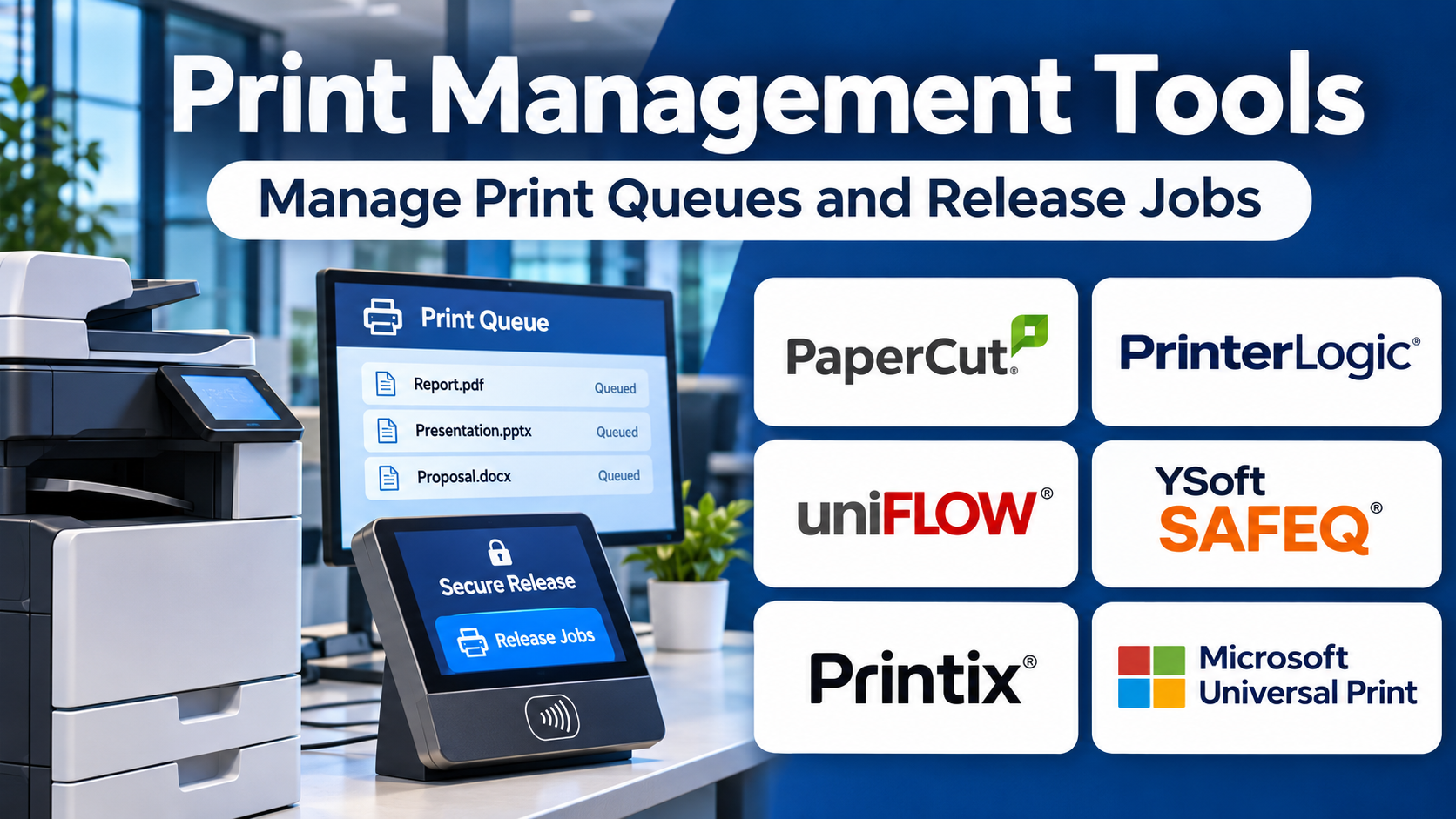
Print management tools help organizations control these processes.
They provide capabilities such as centralized printer administration, user authentication, secure print release, print job routing, quotas, cost allocation, reporting, and device monitoring.
Some platforms focus on security and accountability. Others simplify cloud printing, remove print servers, support remote workers, or provide specialized printing for educational environments.
A successful print management strategy must account for the organization’s existing printers, operating systems, identity infrastructure, network architecture, and security requirements.
The most feature-rich product is not necessarily the most suitable.
A small office may need simple cloud printing, while a university may require detailed student quotas and cost recovery. A multinational enterprise may prioritize secure release, regional availability, and centralized policy management.
This guide compares ten print management tools and explains how to select, deploy, and evaluate a reliable printing environment.
What Is Print Management Software?
Print management software is technology used to administer, control, monitor, and secure printing across an organization.
It can operate through local servers, cloud services, endpoint software, embedded printer applications, or combinations of these approaches.
Typical capabilities include:
- Printer discovery and administration.
- Print queue management.
- Driver deployment.
- User authentication.
- Secure print release.
- Follow-me printing.
- Printing quotas.
- Cost accounting.
- Departmental chargeback.
- Mobile and guest printing.
- Print policy enforcement.
- Print job routing.
- Device reporting.
- Print activity analytics.
- Document capture integration.
- Remote printing support.
Different products emphasize different capabilities.
Print Management vs. Printer Monitoring
Printer monitoring focuses on device conditions such as toner levels, errors, page counts, and availability.
Print management also governs who prints, where jobs go, how documents are released, and how usage is recorded.
Print Management vs. Managed Print Services
Managed print services are contracted services that may include hardware, supplies, maintenance, and software.
Print management software is the technology used to control printing.
An organization can purchase software independently or receive it through a managed service arrangement.
Print Management vs. Document Management
Document management systems organize electronic documents.
Print management systems control how documents are printed and, in some cases, scanned.
The categories may integrate, but they serve different primary purposes.
How Print Management Software Works
Step 1: Register Printers
Administrators identify the printers and multifunction devices used by the organization.
Step 2: Configure Connectivity
Printers are connected through supported local, cloud, or hybrid methods.
Step 3: Establish User Identity
Employees authenticate through supported accounts, directories, or identity providers.
Step 4: Define Print Policies
Administrators configure permissions, quotas, color restrictions, and other rules.
Step 5: Submit a Print Job
The user sends a document to an available print destination.
Step 6: Route or Hold the Job
The system processes the job according to the configured workflow.
Step 7: Authenticate at the Device
For secure release, the user confirms their identity at an authorized printer.
Step 8: Release the Document
The printer produces the approved output.
Step 9: Record Usage
The system captures relevant printing information for reporting.
Step 10: Review Performance
Administrators examine costs, errors, utilization, and policy effectiveness.
Benefits of Print Management Tools
Stronger Document Security
Secure release reduces the risk of confidential pages being left unattended.
Lower Printing Costs
Quotas and policy controls can reduce unnecessary printing.
Better IT Efficiency
Centralized administration can simplify printer deployment and troubleshooting.
Improved User Experience
Employees may be able to print from multiple locations without manually configuring every printer.
More Accurate Cost Allocation
Organizations can attribute printing activity to departments, projects, or accounts.
Better Environmental Management
Reduced waste can support resource conservation goals.
Improved Operational Visibility
Reporting can identify unusual printing patterns and underused devices.
These outcomes depend on device compatibility, user adoption, and appropriate configuration.
Essential Print Management Features
Secure Print Release
A document remains held until an authorized user releases it.
Follow-me Printing
Users submit jobs to a shared queue and release them at compatible devices.
Printer Deployment
IT teams can distribute printer configurations and drivers.
Authentication
Users may authenticate with credentials, cards, codes, or supported identity systems.
Quotas and Rules
Administrators can limit or influence printing behavior.
Reporting
The system records relevant volumes, costs, and activity.
Mobile Printing
Employees can print from supported mobile devices or remote locations.
Scan Workflows
Some products provide document capture and routing.
Cloud Architecture
Cloud-oriented products can reduce reliance on traditional print servers, although local connectors may still be required.
Top 10 Print Management Tools
1. PaperCut MF
Best For: Schools, universities, and organizations requiring detailed print control and secure release.
Overview
PaperCut MF is a print management platform designed for organizations operating multifunction printers and shared printing environments.
It provides capabilities for tracking, authentication, secure release, quotas, and reporting.
For example, a university may operate hundreds of printers across libraries, departments, and student facilities.
PaperCut MF can help administrators manage printing policies and understand usage across those locations.
Its embedded device integrations are relevant when users need to authenticate at multifunction printers.
However, organizations must confirm compatibility with their exact device models and firmware.
A mixed-brand fleet may require different embedded applications, configurations, or deployment procedures.
Key Features
- Secure Print Release: Holds documents until authorized collection.
- User Authentication: Associates activity with identifiable users.
- Print Tracking: Records relevant printing activity.
- Quotas: Controls printing allowances.
- Cost Allocation: Attributes usage to users or departments.
- Device Integration: Supports compatible multifunction printers.
- Print Policies: Applies relevant printing rules.
- Reporting: Provides usage and cost information.
- Scanning Workflows: Supports selected capture functions.
Benefits
PaperCut MF can help organizations reduce waste, improve accountability, and protect documents in shared printer environments.
Pros
- Comprehensive print governance.
- Strong educational use cases.
- Relevant secure release capabilities.
- Useful quotas and reporting.
- Broad multifunction device orientation.
- Suitable for cost recovery.
Cons
- Deployment requires technical planning.
- Device compatibility must be verified.
- Advanced configuration can be involved.
- Licensing depends on deployment.
- Administrators need ongoing maintenance procedures.
Practical Use Cases
University printing: Apply student quotas and monitor usage.
Corporate offices: Protect confidential output.
Professional services: Allocate printing costs.
Shared printer fleets: Standardize release policies.
Best For: Organizations prioritizing detailed print governance.
2. Vasion Print (PrinterLogic)
Best For: IT teams seeking to simplify printer deployment and reduce traditional print server dependence.
Overview
Vasion Print, associated with the PrinterLogic technology, focuses on modernizing printer management.
Its approach is particularly relevant to organizations with distributed printers and complex driver administration.
For example, a company with offices in several cities may rely on numerous Windows print servers.
Maintaining those servers and supporting employee printer connections can consume significant IT time.
Vasion Print can help centralize deployment and simplify the printing architecture.
However, serverless printing does not mean that every infrastructure dependency disappears.
Network routing, endpoint configuration, printer drivers, authentication, and security policies still require planning.
Key Features
- Centralized Printer Administration: Manages printer configurations.
- Serverless Printing Architecture: Reduces dependence on conventional print servers.
- Printer Deployment: Distributes relevant printer connections.
- Driver Management: Supports controlled driver installation.
- Self-service Printer Access: Helps employees locate printers.
- Secure Printing Options: Supports relevant protected workflows.
- Print Reporting: Provides activity information.
- Multi-location Management: Addresses distributed environments.
- Administrative Policies: Standardizes configuration.
Benefits
Vasion Print can simplify printer deployment and reduce administrative complexity in distributed organizations.
Pros
- Strong infrastructure modernization focus.
- Centralized administration.
- Useful for multi-site environments.
- Reduces conventional print server dependence.
- Supports self-service workflows.
Cons
- Migration requires careful planning.
- Endpoint compatibility must be tested.
- Network architecture remains important.
- Feature availability depends on configuration.
- Licensing requires direct evaluation.
Practical Use Cases
Distributed offices: Standardize printer access.
IT modernization: Replace legacy print server workflows.
Employee onboarding: Simplify printer installation.
Enterprise support: Reduce repetitive printer administration.
Best For: IT teams modernizing print infrastructure.
3. Printix
Best For: Organizations seeking cloud-oriented print management.
Overview
Printix is a cloud print management platform associated with modern workplace environments.
It is relevant to organizations that want to reduce reliance on conventional print server administration.
For example, a business using cloud identity services may want employees to access office printers without manually configuring complex server connections.
Printix can support centralized printer administration and relevant cloud printing workflows.
Its architecture is useful when an organization is transitioning toward cloud-managed endpoints.
However, buyers should examine local connectivity, offline behavior, and the exact identity integrations required.
Cloud administration does not remove the need to understand how print jobs move across the local network.
Key Features
- Cloud Administration: Manages relevant printer settings centrally.
- Printer Deployment: Distributes compatible printers to users.
- Print Queue Management: Coordinates supported jobs.
- Identity Integration: Connects relevant user accounts.
- Secure Printing: Supports selected protected release workflows.
- Multi-site Management: Addresses distributed printer environments.
- Client Software: Connects supported endpoints.
- Print Reporting: Provides usage visibility.
- Centralized Policies: Helps standardize printing behavior.
Benefits
Printix can help cloud-oriented organizations simplify printer administration.
Pros
- Cloud-focused management.
- Relevant modern identity integrations.
- Useful distributed deployment.
- Reduces traditional administration.
- Suitable for hybrid workplaces.
Cons
- Network behavior needs testing.
- Endpoint support must be verified.
- Advanced governance requirements may need additional evaluation.
- Subscription costs depend on deployment.
- Cloud connectivity introduces operational considerations.
Practical Use Cases
Cloud-managed offices: Centralize printer access.
Hybrid workplaces: Support changing device populations.
Multi-site businesses: Standardize print deployment.
IT simplification: Reduce manual printer setup.
Best For: Organizations prioritizing cloud-managed printing.
4. uniFLOW Online
Best For: Enterprises requiring secure cloud print and scan management.
Overview
uniFLOW Online is a cloud-oriented print and scan management platform associated with Canon’s document technology ecosystem.
It is relevant to organizations seeking secure print release, user accounting, and document capture workflows.
For example, a financial services company may need employees to authenticate before printing confidential documents.
The organization may also want scanned documents routed to approved destinations.
uniFLOW Online can support relevant print and scan processes.
Its value should be evaluated against the actual printer fleet.
Canon-focused organizations may find particular compatibility advantages, while mixed-vendor environments should confirm supported functionality device by device.
Key Features
- Secure Print Release: Protects unattended documents.
- User Authentication: Associates printing with authorized users.
- Cloud Print Management: Provides centralized administration.
- Print Accounting: Records relevant usage.
- Scan Workflows: Routes documents to supported destinations.
- Mobile Printing: Supports selected mobile workflows.
- Device Integration: Works with compatible multifunction printers.
- Reporting: Provides operational information.
- Administrative Policies: Controls relevant printing behavior.
Benefits
uniFLOW Online can combine print security and document capture within a managed environment.
Pros
- Strong print and scan integration.
- Relevant secure release.
- Cloud-oriented administration.
- Useful accounting.
- Appropriate for Canon-heavy fleets.
Cons
- Device compatibility must be confirmed.
- Advanced workflows require configuration.
- Licensing can be complex.
- Mixed-vendor support varies.
- Implementation may require specialist assistance.
Practical Use Cases
Financial offices: Secure confidential output.
Corporate departments: Manage scan destinations.
Multi-site printing: Apply common policies.
Canon environments: Integrate compatible devices.
Best For: Organizations needing coordinated print and scan management.
5. YSoft SAFEQ
Best For: Large organizations requiring enterprise print governance and document workflows.
Overview
YSoft SAFEQ is an enterprise platform for print management and related document processes.
It is relevant to organizations with substantial printer fleets and complex operational requirements.
For example, a multinational company may operate shared printers across several regions.
Administrators need to manage authentication, document release, reporting, and selected capture workflows.
YSoft SAFEQ can support these requirements through appropriate product configurations.
However, enterprises should carefully evaluate deployment architecture and regional support.
A successful rollout depends on compatibility, identity integration, user training, and consistent policies across locations.
Key Features
- Secure Printing: Supports controlled document release.
- User Authentication: Identifies authorized users.
- Print Accounting: Records relevant printing activity.
- Policy Management: Applies organizational rules.
- Document Capture: Supports selected scanning workflows.
- Workflow Automation: Routes relevant document processes.
- Reporting: Provides usage information.
- Enterprise Administration: Supports large deployments.
- Device Integration: Connects compatible printer fleets.
Benefits
YSoft SAFEQ can help large organizations standardize print security and document handling.
Pros
- Enterprise-oriented capabilities.
- Strong secure printing focus.
- Relevant capture workflows.
- Supports complex environments.
- Useful centralized governance.
Cons
- Implementation can be involved.
- Product editions differ.
- Integration testing is essential.
- Licensing requires detailed evaluation.
- May exceed smaller organizations’ needs.
Practical Use Cases
Enterprise campuses: Standardize printing policies.
Document-intensive departments: Coordinate print and scan.
Confidential environments: Apply secure release.
Multi-region organizations: Improve governance consistency.
Best For: Enterprises with complex print and capture requirements.
6. Pharos Cloud
Best For: Organizations emphasizing cloud print management, security, and usage analysis.
Overview
Pharos provides print management solutions with a strong orientation toward organizational printing control.
Pharos Cloud addresses cloud-managed print environments.
For example, a large educational institution may want to understand printing volumes across departments while improving the security of shared printers.
Pharos can support relevant printing and reporting workflows.
Its analytics orientation may help administrators identify opportunities to reduce unnecessary output.
However, reporting should be interpreted carefully.
High printing volume does not necessarily indicate waste. Some departments have legitimate document production requirements.
Key Features
- Cloud Print Administration: Supports centralized management.
- Secure Release: Helps protect printed documents.
- User Authentication: Associates jobs with authorized users.
- Usage Reporting: Provides print activity information.
- Print Analytics: Helps identify trends.
- Policy Controls: Supports relevant restrictions.
- Device Management: Coordinates compatible printers.
- Enterprise Deployment: Supports organizational scale.
- Cost Visibility: Helps examine printing expenditure.
Benefits
Pharos Cloud can help organizations combine print control with usage visibility.
Pros
- Cloud-oriented administration.
- Relevant secure printing.
- Strong reporting focus.
- Useful enterprise use cases.
- Supports cost visibility.
Cons
- Device compatibility needs confirmation.
- Analytics require appropriate interpretation.
- Subscription arrangements vary.
- Deployment architecture needs review.
- Advanced workflows may require configuration.
Practical Use Cases
Universities: Analyze printing demand.
Corporate offices: Improve secure release.
Multi-site organizations: Centralize policies.
Cost reduction projects: Identify printing patterns.
Best For: Organizations emphasizing print analytics and governance.
7. MyQ X
Best For: Organizations seeking personalized multifunction printer workflows and print control.
Overview
MyQ X is a print management platform that supports secure printing, scanning, and device-related workflows.
It is relevant to organizations seeking a consistent user experience across compatible multifunction devices.
For example, an office may want employees to authenticate at a printer and access familiar printing and scanning functions.
MyQ X can support relevant personalization and workflow capabilities.
This approach may simplify routine tasks for employees who frequently use shared multifunction printers.
However, organizations should confirm supported features for each device model.
The experience available on one printer may differ from another.
Key Features
- Secure Print Release: Holds documents for authorized collection.
- User Authentication: Supports relevant login methods.
- Personalized Interface: Presents suitable user workflows.
- Print Accounting: Tracks relevant usage.
- Scanning Workflows: Supports document routing.
- Device Integration: Connects compatible multifunction printers.
- Reporting: Provides operational information.
- Administrative Policies: Manages relevant rules.
- Workflow Automation: Simplifies selected repeated tasks.
Benefits
MyQ X can help organizations improve the usability and control of shared multifunction printers.
Pros
- Strong multifunction device orientation.
- Relevant personalized workflows.
- Secure printing capabilities.
- Useful scanning functions.
- Supports print accounting.
Cons
- Device compatibility varies.
- Advanced setup requires planning.
- Licensing depends on edition.
- Integration testing is necessary.
- May be excessive for simple printing environments.
Practical Use Cases
Corporate offices: Standardize printer interaction.
Administrative teams: Simplify repeated scanning.
Shared devices: Apply user authentication.
Cost centers: Monitor printing activity.
Best For: Organizations seeking controlled and user-friendly multifunction printing.
8. ezeep Blue
Best For: Small businesses, coworking spaces, and hybrid workplaces requiring accessible cloud printing.
Overview
ezeep Blue is a cloud printing platform designed to simplify printing from different devices and locations.
It is relevant to environments where users may not belong to a traditional corporate domain.
For example, a coworking space may provide printing access to members using personal laptops.
A cloud-oriented printing system can reduce the need for manual driver setup and complex local configurations.
ezeep Blue can support relevant shared printing workflows.
However, organizations requiring detailed departmental chargeback or extensive embedded multifunction device controls should compare more specialized platforms.
Key Features
- Cloud Printing: Supports printing through managed cloud workflows.
- User Access: Controls relevant printer availability.
- Mobile Printing: Supports selected mobile devices.
- Shared Printer Access: Provides printing for authorized users.
- Printer Administration: Manages compatible destinations.
- Remote Workflows: Supports distributed printing scenarios.
- Client Options: Connects relevant user devices.
- Usage Visibility: Provides selected printing information.
- Workspace Support: Addresses shared office environments.
Benefits
ezeep Blue can make printing easier for organizations with diverse devices and flexible work arrangements.
Pros
- Cloud-oriented approach.
- Relevant to coworking spaces.
- Supports mobile printing.
- Useful for flexible workplaces.
- Can reduce manual setup.
Cons
- Advanced accounting may be limited.
- Connectivity requirements need testing.
- Printer compatibility varies.
- Secure release capabilities should be assessed.
- Enterprise governance may require alternatives.
Practical Use Cases
Coworking spaces: Provide member printing.
Small businesses: Simplify printer access.
Hybrid offices: Support varied devices.
Guest printing: Offer controlled access where supported.
Best For: Flexible workplaces prioritizing convenient printing.
9. Microsoft Universal Print
Best For: Microsoft-oriented organizations seeking cloud-managed printer administration.
Overview
Microsoft Universal Print is a cloud printing service integrated with the Microsoft ecosystem.
It is relevant to organizations managing Windows devices and Microsoft cloud identities.
For example, an enterprise may want to make approved printers available to employees through centrally managed policies.
Universal Print can support cloud-managed printer registration and access.
Its integration with the Microsoft environment can simplify some aspects of printer deployment.
However, organizations should distinguish the service’s core capabilities from advanced secure release, accounting, or document capture features provided by specialized vendors.
Printer compatibility and connector requirements also need evaluation.
Key Features
- Cloud Printer Registration: Makes compatible printers available through the service.
- Central Administration: Manages printer access.
- Identity Integration: Uses relevant Microsoft identity capabilities.
- Printer Sharing: Assigns access to authorized users.
- Windows Integration: Supports compatible Windows environments.
- Print Queue Management: Coordinates supported print jobs.
- Administrative Policies: Controls relevant access.
- Connector Support: Addresses selected printers without native support.
- Usage Visibility: Provides relevant administrative information.
Benefits
Universal Print can simplify printer administration for organizations already using Microsoft cloud services.
Pros
- Strong Microsoft integration.
- Cloud-managed architecture.
- Relevant centralized access.
- Useful Windows workflows.
- Reduces some traditional infrastructure requirements.
Cons
- Advanced governance may require additional solutions.
- Licensing and usage allowances need verification.
- Printer support varies.
- Connector requirements may remain.
- Cross-platform needs should be tested.
Practical Use Cases
Microsoft 365 offices: Centralize printer access.
Windows device management: Simplify deployment.
Cloud modernization: Reduce selected server dependencies.
Distributed employees: Provide approved printers.
Best For: Microsoft-centered IT environments.
10. ThinPrint
Best For: Organizations managing printing in virtual desktop and remote application environments.
Overview
ThinPrint provides printing technology focused on enterprise environments, including remote desktop and virtual application workflows.
It is relevant where printing occurs across complex networks or centralized computing infrastructure.
For example, a company may provide applications through virtual desktops while employees print to local office devices.
Without appropriate management, printing can introduce driver problems, network overhead, and inconsistent user experiences.
ThinPrint addresses relevant printing requirements in these environments.
Its specialization distinguishes it from products focused primarily on print quotas or office printer accounting.
Organizations should evaluate it alongside their virtual desktop architecture and application delivery systems.
Key Features
- Virtual Desktop Printing: Supports relevant remote computing environments.
- Print Job Delivery: Manages printing across supported infrastructure.
- Driver Management: Reduces selected compatibility challenges.
- Network Optimization: Addresses print traffic requirements.
- Central Administration: Manages relevant printing configurations.
- Remote Printing: Supports distributed users.
- Enterprise Integration: Connects supported infrastructure.
- Printer Compatibility: Addresses varied device environments.
- Operational Reliability: Supports printing continuity within configured systems.
Benefits
ThinPrint can help organizations improve printing reliability in virtualized and remote application environments.
Pros
- Strong remote printing specialization.
- Relevant virtual desktop support.
- Addresses driver complexity.
- Useful enterprise infrastructure integration.
- Supports distributed environments.
Cons
- Not primarily a quota management platform.
- Requires technical deployment knowledge.
- Architecture compatibility must be verified.
- Licensing depends on environment.
- Simple offices may not need its specialization.
Practical Use Cases
Virtual desktop infrastructure: Support local printing.
Remote applications: Improve print delivery.
Distributed offices: Manage complex printing paths.
Enterprise modernization: Address driver and network challenges.
Best For: Organizations with specialized remote and virtual printing requirements.
Print Management Tools Comparison Table
| Platform | Primary Strength | Best For | Main Consideration |
|---|---|---|---|
| PaperCut MF | Print governance and quotas | Education and enterprise | Device integration |
| Vasion Print | Serverless administration | Distributed IT | Migration |
| Printix | Cloud print management | Modern offices | Connectivity |
| uniFLOW Online | Print and scan workflows | Canon-oriented environments | Licensing |
| YSoft SAFEQ | Enterprise governance | Large organizations | Complexity |
| Pharos Cloud | Analytics and secure printing | Enterprise and education | Architecture |
| MyQ X | Personalized multifunction workflows | Shared printer fleets | Compatibility |
| ezeep Blue | Accessible cloud printing | Coworking and SMBs | Advanced accounting |
| Universal Print | Microsoft cloud printing | Microsoft organizations | Feature scope |
| ThinPrint | Virtual desktop printing | VDI environments | Specialized deployment |
How to Choose Print Management Software
Step 1: Inventory the Printer Fleet
Document manufacturers, models, firmware, locations, and current usage.
Step 2: Identify Existing Infrastructure
Review print servers, network architecture, identity systems, and endpoint management.
Step 3: Define Security Requirements
Determine which documents require secure release and authenticated access.
Step 4: Evaluate Cost Accounting
Decide whether the organization needs simple reporting, quotas, departmental chargeback, or client billing.
Step 5: Review Device Compatibility
Test the exact printer models rather than relying on general vendor compatibility claims.
Step 6: Evaluate Deployment Architecture
Compare local, cloud, and hybrid requirements.
Step 7: Test User Authentication
Check supported identity providers, cards, PINs, and device login methods.
Step 8: Review Mobile and Guest Printing
Determine whether visitors and personal devices need controlled access.
Step 9: Evaluate Scanning
Identify whether document capture workflows are part of the project.
Step 10: Examine Reporting
Ensure administrators can retrieve the information required for operational decisions.
Step 11: Calculate Total Cost
Include software, licenses, device integrations, support, migration, and training.
Step 12: Test Failure Scenarios
Review printing behavior during connectivity interruptions or service outages.
Step 13: Conduct a Pilot
Select representative devices, departments, and user groups.
Step 14: Measure Results
Compare support requests, print waste, security incidents, and administrative effort.
Best Print Management Tools by User Type
| User Type | Suitable Platforms | Primary Requirement |
|---|---|---|
| Schools and universities | PaperCut MF, Pharos Cloud | Quotas and reporting |
| Distributed enterprises | Vasion Print | Printer administration |
| Cloud-oriented offices | Printix | Centralized deployment |
| Canon-heavy environments | uniFLOW Online | Print and scan |
| Large enterprises | YSoft SAFEQ | Governance |
| Shared multifunction fleets | MyQ X | Secure device workflows |
| Coworking spaces | ezeep Blue | Flexible user access |
| Microsoft organizations | Universal Print | Cloud printer access |
| VDI environments | ThinPrint | Remote printing reliability |
Practical Example: Modernizing Printing Across Five Offices
A company operates 120 printers across five offices.
IT staff maintain several print servers, and employees regularly report driver problems.
Confidential documents are sometimes left in shared output trays.
Step 1: Establish Baseline Metrics
Measure support tickets, printing volume, and infrastructure costs.
Step 2: Inventory Devices
Record printer models, firmware, and network connectivity.
Step 3: Identify Security Risks
Determine which departments print confidential material.
Step 4: Define Future Architecture
Compare centralized cloud management with the existing server-based approach.
Step 5: Select Candidate Tools
Evaluate PaperCut MF, Vasion Print, and Printix against the requirements.
Step 6: Test Device Compatibility
Include older printers and multifunction devices.
Step 7: Configure Authentication
Connect supported identity systems.
Step 8: Pilot Secure Release
Test confidential printing in a representative department.
Step 9: Test Driver Deployment
Measure how easily employees obtain approved printers.
Step 10: Validate Network Behavior
Review performance across office locations.
Step 11: Configure Reporting
Track usage and relevant cost information.
Step 12: Train Employees
Explain printer selection, authentication, and secure release.
Step 13: Migrate in Stages
Move departments gradually rather than replacing all workflows simultaneously.
Step 14: Monitor Problems
Review failed jobs, authentication errors, and support requests.
Step 15: Compare Results
Evaluate security improvements, administrative time, and printing costs.
Common Print Management Mistakes
- Ignoring printer compatibility: A platform must work with the actual fleet.
- Treating cloud printing as infrastructure-free: Local connectivity and devices still matter.
- Failing to enable secure release: Confidential pages may remain exposed.
- Using quotas without understanding business needs: Arbitrary restrictions can disrupt legitimate work.
- Overlooking scanning: Multifunction devices often support important document workflows.
- Ignoring guest printing: Visitors may require controlled access.
- Failing to test offline behavior: Connectivity interruptions can affect operations.
- Using inaccurate cost assumptions: Paper, toner, maintenance, and support all contribute.
- Skipping employee training: Authentication and release procedures may be unfamiliar.
- Assuming software alone establishes compliance: Organizational policies and verification remain necessary.
Frequently Asked Questions About Print Management Tools
1. What is print management software?
It controls and monitors organizational printing.
2. What is secure print release?
It holds a document until an authorized user releases it.
3. What is follow-me printing?
It allows users to release a job at a compatible printer.
4. What is print accounting?
It records printing activity for reporting or cost allocation.
5. What is a print quota?
It is a configured printing allowance or limit.
6. Can print management reduce waste?
It can help through reporting, policies, and secure release.
7. Can print management software eliminate print servers?
Some architectures reduce or remove traditional print server requirements.
8. Does cloud printing require internet access?
Requirements depend on the platform and local configuration.
9. What is a multifunction printer?
It combines functions such as printing, scanning, and copying.
10. Can print software manage scanning?
Some platforms provide document capture workflows.
11. Which platform is suitable for universities?
PaperCut MF and Pharos are relevant options.
12. Which tool focuses on serverless printing?
Vasion Print is a relevant option.
13. Which platform supports cloud print administration?
Printix is one option.
14. Which platform is associated with Canon environments?
uniFLOW Online is particularly relevant.
15. Which platform supports enterprise print governance?
YSoft SAFEQ is a relevant option.
16. Which product is useful for Microsoft environments?
Universal Print integrates with the Microsoft ecosystem.
17. Which tool is suitable for coworking spaces?
ezeep Blue addresses flexible printing.
18. Which product supports virtual desktop printing?
ThinPrint specializes in relevant workflows.
19. Can printing be restricted by department?
Many products support relevant policies or accounting.
20. Can organizations track color printing?
Several platforms provide relevant usage reporting.
21. Can employees print from smartphones?
Many solutions support selected mobile printing workflows.
22. Can visitors print securely?
Some platforms support guest printing with appropriate controls.
23. Does secure printing encrypt every document?
Not necessarily. Encryption and release controls must be evaluated separately.
24. What is a printer driver?
It is software that helps a computer communicate with a printer.
25. What is printer fleet management?
It is the administration of multiple printers across an organization.
26. Can print management support sustainability goals?
It can help identify and reduce unnecessary output.
27. How should printing costs be calculated?
Include consumables, equipment, maintenance, software, and support.
28. Can print management improve privacy?
Secure release and access controls can reduce certain exposure risks.
29. How should a print management pilot be conducted?
Test representative devices, users, locations, and failure scenarios.
30. What is the most important selection criterion?
Compatibility with the organization’s printers, security requirements, and operational architecture.
Final Thoughts
Print management tools help organizations improve printing security, reduce administrative work, and understand document output costs.
PaperCut MF supports detailed governance and cost control. Vasion Print focuses on modernizing printer administration, while Printix offers cloud-oriented management.
uniFLOW Online and YSoft SAFEQ combine printing with relevant document workflows.
Pharos Cloud emphasizes organizational control and reporting. MyQ X provides multifunction printer capabilities, while ezeep Blue supports flexible printing environments.
Microsoft Universal Print addresses cloud printing within Microsoft-oriented organizations, and ThinPrint serves specialized virtual desktop requirements.
The right choice depends on printer compatibility, identity infrastructure, security policies, deployment architecture, and total cost.
Organizations should test real printing scenarios before committing to a large deployment.
The goal is not simply to print fewer pages. It is to make necessary printing reliable, secure, manageable, and appropriately accountable.