Introduction
Personalized communication is an important part of modern business operations. Organizations regularly send invoices, appointment reminders, customer letters, certificates, invitations, sales messages, and other documents containing recipient-specific information.
Preparing these documents individually can be inefficient. Employees may repeatedly copy names, addresses, account numbers, and other information into templates. This process becomes difficult to manage when hundreds or thousands of recipients are involved.
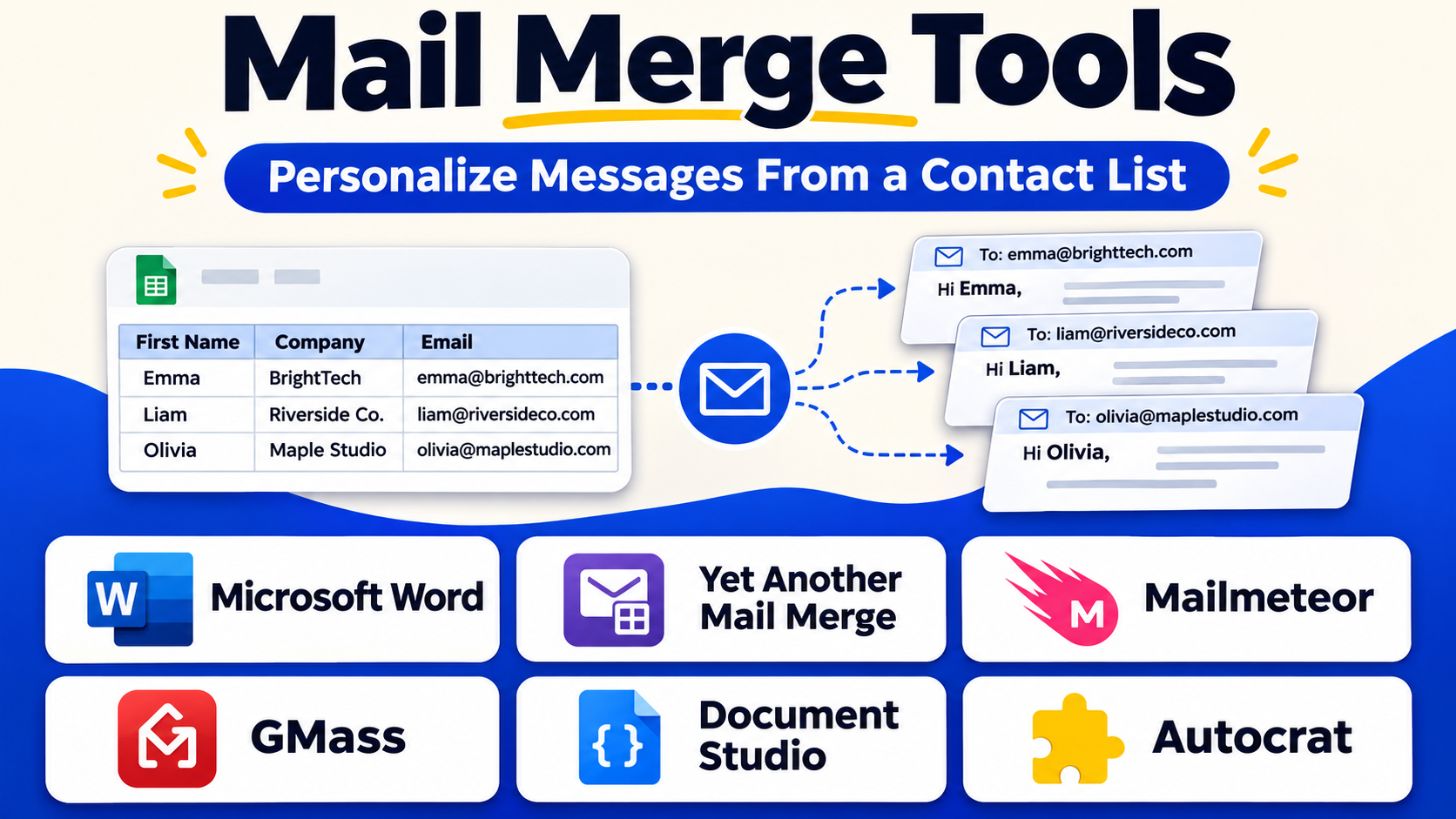
Mail merge tools solve this problem by combining reusable document templates with structured data. Instead of manually creating a separate document for each recipient, users can generate personalized letters, emails, PDFs, labels, and other outputs from a common source.
For example, a company can create one invoice reminder template and merge it with a spreadsheet containing customer names, invoice numbers, outstanding balances, and payment dates. The software then produces a personalized version for each customer.
Mail merge functionality is available in traditional office applications, cloud-based document tools, email personalization platforms, and specialized document automation products.
However, these tools are not interchangeable. Some are designed for printed letters and labels. Others specialize in personalized email campaigns, Google Workspace workflows, or automated PDF generation.
Choosing the right solution requires understanding the intended output, data source, personalization complexity, delivery method, and security requirements.
This guide compares ten established mail merge tools, explains their capabilities and limitations, and provides practical guidance for selecting and implementing an effective mail merge workflow.
What Are Mail Merge Tools?
Mail merge tools are software applications that combine a standard template with structured information to produce personalized documents or messages.
A mail merge workflow normally contains three essential elements: a template, a data source, and a merging process.
The template defines the content and layout. It may include ordinary text, images, tables, and placeholders for variable information.
The data source contains the information used to personalize each output. Common sources include spreadsheets, contact lists, databases, and CRM records.
The merging process reads the data and replaces placeholders with the appropriate values. The result may be a collection of letters, email messages, labels, certificates, or PDF documents.
How Mail Merge Works
Consider a school that needs to generate completion certificates for 300 students.
The administrator prepares one certificate template containing placeholders for student name, course name, and completion date.
A spreadsheet contains the corresponding information for every student.
The mail merge software reads each row and creates an individual certificate using the shared design.
This process eliminates the need to manually edit hundreds of certificates.
Common Applications of Mail Merge Tools
- Personalized business letters: Generate customer correspondence with recipient-specific details.
- Email outreach: Create personalized messages using contact information.
- Invoice generation: Produce documents containing account numbers, balances, and payment details.
- Certificates: Generate personalized completion, participation, or achievement certificates.
- Mailing labels: Print address labels from structured contact lists.
- Employee communication: Prepare onboarding letters and administrative notices.
- Event invitations: Generate personalized invitations and confirmation documents.
- Sales communication: Personalize approved outreach using CRM or spreadsheet data.
Top 10 Mail Merge Tools
The following tools represent document-oriented, email-oriented, and workflow-based mail merge solutions. Their order is not a universal ranking.
1. Microsoft Word Mail Merge
Overview
Microsoft Word includes built-in mail merge functionality that allows users to generate personalized letters, envelopes, labels, and other supported documents from structured recipient information.
It is one of the most familiar mail merge approaches for organizations already using Microsoft Office or Microsoft 365.
Users can create a document template in Word and connect it to a supported recipient list, such as an Excel workbook. Merge fields can then insert names, addresses, account details, and other values into the document.
Word is especially useful when document layout and print formatting are important. Businesses can create professional letters with consistent fonts, logos, tables, and page structures.
Its limitations become more apparent when organizations require complex workflow automation, cloud-native collaboration, or extensive integration with business applications.
Key Features
- Document templates: Create reusable personalized letters and documents.
- Excel integration: Use spreadsheet records as merge data.
- Merge fields: Insert recipient-specific information.
- Conditional rules: Apply supported conditional content logic.
- Mailing labels: Generate address labels from contact lists.
- Envelope preparation: Create personalized envelopes.
- Recipient filtering: Select relevant records for a merge.
- Preview functionality: Review merged content before production.
- Document output: Generate personalized documents for printing or further processing.
Benefits
Microsoft Word provides a familiar environment for employees who already prepare business documents.
Its formatting tools make it suitable for correspondence requiring consistent page layouts, branded headers, and printed output.
Pros
- Familiar interface for Microsoft Office users.
- Strong document formatting capabilities.
- Integrates with Excel recipient data.
- Supports letters, envelopes, and labels.
- Suitable for routine administrative workflows.
Cons
- Advanced automation may require additional tools.
- Large or complex data sources need careful preparation.
- Collaborative workflow management is limited.
- Email merge behavior depends on supported application configurations.
Use Cases
Customer correspondence: Generate personalized account letters.
Administrative notices: Prepare employee or customer notifications.
Mailing labels: Produce address labels from contact spreadsheets.
Best For: Office administrators, small businesses, educational institutions, and Microsoft Office users.
2. Yet Another Mail Merge (YAMM)
Overview
Yet Another Mail Merge is a Gmail and Google Sheets-oriented mail merge solution designed to help users send personalized email messages using spreadsheet data.
It is particularly relevant to teams already working in Google Workspace. Users can maintain recipient information in Google Sheets and create email content through supported Gmail workflows.
YAMM simplifies personalization for newsletters, announcements, invitations, and other approved email communications.
The platform is most appropriate for email-focused workflows rather than complex document composition or physical mailing labels.
Organizations should evaluate Gmail sending limits, subscription capabilities, recipient consent requirements, and campaign reporting needs before implementation.
Key Features
- Google Sheets integration: Use spreadsheet rows as recipient records.
- Gmail-based sending: Send personalized emails through supported Gmail workflows.
- Merge placeholders: Insert recipient-specific values.
- Email templates: Reuse prepared message content.
- Campaign tracking: Monitor available email activity information.
- Recipient management: Organize mailing data in spreadsheets.
- Personalized subject lines: Customize supported email fields.
- Campaign scheduling options: Coordinate sending through eligible features.
- Google Workspace compatibility: Work within supported Google applications.
Benefits
YAMM reduces the effort needed to send personalized emails from spreadsheet data.
Its familiar Google Workspace environment makes it accessible to users who do not need a full marketing automation platform.
Pros
- Works with Google Sheets and Gmail.
- Straightforward personalization workflow.
- Suitable for small campaigns and announcements.
- Requires limited technical knowledge.
- Supports reusable email templates.
Cons
- Focused primarily on email.
- Gmail sending limits still apply.
- Advanced marketing automation capabilities are limited.
- Spreadsheet data quality affects personalization.
Use Cases
Event invitations: Send personalized invitations to registered contacts.
School communication: Email individualized administrative announcements.
Business updates: Deliver approved messages to selected customers.
Best For: Google Workspace users, educators, small teams, and businesses needing spreadsheet-based email personalization.
3. Mailmeteor
Overview
Mailmeteor is an email mail merge and outreach platform that supports personalized communication through Gmail and related workflows.
It helps users create individualized messages using recipient information stored in supported data sources.
Mailmeteor is relevant to sales professionals, recruiters, educators, and small businesses that need more personalization than ordinary bulk email.
The platform also provides features for managing outreach and reviewing available engagement information, depending on the selected offering.
It should not be confused with a complete customer relationship management system or enterprise document generation platform.
Key Features
- Personalized email merge: Insert recipient data into email content.
- Gmail integration: Support Gmail-based sending workflows.
- Spreadsheet-based personalization: Use structured contact information.
- Email templates: Reuse common outreach messages.
- Campaign scheduling: Plan supported email sending activities.
- Email tracking: Review available engagement information.
- Follow-up workflows: Coordinate eligible follow-up sequences.
- Recipient segmentation: Organize communication by contact attributes.
- Outreach management: Monitor supported campaign activity.
Benefits
Mailmeteor can help teams personalize communication without writing every message individually.
It also supports more consistent outreach by encouraging reusable templates and structured contact information.
Pros
- Focuses on personalized email.
- Suitable for Gmail-oriented workflows.
- Supports reusable message templates.
- Useful for outreach and follow-ups.
- Accessible to nontechnical users.
Cons
- Not designed for complex printed document generation.
- Sending limits depend on connected services and plans.
- Email engagement tracking has technical limitations.
- Poor contact data can create personalization errors.
Use Cases
Recruitment outreach: Send personalized messages to selected candidates.
Sales prospecting: Prepare individualized introductory emails.
Professional networking: Coordinate relevant, permission-based communication.
Best For: Recruiters, sales professionals, freelancers, and small businesses.
4. GMass
Overview
GMass is an email campaign and mail merge tool that operates closely with Gmail.
It combines spreadsheet-based personalization with campaign management capabilities, making it relevant to organizations that want to coordinate larger email communication workflows.
Users can create personalized messages, manage recipient lists, and configure supported campaign features.
GMass is particularly useful for teams that prefer Gmail as their primary email environment but need functionality beyond ordinary one-to-one messaging.
However, organizations should review sending limits, deliverability practices, and applicable email marketing requirements.
Key Features
- Gmail integration: Manage supported campaigns through Gmail.
- Spreadsheet mail merge: Personalize messages using structured recipient data.
- Campaign scheduling: Plan email sending.
- Follow-up sequences: Configure supported automated follow-ups.
- Email personalization: Insert contact-specific information.
- Campaign reporting: Review available sending and engagement metrics.
- Recipient segmentation: Target selected groups.
- Template reuse: Standardize recurring messages.
- Campaign management: Coordinate multiple email communication activities.
Benefits
GMass can help businesses manage personalized email communication without introducing an entirely separate email interface.
Its campaign capabilities are useful when a team needs repeated outreach, scheduling, and performance visibility.
Pros
- Strong Gmail-centered workflow.
- Supports spreadsheet personalization.
- Useful for recurring email campaigns.
- Provides follow-up automation.
- Offers campaign reporting.
Cons
- Not intended for printed document mail merge.
- Gmail account and service limits remain relevant.
- Requires careful deliverability management.
- Campaign complexity can increase administration.
Use Cases
Sales outreach: Coordinate personalized business development campaigns.
Event follow-ups: Send tailored messages to event participants.
Customer communication: Deliver approved updates to segmented contact lists.
Best For: Sales teams, outreach professionals, and Gmail-based organizations.
5. Mail Merge Toolkit
Overview
Mail Merge Toolkit is an add-in for Microsoft Word and Outlook-oriented mail merge workflows.
It extends traditional Microsoft Office mail merge capabilities, particularly for users who need additional control over personalized email messages and attachments.
The software is relevant to organizations that already depend on Word templates and Outlook for correspondence.
It can help users prepare individualized messages while preserving familiar document creation workflows.
Compatibility with specific Office versions, mail configurations, and deployment environments should be checked before purchase.
Key Features
- Word mail merge extension: Enhance supported Microsoft Word merging workflows.
- Outlook integration: Support personalized email delivery through compatible configurations.
- Personalized attachments: Generate or attach recipient-specific files.
- Email format options: Support applicable message formatting.
- Merge field personalization: Insert recipient information.
- Document-based templates: Reuse Word content.
- Recipient data integration: Work with supported mail merge data sources.
- Batch message preparation: Coordinate multiple personalized messages.
Benefits
Mail Merge Toolkit can extend an existing Microsoft Office process without requiring an organization to replace its document preparation environment.
It is especially useful when individualized attachments or more flexible email merge options are required.
Pros
- Extends familiar Office workflows.
- Supports personalized email attachments.
- Useful for document-based correspondence.
- Integrates with compatible Outlook environments.
- Reduces manual preparation of individual messages.
Cons
- Depends on compatible Microsoft Office configurations.
- Not a cloud-native enterprise automation platform.
- Large campaigns require careful sending management.
- Installation and compatibility may need IT support.
Use Cases
Personalized statements: Send individualized documents as attachments.
HR communication: Distribute employee-specific letters.
Administrative correspondence: Extend Word and Outlook merge workflows.
Best For: Microsoft Office users needing enhanced email merge functionality.
6. Formstack Documents
Overview
Formstack Documents is a document generation platform that can create personalized files from structured data.
Unlike basic email merge tools, it focuses on producing documents through templates and connected workflows.
Organizations can use it to generate contracts, proposals, invoices, certificates, and other documents using information collected through forms or business applications.
The platform is relevant to teams that want document generation to occur automatically after a business event.
Its capabilities extend beyond traditional mail merge by supporting integrations and document workflow automation.
Key Features
- Document templates: Create reusable layouts.
- Data merging: Insert structured information into documents.
- Automated generation: Produce files from supported workflow triggers.
- Application integrations: Connect document creation with business systems.
- PDF generation: Create personalized PDF outputs.
- Conditional content: Apply supported template logic.
- Document delivery: Route generated files through configured workflows.
- Batch document processing: Generate multiple files from structured records.
- Workflow coordination: Connect document generation with related business tasks.
Benefits
Formstack Documents reduces repetitive document preparation and supports more consistent outputs.
It is especially valuable when documents must be generated repeatedly from form submissions, CRM records, or other structured information.
Pros
- Strong document generation focus.
- Supports automated workflows.
- Useful for PDF creation.
- Integrates with business applications.
- Suitable for recurring document processes.
Cons
- More extensive than necessary for simple email merge.
- Setup requires template and data mapping work.
- Advanced automation may increase subscription costs.
- Integration maintenance may be necessary.
Use Cases
Sales proposals: Generate personalized proposals from customer data.
Certificate generation: Produce certificates after approved course completion.
Customer onboarding: Create standardized documents from submitted information.
Best For: Operations teams, businesses with recurring documents, and workflow automation users.
7. Docupilot
Overview
Docupilot is a document automation platform designed to generate personalized documents from templates and structured information.
It supports workflows where businesses need to transform data into completed files without manually editing each document.
Organizations can use it to create invoices, contracts, reports, certificates, and other recurring documents.
Docupilot is especially relevant when document generation must connect with external applications through supported APIs or automation services.
Its document-oriented approach differs from email outreach tools that primarily personalize message bodies.
Key Features
- Template-based document generation: Create reusable document layouts.
- Data field mapping: Insert recipient and transaction information.
- PDF output: Generate completed PDF documents.
- API access: Trigger document generation programmatically.
- Automation integrations: Connect document creation with supported applications.
- Conditional content: Customize output according to defined data.
- Batch processing: Generate multiple personalized files.
- Document delivery workflows: Route completed documents through supported integrations.
- Structured data support: Use application-provided information for merging.
Benefits
Docupilot can reduce manual document editing and make recurring document generation more predictable.
It also supports software-driven workflows where a completed document must be created after a transaction or form submission.
Pros
- Focused on document automation.
- Supports API-driven workflows.
- Useful for recurring PDF generation.
- Integrates with automation platforms.
- Reduces manual document preparation.
Cons
- Requires careful template design.
- API workflows may need technical expertise.
- Not primarily an email marketing platform.
- Advanced use cases can require integration maintenance.
Use Cases
Invoice generation: Create personalized invoices from transaction data.
Legal document preparation: Generate standardized drafts for appropriate review.
Training certificates: Produce individualized certificates automatically.
Best For: Operations teams, developers, and businesses requiring automated document generation.
8. Document Studio
Overview
Document Studio is a Google Workspace-oriented document automation tool that helps users generate personalized documents and coordinate workflows using information from Google applications.
It is particularly useful for teams that collect information through Google Forms or maintain records in Google Sheets.
Users can create templates and populate them with spreadsheet or form data to produce individualized documents.
Document Studio can support administrative processes such as certificates, confirmations, invoices, and reports.
Its value comes from combining familiar Google Workspace tools with automated document generation.
Key Features
- Google Sheets integration: Use spreadsheet records as merge data.
- Google Forms workflows: Generate documents from supported form submissions.
- Document templates: Reuse standardized layouts.
- PDF generation: Create personalized PDF documents.
- Automated document creation: Trigger output through supported workflows.
- Email delivery: Send generated documents through eligible configurations.
- Personalized fields: Insert recipient-specific information.
- Google Drive integration: Organize generated documents in supported storage workflows.
- Workflow rules: Apply available automation conditions.
Benefits
Document Studio can help Google Workspace users automate document creation without adopting a completely separate document management environment.
It is particularly useful for administrative teams that already maintain structured information in spreadsheets and forms.
Pros
- Integrates with Google Workspace.
- Useful for form-driven document generation.
- Supports personalized PDFs.
- Reduces manual administrative work.
- Suitable for educational and office workflows.
Cons
- Primarily oriented toward Google-based workflows.
- Advanced document logic may require careful setup.
- Google service quotas can affect automation.
- Complex enterprise requirements may need additional tools.
Use Cases
School certificates: Generate certificates from student records.
Event registration: Create personalized confirmation documents.
Administrative reports: Produce standardized files from form responses.
Best For: Google Workspace users, educators, nonprofits, and administrative teams.
9. Autocrat
Overview
Autocrat is a Google Sheets add-on that helps users merge spreadsheet data into document templates.
It is commonly used for straightforward document generation tasks where recipient information is already organized in Google Sheets.
Users can map spreadsheet columns to template placeholders and generate personalized documents.
Autocrat is particularly useful for schools, small organizations, and administrative users who want a practical spreadsheet-driven document merge workflow.
It is less suitable for organizations requiring extensive enterprise governance, sophisticated document composition, or complex application integrations.
Key Features
- Google Sheets data merging: Use spreadsheet records for document generation.
- Template placeholders: Insert row-specific information.
- Google Docs integration: Generate documents from supported templates.
- PDF output: Produce personalized PDF files.
- Batch generation: Process multiple spreadsheet rows.
- Document naming: Apply configured naming conventions.
- Google Drive storage: Save generated files to supported destinations.
- Automated merge triggers: Initiate merges through available trigger options.
Benefits
Autocrat provides an accessible way to automate repetitive document creation from Google Sheets.
It can be especially effective for routine tasks where document layouts are simple and data sources are already structured.
Pros
- Works with Google Sheets.
- Suitable for straightforward document merging.
- Supports PDF generation.
- Accessible to nontechnical users.
- Useful for recurring administrative documents.
Cons
- Limited compared with enterprise document automation.
- Complex templates may be difficult to maintain.
- Depends on Google Workspace services and quotas.
- Support and compatibility should be verified before operational reliance.
Use Cases
Certificate generation: Produce certificates from a spreadsheet.
Administrative letters: Create personalized correspondence.
Event documents: Generate participant-specific files.
Best For: Educators, small organizations, and Google Sheets users.
10. Adobe Acrobat PDF Services API
Overview
Adobe Acrobat PDF Services API provides developer-oriented capabilities for creating and processing PDF documents through application workflows.
It is relevant to mail merge scenarios when businesses need to generate personalized PDFs from structured data and document templates.
Unlike conventional desktop mail merge applications, Adobe’s API approach is designed for integration into software systems.
Organizations can use supported document generation capabilities to create business documents programmatically and connect the resulting files with additional processing or delivery workflows.
This approach is particularly useful for developers building document automation into custom applications.
Key Features
- Document generation APIs: Create documents from supported templates and data.
- PDF creation: Produce standardized PDF outputs.
- Structured data merging: Insert application data into document templates.
- Automated processing: Generate documents through software workflows.
- PDF manipulation: Apply supported PDF processing operations.
- Application integration: Connect document generation with custom systems.
- Template reuse: Maintain consistent document layouts.
- Batch-oriented workflows: Support repeated document generation through application logic.
- Developer documentation: Provide resources for implementing supported APIs.
Benefits
Adobe Acrobat PDF Services API can help development teams incorporate document generation into existing applications.
It is useful when a business needs consistent PDF output and wants to automate document creation as part of a larger software process.
Pros
- Developer-oriented document automation.
- Supports programmatic PDF generation.
- Useful for custom application workflows.
- Enables reusable document templates.
- Supports integration with broader document processing.
Cons
- Requires development expertise.
- Not a ready-made email campaign platform.
- API usage and licensing need evaluation.
- Application teams must manage integration logic.
Use Cases
Automated reports: Generate personalized PDF reports from application data.
Customer statements: Create standardized account documents.
Enterprise applications: Integrate document generation into custom business software.
Best For: Developers, software companies, and organizations building custom document automation workflows.
Mail Merge Tools Comparison Table
| Software | Primary Output | Main Data Environment | Best For |
|---|---|---|---|
| Microsoft Word | Letters, labels, documents | Excel and supported data sources | Office administration |
| YAMM | Personalized emails | Google Sheets and Gmail | Google Workspace teams |
| Mailmeteor | Personalized emails | Gmail and supported contact data | Outreach professionals |
| GMass | Email campaigns | Gmail and spreadsheets | Sales and marketing |
| Mail Merge Toolkit | Emails and attachments | Microsoft Word and Outlook | Microsoft Office users |
| Formstack Documents | Documents and PDFs | Forms and business applications | Operations automation |
| Docupilot | Documents and PDFs | APIs and structured data | Automated document workflows |
| Document Studio | Documents and PDFs | Google Sheets and Forms | Google Workspace automation |
| Autocrat | Documents and PDFs | Google Sheets | Simple administrative merging |
| Adobe Acrobat PDF Services API | PDF documents | Application data and APIs | Developers |
How to Choose the Right Mail Merge Tool
1. Identify the Required Output
Start by determining what the merge process must produce.
If the goal is printed letters or address labels, a traditional document tool may be appropriate.
If the goal is personalized email, choose a platform designed for email delivery and campaign management.
If the organization needs automatically generated PDFs, evaluate document automation products.
2. Review Existing Software
Consider whether employees already use Microsoft 365, Google Workspace, a CRM system, or custom business applications.
Selecting a tool that fits the existing environment can reduce training and integration effort.
However, compatibility should not be the only deciding factor. The software must still support the required output and controls.
3. Evaluate Data Source Compatibility
Mail merge depends on structured data.
Determine whether the tool can read information from spreadsheets, databases, CRM records, forms, or APIs.
Check how it handles missing values, duplicate records, inconsistent date formats, and special characters.
4. Examine Template Complexity
Simple templates may require only names and addresses.
More complex documents may contain conditional paragraphs, calculations, repeating tables, images, and multiple pages.
Choose software that supports the actual document structure.
5. Consider Automation Requirements
Occasional mail merges may be performed manually.
Recurring workflows benefit from automation triggered by form submissions, scheduled jobs, transactions, or application events.
Evaluate whether the platform supports these triggers and provides reliable error handling.
6. Review Security and Privacy
Personalized documents may contain confidential customer or employee information.
Review data access, sharing permissions, document storage, retention, and deletion.
Generated files should be delivered only to authorized recipients.
7. Evaluate Sending Limits
Email mail merge tools are affected by provider sending policies and account limits.
Do not assume a mail merge add-on removes Gmail, Outlook, or other email service restrictions.
Consider consent, unsubscribe requirements, sender reputation, and deliverability.
8. Test Output Quality
Generate sample documents containing short names, long names, missing values, different dates, and unusual characters.
Check that content remains readable and formatting does not break.
9. Compare Total Costs
Evaluate subscription charges, usage limits, document generation volume, API requests, support, and implementation requirements.
A basic tool may be economical for occasional use but inefficient for complex recurring workflows.
10. Plan Ongoing Maintenance
Assign responsibility for templates, data sources, permissions, and workflow monitoring.
Review merge fields whenever the underlying spreadsheet or application changes.
Best Mail Merge Tools by User Type
| User Type | Suitable Tool to Evaluate | Main Reason |
|---|---|---|
| Office administrators | Microsoft Word | Familiar document merging |
| Google Workspace teams | YAMM | Spreadsheet-based personalized email |
| Recruiters | Mailmeteor | Personalized outreach |
| Sales teams | GMass | Gmail campaign workflows |
| Microsoft Outlook users | Mail Merge Toolkit | Enhanced Office mail merge |
| Operations teams | Formstack Documents | Automated document generation |
| Business automation teams | Docupilot | Template-driven PDF creation |
| Schools using Google Workspace | Document Studio | Forms and document automation |
| Small administrative teams | Autocrat | Straightforward spreadsheet merging |
| Software developers | Adobe Acrobat PDF Services API | Programmable document generation |
Practical Example: Generating 500 Personalized Training Certificates
Consider a training organization that needs to create completion certificates for 500 participants.
The administrator currently edits each certificate manually, changing the participant’s name, course title, and completion date.
This process takes considerable time and creates opportunities for spelling mistakes.
Step 1: Organize Participant Data
Create a spreadsheet containing one row per participant.
Include fields such as participant ID, full name, course title, completion date, and email address.
Step 2: Validate the Information
Check for duplicate records, missing names, incorrect dates, and inconsistent capitalization.
Confirm that each participant has completed the required course.
Step 3: Create a Certificate Template
Design a reusable certificate with the organization’s branding.
Add placeholders for participant name, course title, completion date, and certificate number.
Step 4: Select a Mail Merge Tool
Choose a document generation product compatible with the spreadsheet and required output format.
For a Google Workspace environment, Document Studio or Autocrat may be suitable candidates.
Step 5: Map the Fields
Connect each template placeholder to the correct spreadsheet column.
Verify that date and name formatting are appropriate.
Step 6: Generate Test Certificates
Create certificates for a small group of records.
Include participants with long names, multiple surnames, and special characters.
Review layout, spelling, and file names.
Step 7: Generate the Full Batch
Run the merge after approving the test output.
Use unique certificate identifiers and consistent file naming.
Step 8: Review and Distribute
Confirm that the number of generated certificates matches the number of eligible participants.
Distribute certificates through an approved process and restrict access to personal information.
Common Mistakes to Avoid
1. Using Inaccurate Recipient Data
Mail merge reproduces the information provided to it.
Incorrect names, addresses, or account values can affect every output.
Validate source data before merging.
2. Forgetting to Test Templates
A template that looks correct with one record may fail with longer values.
Test multiple realistic records.
3. Mixing Data Formats
Dates, currency values, and numbers may display incorrectly when data types are inconsistent.
Standardize formatting before generating documents.
4. Sending Emails Without Reviewing Recipients
A spreadsheet may contain outdated or unauthorized addresses.
Review recipient lists and applicable communication permissions.
5. Ignoring Email Sending Limits
Mail merge tools do not automatically bypass email provider restrictions.
Plan sending volume according to applicable service limits.
6. Exposing Confidential Information
Incorrect data mapping or document delivery can disclose sensitive information.
Test permissions and recipient-specific outputs carefully.
7. Overcomplicating Templates
Too many conditional fields and manual exceptions can make templates difficult to maintain.
Keep layouts as simple as the business requirements allow.
8. Failing to Monitor Automation
Automated workflows can fail when data sources, permissions, or templates change.
Review logs, output counts, and error notifications regularly.
Frequently Asked Questions
1. What is mail merge software?
Mail merge software combines a reusable template with structured data to create personalized documents or messages.
2. How does mail merge work?
The software reads recipient information from a data source and inserts corresponding values into template placeholders.
3. What is the best mail merge tool for Microsoft Word?
Microsoft Word’s built-in mail merge functionality is a practical starting point for traditional Office document workflows.
4. Can mail merge tools work with Excel?
Yes. Microsoft Word and other compatible tools can use Excel data for document personalization.
5. Can mail merge work with Google Sheets?
Yes. Tools such as YAMM, Document Studio, and Autocrat support Google Sheets-based workflows.
6. Can mail merge tools send personalized emails?
Yes. Several platforms specialize in generating and sending personalized email messages.
7. Can mail merge generate PDF files?
Yes. Document generation platforms can create personalized PDF outputs from templates and data.
8. What is the difference between mail merge and email marketing software?
Mail merge focuses on personalizing content from data, while email marketing software may include audience management, campaign automation, and broader marketing analytics.
9. Can mail merge create mailing labels?
Yes. Traditional document tools such as Microsoft Word support mailing label generation.
10. Can mail merge generate certificates?
Yes. It is commonly used to create personalized certificates from participant records.
11. Can mail merge generate invoices?
Yes. Suitable document generation tools can populate invoice templates using structured transaction data.
12. Does mail merge require programming?
Not always. Many desktop and cloud tools provide interfaces that require little or no programming.
13. Can developers automate mail merge?
Yes. API-based document generation platforms support programmable workflows.
14. Can mail merge use CRM data?
Some tools connect directly to CRM platforms or receive exported CRM information.
15. What are merge fields?
Merge fields are placeholders that identify where recipient-specific information should appear.
16. Can mail merge include conditional content?
Some products support conditional rules that change document content based on recipient data.
17. Can mail merge create personalized attachments?
Yes. Certain tools support recipient-specific document attachments.
18. Can mail merge send thousands of emails?
Some tools support large campaigns, but actual sending capacity depends on provider limits, account settings, and service plans.
19. Is mail merge suitable for confidential documents?
It can be, provided the workflow includes appropriate access controls, data handling, and delivery verification.
20. Can mail merge tools use templates?
Yes. Reusable templates are central to most mail merge workflows.
21. What data format is best for mail merge?
A structured table with clear column headings and one record per recipient is a common and practical approach.
22. Can mail merge automate document delivery?
Some platforms support automated email delivery, storage, or integration with external workflows.
23. What causes mail merge formatting errors?
Common causes include inconsistent source data, incorrect field mapping, unsupported formatting, and unusually long values.
24. How do businesses prevent duplicate mail merge messages?
They can validate recipient lists, use unique identifiers, and maintain appropriate processing records.
25. How should an organization select mail merge software?
It should compare output requirements, data compatibility, template complexity, automation, security, integration, and total cost.
Final Thoughts
Mail merge tools help organizations produce personalized communication efficiently and consistently.
They reduce repetitive document editing, support reusable templates, and make it easier to generate individualized messages from structured information.
Microsoft Word remains a practical option for traditional office correspondence. YAMM, Mailmeteor, and GMass are relevant for Gmail-oriented email personalization.
Mail Merge Toolkit extends Microsoft Office workflows, while Formstack Documents, Docupilot, Document Studio, and Autocrat support different approaches to automated document generation.
Adobe Acrobat PDF Services API is particularly relevant to development teams building personalized document generation into applications.
The right solution depends on whether the organization needs letters, emails, PDFs, certificates, labels, or fully automated document workflows.
Before implementation, teams should standardize their data, test representative outputs, review security requirements, and establish procedures for monitoring errors.
A well-designed mail merge process saves time while improving consistency, accuracy, and control over personalized business communication.