Introduction
Children use connected devices for school, entertainment, communication, and everyday learning. Those opportunities come with challenges that parents cannot solve simply by taking devices away.
Parental control software helps families establish boundaries around screen time, applications, websites, purchases, and certain online activities. Some products also provide location information or alerts about potentially concerning interactions.
However, installing more monitoring tools does not automatically make children safer.
The real challenge is finding controls that suit a child’s age, respect their growing independence, and work reliably across the devices they use.
This guide explains the different types of parental control software, where popular options fit, and how families can evaluate them without confusing monitoring with protection.
What Parental Control Software Does
Parental control software is a category of applications and device settings designed to help parents or guardians manage children’s digital experiences.
These controls generally fall into several groups.
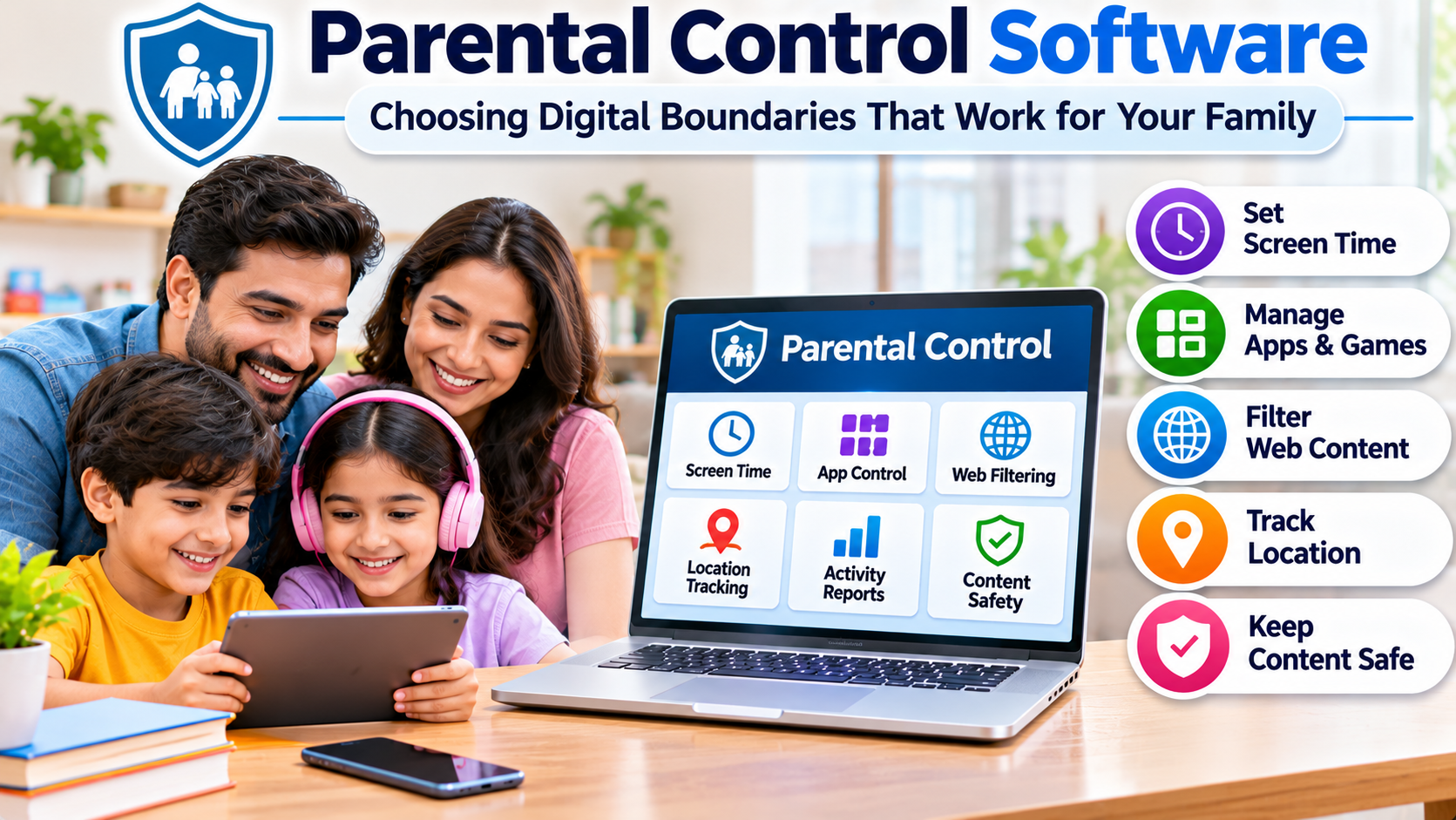
Screen time management limits device use during selected periods or places restrictions on particular applications.
Content filtering attempts to block websites or online material based on categories, age suitability, or specific addresses.
Application management allows parents to approve downloads, restrict purchases, or block selected apps.
Activity reporting provides information about device usage and, depending on the product, browsing or application activity.
Location features help authorized family members see a child’s device location or receive certain location-based notifications.
Not every product supports every feature, and capabilities can differ significantly between operating systems.
Start With the Problem, Not the Product
A family concerned about late-night gaming needs different controls from one worried about unsafe websites.
Similarly, a parent managing a young child’s first tablet has different priorities from someone supporting a teenager who uses multiple devices independently.
Choosing software becomes easier when the main concern is clearly defined.
Managing Screen Time
Screen time controls can help families establish predictable routines.
For example, a parent might allow educational applications during homework hours while restricting games until later.
A good system should support reasonable exceptions without forcing the parent to disable every restriction.
Managing Age-Appropriate Content
Content filtering can reduce exposure to certain categories of websites.
However, filters are imperfect. They may block useful educational material or fail to recognize harmful content inside an otherwise permitted platform.
Filtering should therefore complement conversations about online safety rather than replace them.
Managing Purchases and Downloads
Application approval controls are particularly useful for younger children.
They help parents review unfamiliar games, subscriptions, and applications before installation.
Purchase restrictions can also reduce accidental spending.
Supporting Independence
As children grow older, parental controls should evolve.
A teenager may benefit more from agreed screen time routines and targeted safety protections than extensive monitoring of every activity.
The software should support that transition.
Built-In Parental Controls Versus Third-Party Software
Many families already have useful controls available through their devices.
Apple, Google, and Microsoft provide parental management features within their respective ecosystems.
Third-party products may add cross-platform management, expanded reporting, or specialized monitoring.
The difference matters because paying for additional software is not always necessary.
Important Parental Control Software Options
| Software | Main focus | Practical consideration |
|---|---|---|
| Apple Screen Time | Device usage and family controls | Best aligned with Apple devices |
| Google Family Link | Supervision of supported Google and Android experiences | Capabilities vary by device and account |
| Microsoft Family Safety | Family management and supported Microsoft services | Review platform and browser limitations |
| Qustodio | Screen time, filtering, reporting, and monitoring | Features differ across platforms |
| Bark | Alerts concerning potentially risky digital activity | Supported services and access vary |
| Net Nanny | Web filtering and parental controls | Check current device compatibility |
| Norton Family | Supervision and web activity controls | Review browser and platform support |
These products represent different approaches, not a universal ranking.
Apple Screen Time
Apple Screen Time is a natural starting point for families using iPhones, iPads, and Macs.
It provides controls for device usage, content restrictions, communication settings, and application access.
Integration with Apple’s family features makes it practical for households already using that ecosystem.
The limitation is that it does not function as a universal management system for every competing device platform.
Google Family Link
Google Family Link helps parents supervise supported child accounts and Android devices.
Its capabilities include app management, screen time controls, and selected account supervision features.
It is especially relevant for families using Android phones and Google services.
Parents should check which features apply to their child’s device, account type, and age.
Microsoft Family Safety
Microsoft Family Safety provides family-oriented management features connected to supported Microsoft services and devices.
It can be useful when Windows computers and Microsoft accounts are central to a child’s digital routine.
However, families should confirm whether the particular websites, applications, and browsers they want to manage are supported.
Qustodio
Qustodio offers a broader parental control platform with web filtering, usage management, reports, and additional monitoring capabilities.
It may appeal to families that want one dashboard for several types of digital activity.
The trade-off is increased configuration and potentially more extensive collection of activity information.
Platform-specific feature differences deserve careful review before subscribing.
Bark
Bark focuses on identifying potentially concerning activity and notifying parents.
This approach differs from software designed primarily to restrict every application or website.
It may suit families that want alerts about selected risks rather than constant manual review.
The value depends on which communication platforms are supported and what information the product can actually access.
Why Operating System Compatibility Matters
A parental control feature advertised on a product’s website may not work identically on Android, iOS, Windows, and macOS.
Operating systems impose different restrictions on application permissions, background activity, message access, and device management.
As a result, one product may provide extensive monitoring on one platform but only limited controls on another.
Before purchasing, check the specific feature matrix for every device in the household.
A general claim of cross-platform compatibility is not enough.
Content Filtering Has Important Limitations
Internet filtering is useful, but parents should understand what it cannot guarantee.
A filtering system might block a website associated with adult material while allowing a general social platform containing mixed content.
Similarly, encrypted communication and application-specific behavior can limit what certain tools can inspect.
Filters can also produce false positives.
A child researching a legitimate health topic may encounter an unnecessary restriction.
Good parental controls should make it reasonably easy to review and correct such decisions.
Privacy Is Part of Child Safety
Parental monitoring tools may collect browsing history, device identifiers, location information, and other sensitive data.
Families should examine how this information is stored, shared, and retained.
Important questions include:
- What information does the software collect?
- Can parents limit unnecessary monitoring?
- Who can access the child’s information?
- Does the provider explain its data retention practices?
- Can stored information be deleted?
- Are accounts protected by strong authentication?
A product intended to improve safety should not introduce avoidable privacy risks.
The Difference Between Supervision and Surveillance
Parental controls work best when they support trust and clear expectations.
For younger children, close supervision may be appropriate because they have limited experience recognizing online risks.
Older children generally need increasing opportunities to make responsible decisions.
Secretly monitoring every interaction can undermine trust and discourage children from discussing problems.
Where appropriate, explain what the software does, why particular controls exist, and how those rules will change over time.
The objective should be safer participation in digital life, not permanent dependence on restrictions.
How to Set Up Parental Controls Effectively
Begin With Existing Device Settings
Review built-in protections before purchasing additional software.
These may already cover app downloads, spending, screen time, and age restrictions.
Create Clear Family Rules
Agree on expectations for bedtime, homework, gaming, and communication.
Software can enforce certain boundaries, but the rules themselves should be understandable.
Configure Only Necessary Restrictions
Avoid activating every monitoring feature by default.
Choose settings that address genuine concerns and match the child’s maturity.
Test the Controls
Check that restricted websites are blocked as expected and essential educational applications remain accessible.
Also verify that emergency communication is not unintentionally restricted.
Review Settings Regularly
Children’s needs change.
A reasonable setup for a primary-school student may be unnecessarily restrictive several years later.
Common Buying Mistakes
One mistake is choosing software based only on the number of advertised features.
A complicated dashboard provides little benefit when parents cannot configure it correctly.
Another mistake is assuming that monitoring every message guarantees protection.
Automated systems can miss important context and generate false alerts.
Families also sometimes overlook subscription renewal costs or compatibility restrictions.
Finally, software may be installed without explaining the rules to the child, creating unnecessary conflict.
The better approach is to identify a few meaningful goals and evaluate how reliably the software supports them.
Frequently Asked Questions
Is free parental control software enough?
For many families, built-in controls provide a useful starting point. Additional software may be worthwhile when specific requirements remain unmet.
Can parental control software block every inappropriate website?
No filtering system can guarantee complete protection. Content classification, encryption, and changing websites create limitations.
Can parents monitor every social media conversation?
Not necessarily. Monitoring depends on the platform, device, permissions, and supported integrations.
Should teenagers have parental controls?
That depends on their maturity, circumstances, and family agreements. Controls should generally become more transparent and proportionate as independence increases.
Does parental control software replace online safety education?
No. Children still need guidance about privacy, scams, bullying, inappropriate contact, and responsible communication.
Final Thoughts
Parental control software is most valuable when it supports thoughtful parenting rather than attempting to automate it.
Begin with built-in controls, identify the risks that matter most, and consider third-party products only when they offer a clear additional benefit.
Choose tools that work on the actual devices your family uses, protect sensitive information, and allow rules to evolve as children mature.
The strongest digital safety approach combines practical technology, open communication, and age-appropriate independence.