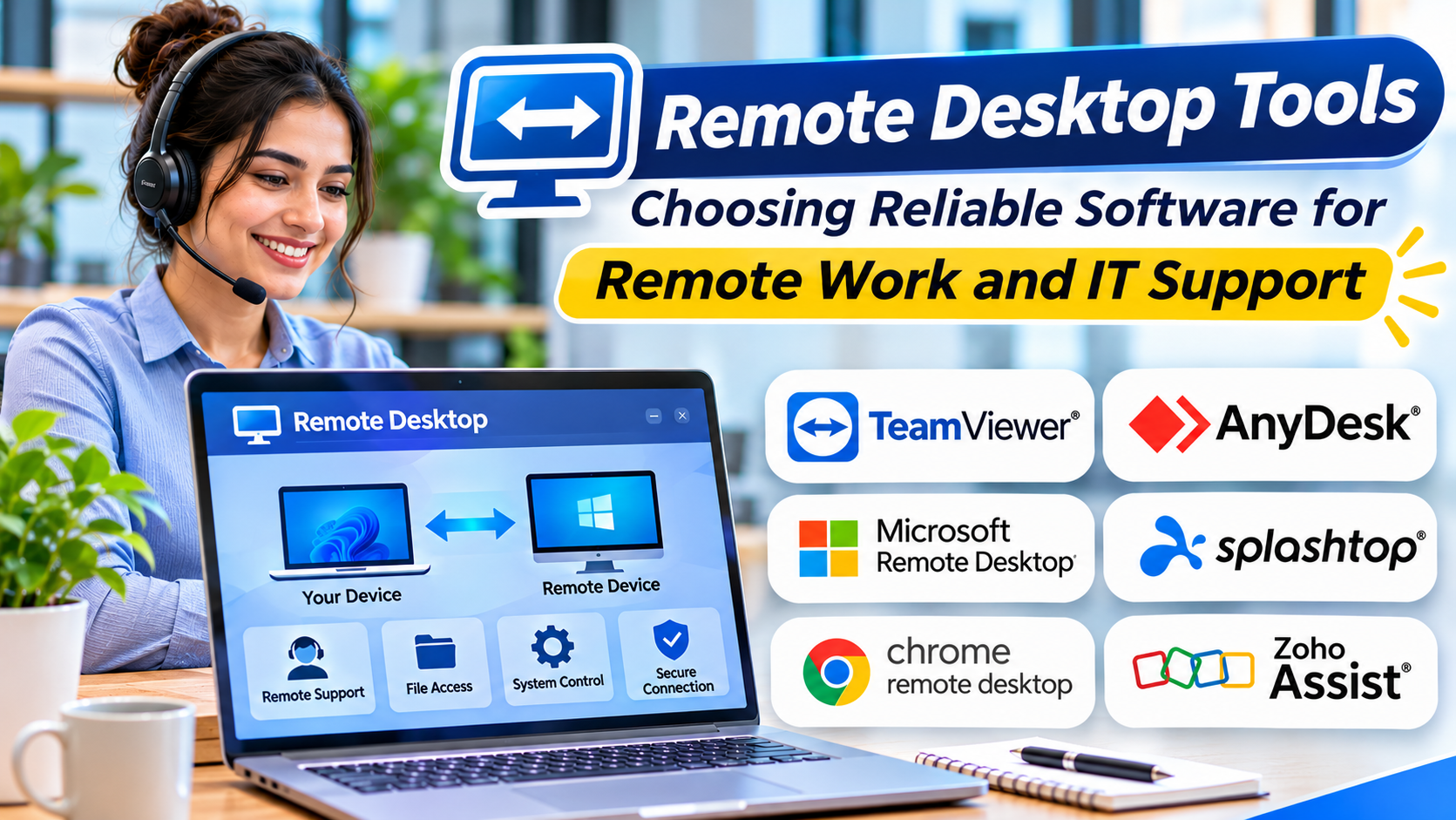
Remote desktop software allows people to interact with computers without being physically present.
An IT technician can investigate a workstation problem, an employee can access an office computer, and an administrator can manage a distant system.
These capabilities are valuable, but remote desktop products differ in performance, security, operating system support, and administration.
Some focus on attended technical support. Others emphasize unattended access or enterprise desktop delivery.
Understanding these differences helps organizations choose software that matches their actual requirements.
What Are Remote Desktop Tools?
Remote desktop tools allow a user to view or control another computer’s desktop through a network connection.
The remote computer processes applications and maintains its operating environment, while the connecting user interacts through a client interface.
Depending on the product, remote desktop software may provide:
- Screen viewing and control
- Keyboard and mouse interaction
- File transfer
- Clipboard synchronization
- Multi-monitor support
- Remote audio
- Session recording
- Unattended access
- Centralized device management
- Administrative access controls
Not every tool includes every capability.
Remote Desktop vs. Remote Access
Remote desktop is one form of remote access.
Remote access also includes VPN connections, secure application gateways, and private networking technologies.
Remote desktop software specifically focuses on interacting with a remote graphical environment.
For example, a network VPN may allow a user to reach an office computer, but a separate remote desktop protocol may be needed to control its screen.
Remote Desktop Tools Worth Considering
TeamViewer
TeamViewer provides remote desktop connectivity and support capabilities.
It is commonly used by IT teams assisting users across different locations.
Best suited for: Remote technical support and cross-platform device access.
Strengths:
- Remote control
- Attended support sessions
- Unattended access options
- Cross-platform connectivity
- Business administration features
Considerations: Organizations should review licensing terms and carefully configure remote access permissions.
AnyDesk
AnyDesk provides interactive remote desktop access.
It is relevant to businesses requiring remote support and access to managed computers.
Best suited for: IT support and general remote desktop workflows.
Strengths:
- Remote screen control
- Cross-platform availability
- Unattended access
- File transfer
- Administrative options
Considerations: Test connection quality under realistic network conditions and verify security settings.
Splashtop
Splashtop offers remote access and remote support solutions.
Its product range addresses both employees accessing work computers and technicians supporting devices.
Best suited for: Businesses needing dedicated remote desktop workflows.
Strengths:
- Remote workstation access
- Business support features
- Multi-device connectivity
- Administrative management
- Support for selected specialized workflows
Considerations: Capabilities differ between remote access and support offerings.
Chrome Remote Desktop
Chrome Remote Desktop provides a relatively straightforward way to access compatible computers remotely.
It is particularly useful for basic personal access and occasional support.
Best suited for: Individuals and small-scale remote desktop needs.
Strengths:
- Simple setup
- Browser-oriented access
- Support for common desktop environments
- Minimal configuration for basic use
Considerations: Organizations requiring advanced auditing, centralized administration, or complex support workflows may need more specialized software.
Microsoft Remote Desktop Protocol
Microsoft Remote Desktop Protocol, or RDP, enables remote graphical sessions with compatible Windows systems.
It is widely used in Windows administration and remote desktop environments.
Best suited for: Windows-based infrastructure and managed desktop access.
Strengths:
- Integration with supported Windows environments
- Remote graphical sessions
- Enterprise administration possibilities
- Compatibility with Windows remote desktop services
Considerations: RDP should not be exposed directly to untrusted networks without appropriate protective architecture.
Availability and licensing depend on the Windows edition and deployment model.
RustDesk
RustDesk is an open-source remote desktop solution with self-hosting options.
It is relevant to organizations seeking greater control over remote desktop infrastructure.
Best suited for: Technically capable teams interested in self-managed remote access.
Strengths:
- Open-source ecosystem
- Remote desktop functionality
- Self-hosting options
- Cross-platform support
- Flexible deployment
Considerations: Self-managed deployments require security administration, updates, and infrastructure maintenance.
Remote Desktop Software Comparison
| Tool | Primary strength | Suitable environment | Key consideration |
|---|---|---|---|
| TeamViewer | Remote support | IT service teams | Commercial licensing |
| AnyDesk | Remote device control | Support and administration | Security configuration |
| Splashtop | Business remote access | Employees and technicians | Product-specific features |
| Chrome Remote Desktop | Simple remote access | Individuals and small teams | Limited enterprise management |
| Microsoft RDP | Windows integration | Windows infrastructure | Secure network architecture |
| RustDesk | Self-hosting flexibility | Technical teams | Operational responsibility |
Features That Affect the User Experience
Connection performance
Remote desktop quality depends on latency, available bandwidth, encoding, and the remote system’s performance.
A product that works well over a local network may behave differently over a slow internet connection.
Test typical business applications rather than relying only on connection speed claims.
Multi-monitor support
Employees using several displays may need to switch between remote monitors or display them together.
Support varies by product and platform.
File transfer
Built-in file transfer can simplify support and administration.
However, organizations should determine whether users are permitted to move information between local and remote devices.
Unattended access
Unattended access allows authorized users to connect without someone approving each session at the remote computer.
It is useful for managed devices but requires stronger access controls.
Session auditing
Some organizations need records of remote support activity.
Evaluate connection logs, administrator reporting, and session recording where appropriate.
Recording should follow applicable privacy and workplace policies.
Remote Desktop Security Best Practices
Remote desktop access can provide substantial control over a computer.
Organizations should therefore protect it as a privileged capability.
Use multifactor authentication where supported.
Restrict unattended access to authorized accounts and devices.
Apply least-privilege permissions.
Keep remote desktop applications and operating systems updated.
Avoid exposing remote desktop services directly to the public internet without appropriate security controls.
For sensitive environments, consider secure gateways, private network connectivity, and monitored administrative access.
Choosing Remote Desktop Software
Begin with the main use case.
An IT help desk assisting employees may prioritize attended sessions, support queues, and technician management.
An employee accessing an office workstation may prioritize performance, reliability, and multi-monitor support.
A Windows administrator may prefer native remote desktop capabilities within a controlled network.
A technical organization seeking self-hosting may evaluate RustDesk.
During testing, measure connection quality and verify that security policies work as intended.
Also assess how easily administrators can remove access when a device is lost or an employee leaves.
Common Mistakes
A frequent mistake is allowing permanent unattended access without regular permission reviews.
Another is treating remote desktop software as a replacement for endpoint security.
Remote desktop applications provide connectivity, but they do not automatically protect the underlying operating system.
Organizations should also avoid relying on one remote access method without a recovery plan.
If the remote desktop service fails, administrators may need an alternative way to reach critical infrastructure.
Final Thoughts
Remote desktop tools make technical support, administration, and remote work more practical.
TeamViewer, AnyDesk, and Splashtop provide business-oriented remote control capabilities.
Chrome Remote Desktop serves simpler requirements, while Microsoft RDP fits many Windows environments.
RustDesk provides an alternative for teams seeking self-hosted remote desktop infrastructure.
The best solution balances connection quality, administrative control, security, and operating cost.
A reliable remote desktop deployment should make access convenient for authorized users and difficult for everyone else.