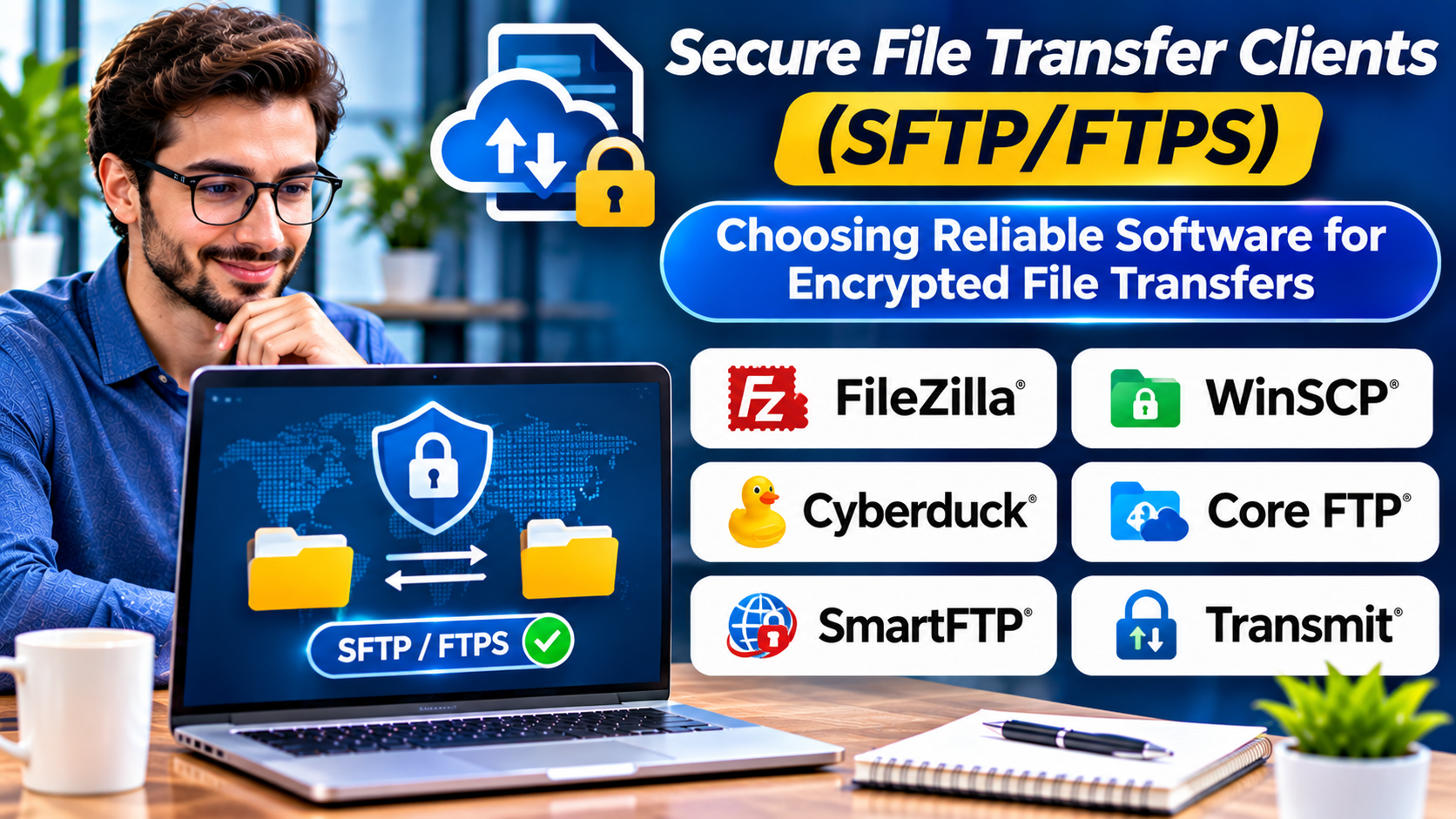
Transferring files between computers and servers is a routine task for developers, system administrators, website managers, and business users.
However, transferring sensitive information over an insecure connection can expose credentials and data to interception.
Secure file transfer clients help users exchange files through encrypted protocols such as SFTP and FTPS.
Although many applications perform similar basic tasks, they differ in security features, automation support, operating system compatibility, and ease of use.
Choosing the right client requires understanding both the transfer protocol and the workflow it needs to support.
What Are Secure File Transfer Clients?
Secure file transfer clients are applications that connect to compatible remote servers and transfer files using supported secure protocols.
They typically provide a graphical interface or command-line tools for uploading, downloading, organizing, and managing remote files.
Common use cases include:
- Website file management
- Server administration
- Application deployment
- Secure document exchange
- Backup file transfers
- Remote directory management
- Automated file delivery
- Development and testing workflows
Some clients focus on simplicity, while others provide advanced scripting and synchronization capabilities.
SFTP vs. FTPS: Understanding the Difference
SFTP and FTPS both support secure file transfer, but they use different underlying technologies.
SFTP
SFTP stands for SSH File Transfer Protocol.
It operates over SSH and provides encrypted file transfer and remote file operations.
SFTP commonly uses TCP port 22, although servers can be configured differently.
It supports authentication methods such as passwords and SSH public keys.
FTPS
FTPS refers to FTP secured with TLS.
It adds encryption to the traditional FTP protocol.
FTPS can use explicit or implicit TLS configurations, depending on the server.
Because FTP uses separate control and data connections, FTPS may require additional network and firewall configuration.
Key differences
| Feature | SFTP | FTPS |
|---|---|---|
| Underlying technology | SSH | FTP with TLS |
| Common authentication | Passwords and SSH keys | Passwords and TLS certificates, depending on setup |
| Typical network setup | Usually one connection | Separate control and data connections |
| Common default port | 22 | 21 for explicit FTPS |
| Encryption | Through SSH | Through TLS |
| Typical use | Server administration and secure transfers | Environments using FTP-based infrastructure |
Neither protocol is automatically appropriate for every environment.
The correct choice depends on server compatibility, organizational policies, authentication requirements, and operational constraints.
Secure File Transfer Clients Worth Considering
FileZilla Client
FileZilla Client is a widely used file transfer application supporting FTP, FTPS, and SFTP.
It provides a graphical interface for connecting to remote servers and managing files.
Best suited for: Users seeking a familiar graphical file transfer client.
Strengths:
- Support for common file transfer protocols
- Cross-platform availability
- Graphical file management
- Transfer queues
- Site connection management
Considerations: Users should download the software from trusted official sources and review installer options carefully.
Advanced automation requirements may be better served by dedicated scripting tools.
WinSCP
WinSCP is a Windows file transfer client supporting SFTP, SCP, FTP, FTPS, and other supported protocols.
It combines graphical file management with scripting and automation features.
Best suited for: Windows administrators and users who need secure transfer automation.
Strengths:
- Multiple secure transfer protocols
- Graphical file management
- Scripting support
- Directory synchronization
- Integration with Windows workflows
Considerations: WinSCP is primarily designed for Windows.
Its advanced features may require some technical knowledge.
Cyberduck
Cyberduck is a file transfer client available for macOS and Windows.
It supports several remote file access protocols and cloud storage services.
Best suited for: Users managing files across remote servers and supported cloud services.
Strengths:
- Graphical interface
- SFTP and FTPS support
- Integration with supported cloud storage services
- Bookmark management
- Remote file access
Considerations: Users should verify support for their preferred storage provider and authentication method.
Transmit
Transmit is a macOS file transfer application developed by Panic.
It provides a polished interface for working with remote servers and supported cloud storage services.
Best suited for: Mac users who frequently manage remote files.
Strengths:
- macOS-focused interface
- SFTP and FTPS support
- Remote file management
- Synchronization features
- Support for selected cloud services
Considerations: Transmit is commercial software and is designed for macOS.
Organizations should assess whether its workflow benefits justify the licensing cost.
OpenSSH SFTP
OpenSSH includes command-line tools for secure remote access and file transfer.
Its SFTP client is useful for users who prefer terminal-based workflows.
Best suited for: Developers, Linux administrators, and automation-focused teams.
Strengths:
- SSH-based security
- Command-line operation
- Key-based authentication
- Availability across many operating systems
- Integration with technical workflows
Considerations: Command-line usage requires familiarity with remote paths, permissions, and authentication.
The interactive SFTP client is not a complete enterprise transfer automation platform.
lftp
lftp is a command-line file transfer program supporting multiple protocols, including FTP, FTPS, and SFTP through supported configurations.
It provides advanced transfer and scripting capabilities.
Best suited for: Technical users managing repeatable file transfer operations.
Strengths:
- Command-line automation
- Mirroring capabilities
- Transfer scripting
- Retry and transfer management
- Support for multiple protocols
Considerations: Configuration and security settings require careful attention.
It is less suitable for users who prefer a simple graphical interface.
Secure File Transfer Client Comparison
| Client | Main platform | Protocol focus | Best use case |
|---|---|---|---|
| FileZilla Client | Windows, macOS, Linux | FTP, FTPS, SFTP | General file transfers |
| WinSCP | Windows | SFTP, SCP, FTPS and others | Administration and automation |
| Cyberduck | macOS, Windows | SFTP, FTPS, cloud services | Remote file management |
| Transmit | macOS | SFTP, FTPS, cloud services | Mac-based workflows |
| OpenSSH SFTP | Multiple operating systems | SFTP | Command-line transfers |
| lftp | Unix-like environments | FTP, FTPS, SFTP and others | Scripted transfers |
The best client depends on the operating system, server configuration, and required level of automation.
Essential Features to Evaluate
Secure authentication
A file transfer client should support authentication methods compatible with the target server.
For SFTP, SSH key-based authentication is commonly used in managed environments.
Users should also verify server host keys rather than accepting unknown identities without inspection.
Transfer reliability
Large transfers can fail because of network interruptions or server limitations.
Useful clients provide transfer queues, retry handling, and resume functionality where supported.
Directory synchronization
Synchronization helps keep local and remote directories consistent.
However, synchronization rules must be configured carefully.
An incorrect mirror operation can overwrite or delete important files.
File integrity
For sensitive workflows, organizations may need to verify that transferred files match their source copies.
This can involve checksums, application-level validation, or other integrity controls.
Encrypted transport alone does not prove that the intended business file was transferred correctly.
Automation support
Technical teams often need scheduled or scripted transfers.
Evaluate whether the client supports command-line operation, scripting, logging, and predictable error handling.
Usability
A graphical interface may be appropriate for occasional users.
Administrators managing hundreds of transfers may benefit more from automation and centralized configuration.
How to Choose Between SFTP and FTPS Clients
Begin by checking which protocols the remote server supports.
If the server requires SFTP, an FTPS-only client will not work.
Next, review the authentication requirements.
Some environments require SSH keys, while others rely on certificates or specific authentication arrangements.
Then evaluate the operating system.
Windows administrators may prefer WinSCP, while Mac users may consider Cyberduck or Transmit.
Cross-platform users can evaluate FileZilla Client.
For command-line workflows, OpenSSH SFTP and lftp provide useful alternatives.
Finally, test real transfers before adopting the software.
Security Best Practices
Verify server identity
SFTP clients should verify the server’s SSH host key.
FTPS clients should validate the server’s TLS certificate.
Ignoring identity warnings can expose users to interception risks.
Protect credentials
Avoid sharing accounts between multiple users.
Use strong authentication and secure credential storage.
SSH private keys should be protected with appropriate permissions and passphrases where practical.
Restrict server access
Transfer accounts should receive only the permissions required for their tasks.
A user who only uploads reports should not automatically receive broad access to unrelated server directories.
Keep software updated
File transfer clients and servers should receive security updates.
Organizations should monitor supported versions and remove outdated software.
Maintain transfer records
For business-critical transfers, record important operational details.
Logs can help administrators investigate failed transfers and unexpected activity.
Common File Transfer Mistakes
One common mistake is confusing SFTP with FTPS.
Although both provide encrypted transfers, they are different protocols and are not interchangeable.
Another mistake is accepting unknown server certificates or host keys without verification.
Users may also accidentally overwrite production files when synchronization settings are incorrect.
Organizations should avoid storing sensitive credentials in unprotected scripts or configuration files.
Finally, successful file transfer does not automatically mean that the destination application has processed the file correctly.
Important workflows should verify both delivery and subsequent processing.
When a Basic Client Is Not Enough
A secure file transfer client is appropriate when users need to connect to servers and exchange files.
However, organizations managing many automated transfers may need additional capabilities.
These can include centralized scheduling, partner administration, audit reporting, workflow orchestration, and operational monitoring.
In such cases, a managed file transfer platform may be more appropriate.
Basic SFTP clients and enterprise MFT systems solve related but different problems.
Final Thoughts
Secure file transfer clients remain essential tools for moving information between systems.
FileZilla Client provides an accessible cross-platform option, while WinSCP combines Windows file management with automation capabilities.
Cyberduck and Transmit serve users working with remote servers and cloud services, particularly on macOS.
OpenSSH SFTP and lftp provide flexible options for technically experienced users.
The right choice depends on protocol compatibility, authentication requirements, operating system support, and transfer complexity.
Above all, secure file transfer requires more than choosing an encrypted protocol. Reliable configuration, identity verification, controlled permissions, and careful operational practices are equally important.