Introduction
Video content must work across a wide range of devices, browsers, networks, and streaming platforms.
A video recorded with professional equipment may use a format unsuitable for direct web playback. A high-resolution file may consume too much bandwidth for mobile viewers. A streaming platform may need several versions of the same video to provide reliable playback under changing network conditions.
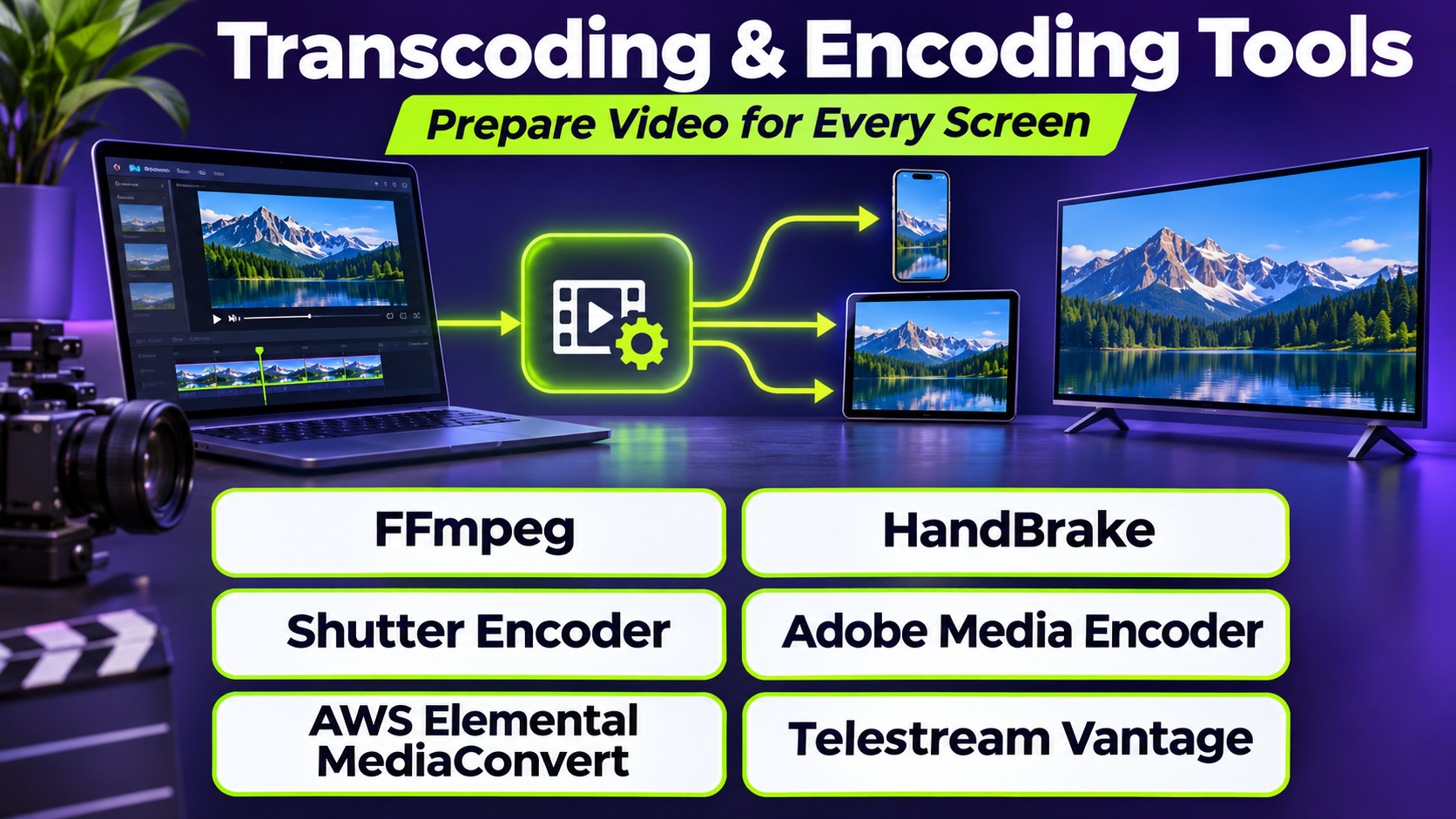
Transcoding and encoding tools solve these problems by preparing media for specific delivery and storage requirements.
These tools can convert video formats, compress files, adjust resolutions, modify bitrates, and create outputs compatible with streaming services.
Some applications provide simple desktop interfaces for individual users. Others offer command-line automation, professional production workflows, or cloud-based processing at scale.
Selecting the right tool requires understanding video quality, codec compatibility, processing performance, automation requirements, and operating costs.
This guide compares ten established transcoding and encoding solutions and explains how to select software for personal, professional, and enterprise video workflows.
What Are Transcoding & Encoding Tools?
Transcoding and encoding tools are software applications or services used to transform digital media into formats suitable for storage, editing, playback, or distribution.
Although encoding and transcoding are closely related, they describe different operations.
What Is Video Encoding?
Video encoding converts raw or minimally processed video into a compressed digital representation using a codec.
A codec is a method used to compress and decompress audio or video.
Common video codecs include H.264/AVC, H.265/HEVC, AV1, and VP9.
Encoding settings influence file size, image quality, compatibility, and processing time.
What Is Video Transcoding?
Transcoding converts already encoded media into another encoded representation.
For example, a video stored in HEVC may be converted into H.264 to support a wider range of playback devices.
Transcoding can also change resolution, bitrate, frame rate, audio format, or other technical characteristics.
Encoding vs. Transcoding vs. Transmuxing
| Process | Primary Function | Example |
|---|---|---|
| Encoding | Compresses source media | Raw video to H.264 |
| Transcoding | Converts encoded media | HEVC to H.264 |
| Transmuxing | Changes container or packaging without re-encoding streams | Compatible MP4 media into another container |
| Transrating | Changes bitrate | High-bitrate video to lower bitrate |
| Transsizing | Changes resolution | 4K video to 1080p |
These operations may appear together within a single media-processing pipeline.
Why Encoding Tools Matter
Effective encoding helps organizations reduce bandwidth consumption, improve playback compatibility, manage storage requirements, and deliver consistent video quality.
However, aggressive compression can damage visual quality, while inefficient encoding can increase infrastructure costs.
The goal is to achieve an appropriate balance between quality, compatibility, performance, and file size.
Top 10 Transcoding & Encoding Tools
1. FFmpeg
Best For: Developers, media engineers, automation pipelines, and advanced video processing.
Short Description
FFmpeg is an open-source multimedia framework widely used for processing video, audio, and related media formats.
It provides command-line tools and libraries for encoding, decoding, transcoding, filtering, streaming, and media inspection.
Developers frequently use FFmpeg as a foundation for automated video-processing systems because it supports extensive configuration and scripting.
The software can process individual files or operate as part of larger workflows involving uploads, storage services, content management systems, and streaming infrastructure.
FFmpeg’s flexibility makes it suitable for many professional and technical use cases, although its command-line interface and numerous options can be challenging for beginners.
Key Features
- Broad codec support: Works with numerous video and audio encoding formats.
- Command-line processing: Enables precise control over media transformations.
- Batch automation: Supports scripted processing of large media collections.
- Video filtering: Provides resizing, cropping, overlays, and other transformations.
- Audio processing: Supports conversion, mixing, and related operations.
- Hardware acceleration: Can use supported GPUs and hardware encoders.
- Streaming capabilities: Processes media for compatible streaming workflows.
- Media inspection: Uses companion tools to examine technical file properties.
- Cross-platform support: Runs on major operating systems and server environments.
Benefits
FFmpeg provides exceptional flexibility for media-processing tasks.
Its automation capabilities make it useful for organizations processing large numbers of files.
The open-source model also allows developers to integrate media processing into custom applications without relying exclusively on commercial cloud services.
Pros
- Free and open-source.
- Extensive codec and format support.
- Highly configurable.
- Suitable for automation.
- Strong developer ecosystem.
- Supports hardware acceleration.
Cons
- Steep learning curve.
- Command syntax can become complex.
- No comprehensive built-in graphical interface.
- Processing performance depends on hardware and configuration.
- Codec licensing considerations may apply to some deployment scenarios.
Use Cases
Automated publishing: Convert uploaded videos into standardized formats.
Streaming preparation: Generate multiple resolutions and bitrates.
Media archives: Convert older formats into more accessible representations.
Developer applications: Integrate encoding into custom software pipelines.
Best Suited For
Developers, video engineers, and organizations requiring programmable control over media processing.
2. HandBrake
Best For: Individuals and small teams seeking accessible desktop video conversion and compression.
Short Description
HandBrake is a free, open-source video transcoding application that provides a graphical interface for converting video files.
It is designed to make common encoding tasks easier without requiring users to learn complex command-line operations.
Users can select source files, choose output presets, adjust quality settings, and create videos optimized for different playback requirements.
HandBrake is particularly popular for reducing file sizes, converting personal recordings, and preparing media for compatible devices.
Although it provides advanced encoding settings, its desktop-oriented design makes it more approachable than fully programmable multimedia frameworks.
Key Features
- Graphical interface: Simplifies video conversion through visual controls.
- Encoding presets: Provides predefined configurations for common outputs.
- H.264, HEVC, and AV1 options: Supports modern codecs through compatible encoders.
- Quality controls: Allows adjustment of compression and output quality.
- Batch queue: Processes multiple files sequentially.
- Audio track selection: Supports compatible audio conversion options.
- Subtitle handling: Supports subtitle-related processing.
- Hardware encoding: Uses supported hardware acceleration.
- Video filters: Provides options for deinterlacing and other processing tasks.
Benefits
HandBrake reduces the complexity of common video conversion tasks.
Its presets help users produce compatible files without manually configuring every technical parameter.
The software is also useful for reducing storage requirements while maintaining acceptable visual quality.
Pros
- Free and open-source.
- User-friendly graphical interface.
- Useful encoding presets.
- Supports modern video codecs.
- Suitable for desktop workflows.
Cons
- Less suitable for large distributed processing systems.
- Advanced settings require technical understanding.
- Encoding can be time-consuming.
- Not a complete enterprise media workflow platform.
Use Cases
Video compression: Reduce large recordings before sharing.
Format conversion: Prepare files for compatible playback devices.
Content creation: Optimize exported videos for distribution.
Personal archives: Convert supported recordings into standardized formats.
Best Suited For
Content creators, students, educators, and small businesses requiring straightforward desktop transcoding.
3. AWS Elemental MediaConvert
Best For: Enterprises requiring scalable, managed cloud transcoding for on-demand video.
Short Description
AWS Elemental MediaConvert is a managed cloud service for file-based video transcoding.
It allows organizations to process video content without maintaining dedicated encoding servers.
Users configure jobs that define input media, output formats, encoding settings, and destination storage.
MediaConvert then processes the content using managed infrastructure.
The service supports professional media requirements, including adaptive bitrate outputs, high-resolution processing, and advanced codec options.
It is particularly relevant to businesses already using AWS for media storage, application infrastructure, and content delivery.
Key Features
- Managed transcoding: Processes video without requiring customers to manage encoding servers.
- Broad codec support: Supports professional and internet-delivery formats.
- Adaptive bitrate packaging: Prepares outputs for supported streaming formats.
- High-resolution processing: Supports demanding video workflows, including 4K and selected 8K use cases.
- HDR capabilities: Supports compatible high-dynamic-range processing.
- Job templates: Standardizes recurring encoding configurations.
- API automation: Integrates transcoding into cloud applications.
- AWS integration: Works with relevant AWS storage, monitoring, and workflow services.
- Usage-based billing: Charges according to processing characteristics and service usage.
Benefits
MediaConvert eliminates much of the infrastructure management associated with operating encoding servers.
Its cloud architecture supports fluctuating workloads without requiring organizations to purchase hardware for peak demand.
Integration with AWS services also enables automated pipelines from upload through processing and distribution.
Pros
- Managed cloud infrastructure.
- Suitable for large processing workloads.
- Professional encoding capabilities.
- Strong AWS integration.
- Supports automated workflows.
Cons
- Requires understanding of AWS architecture.
- Processing costs vary by configuration.
- Cloud storage and transfer costs require consideration.
- Less suitable for simple occasional desktop conversions.
Use Cases
Streaming platforms: Prepare adaptive bitrate video outputs.
Media publishers: Convert uploaded content automatically.
Enterprise archives: Standardize large media collections.
OTT services: Prepare professional video for internet distribution.
Best Suited For
Media businesses, cloud engineering teams, and enterprises requiring scalable on-demand transcoding.
4. Bitmovin Encoding
Best For: Professional streaming services requiring high-quality cloud encoding and configurable video workflows.
Short Description
Bitmovin Encoding is a cloud-based video encoding service designed for professional streaming applications.
It supports workflows that convert source videos into formats suitable for distribution across different devices and network conditions.
Bitmovin emphasizes encoding efficiency, streaming compatibility, and integration with developer-controlled media systems.
Its API-oriented architecture allows organizations to automate processing and incorporate encoding into larger content workflows.
The platform is particularly relevant to streaming providers seeking control over output quality and codec selection.
Key Features
- Cloud encoding: Processes video using managed infrastructure.
- Modern codec support: Supports multiple professional video encoding formats.
- Adaptive bitrate outputs: Creates streaming representations for varying bandwidth conditions.
- API-driven workflows: Integrates encoding with custom applications.
- Encoding configuration: Provides control over output parameters.
- Quality optimization: Helps balance bitrate and visual quality.
- Streaming packaging: Supports compatible delivery formats.
- Workflow automation: Reduces manual media preparation.
- Monitoring and integration: Supports operational workflows through available interfaces.
Benefits
Bitmovin helps streaming providers standardize encoding while retaining control over important technical parameters.
Its cloud-based architecture reduces the need to operate dedicated encoding infrastructure.
Pros
- Strong professional streaming focus.
- API-driven architecture.
- Modern codec support.
- Flexible encoding configurations.
- Suitable for scalable workflows.
Cons
- Requires technical integration.
- Usage costs depend on encoding requirements.
- Not designed primarily for casual desktop users.
- Advanced configurations require video engineering knowledge.
Use Cases
OTT platforms: Prepare adaptive streaming assets.
Video applications: Automate encoding after uploads.
Professional publishing: Optimize high-quality video for online delivery.
Best Suited For
Streaming businesses and development teams requiring professional cloud encoding.
5. Telestream Vantage
Best For: Broadcast organizations and media enterprises managing complex production and transcoding workflows.
Short Description
Telestream Vantage is a professional media-processing and workflow automation platform.
It is designed for organizations that handle large volumes of media and require coordinated processing across multiple production stages.
Vantage can support workflows involving media analysis, transcoding, quality control, file movement, and integration with other production systems.
Its capabilities are especially relevant to broadcasters and professional media facilities where consistency and automation are essential.
Unlike simple desktop encoders, Vantage addresses broader operational workflows surrounding media processing.
Key Features
- Workflow automation: Coordinates multi-stage media-processing tasks.
- Professional transcoding: Converts media into required production and delivery formats.
- Media analysis: Inspects technical properties of source files.
- Conditional workflows: Routes processing based on defined requirements.
- Quality-control integration: Supports validation within production pipelines.
- Scalable processing: Distributes workloads across supported resources.
- File movement automation: Coordinates media transfer between workflow stages.
- Enterprise integrations: Connects with compatible production systems.
- Operational monitoring: Provides visibility into workflow execution.
Benefits
Vantage reduces repetitive manual work in professional media environments.
Its workflow capabilities help organizations maintain consistent technical standards across large content libraries.
Pros
- Professional broadcast capabilities.
- Strong workflow automation.
- Supports complex processing pipelines.
- Useful integration options.
- Suitable for enterprise media operations.
Cons
- Significant implementation complexity.
- Commercial licensing costs.
- Requires trained technical staff.
- Excessive for occasional file conversions.
Use Cases
Broadcast operations: Prepare content for television distribution.
Media archives: Standardize large collections.
Production facilities: Automate ingest, conversion, and quality-control processes.
Best Suited For
Broadcasters, post-production facilities, and enterprises operating sophisticated media pipelines.
6. Adobe Media Encoder
Best For: Creative professionals using Adobe applications for video editing and content production.
Short Description
Adobe Media Encoder is a media encoding application closely integrated with Adobe’s creative production ecosystem.
It allows users to export and convert media using configurable formats and presets.
Editors commonly use it alongside Adobe Premiere Pro and After Effects to prepare finished content for delivery.
Its queue-based workflow enables users to process multiple exports while continuing other production activities.
Adobe Media Encoder is particularly useful for creative teams seeking consistent export settings across projects.
Key Features
- Adobe application integration: Works with compatible creative production tools.
- Encoding presets: Simplifies output configuration.
- Batch queues: Processes multiple encoding jobs.
- Format support: Exports to supported professional and delivery formats.
- Watch folders: Automates selected file-processing workflows.
- Output customization: Controls bitrate, resolution, and encoding settings.
- Hardware acceleration: Uses supported processing hardware.
- Background workflows: Supports encoding alongside creative production activities.
Benefits
Adobe Media Encoder improves the efficiency of exporting finished creative projects.
Its integration with editing applications reduces unnecessary manual file handling.
Reusable presets also help teams maintain consistent delivery standards.
Pros
- Strong Adobe workflow integration.
- Accessible graphical interface.
- Useful batch processing.
- Professional export presets.
- Suitable for creative production.
Cons
- Requires appropriate Adobe licensing.
- Less suited to large cloud-native transcoding systems.
- Processing depends on local hardware.
- Not a complete broadcast workflow management platform.
Use Cases
Video editing: Export finished projects.
Social media production: Prepare different output versions.
Motion graphics: Render compatible compositions.
Creative agencies: Standardize client deliverables.
Best Suited For
Video editors, motion graphics artists, and production teams using Adobe software.
7. Shutter Encoder
Best For: Content creators and post-production teams seeking flexible media conversion through a graphical interface.
Short Description
Shutter Encoder is a media conversion and processing application that provides an accessible interface for many professional media tasks.
It uses established multimedia technologies, including FFmpeg, to perform supported operations.
The software is particularly useful for users who want substantial media-processing flexibility without manually constructing command-line instructions.
Shutter Encoder supports workflows involving video conversion, audio processing, file preparation, and selected editing-related operations.
Its broad functionality makes it attractive to independent creators and technical production teams.
Key Features
- Graphical processing interface: Makes complex conversion operations accessible.
- Multiple codec options: Supports a range of media formats.
- Batch processing: Handles multiple source files.
- Professional output formats: Supports compatible editing and delivery workflows.
- Audio conversion: Processes supported audio media.
- Video adjustments: Provides selected resizing and filtering operations.
- File analysis: Helps inspect media properties.
- Automation options: Supports repeatable conversion tasks.
- FFmpeg-based processing: Benefits from a widely used multimedia framework.
Benefits
Shutter Encoder provides a practical balance between accessibility and technical capability.
It reduces the need for command-line work while supporting more advanced tasks than basic consumer video converters.
Pros
- Accessible graphical interface.
- Broad media-processing functionality.
- Useful for post-production.
- Supports batch operations.
- Suitable for technical and nontechnical creators.
Cons
- Advanced settings still require codec knowledge.
- Processing depends on available hardware.
- Not a managed cloud encoding service.
- Complex production automation may require other tools.
Use Cases
Post-production: Convert footage into editing-friendly formats.
Media delivery: Prepare files for clients.
Content creation: Compress and standardize recordings.
Best Suited For
Independent filmmakers, editors, and production teams requiring flexible desktop media processing.
8. Google Cloud Transcoder API
Best For: Developers building automated video-processing workflows within Google Cloud.
Short Description
Google Cloud Transcoder API is a managed service for converting video files into formats suitable for playback and distribution.
It enables developers to submit transcoding jobs through cloud APIs rather than operating encoding servers directly.
The service is designed for integration with applications and media workflows that use Google Cloud infrastructure.
Developers can define output characteristics and automate processing after media uploads.
Its managed approach is particularly useful for applications requiring predictable encoding workflows without maintaining dedicated processing systems.
Key Features
- Managed transcoding: Runs processing jobs through cloud infrastructure.
- API integration: Enables application-controlled encoding.
- Configurable jobs: Defines output requirements programmatically.
- Adaptive streaming outputs: Supports compatible streaming packaging.
- Cloud Storage integration: Works with media stored in Google Cloud.
- Automated processing: Supports event-driven application workflows.
- Job monitoring: Provides processing status information.
- Scalable service model: Supports changing workloads without dedicated encoding hardware.
Benefits
Google Cloud Transcoder API simplifies video-processing infrastructure for cloud-native applications.
Its API-driven design helps development teams create repeatable encoding pipelines.
Pros
- Managed cloud service.
- Developer-oriented integration.
- Suitable for automated workflows.
- Reduces infrastructure maintenance.
- Integrates with Google Cloud services.
Cons
- Requires cloud development knowledge.
- Supported formats and features should be verified against requirements.
- Usage-based costs need monitoring.
- Less suitable for manual desktop workflows.
Use Cases
Video upload applications: Automatically process user-submitted files.
Learning platforms: Prepare video lessons for streaming.
Cloud media workflows: Convert stored videos into delivery formats.
Best Suited For
Software developers and organizations building video applications on Google Cloud.
9. Zencoder
Best For: Developers and businesses requiring API-based cloud video transcoding.
Short Description
Zencoder is a cloud video encoding service associated with Brightcove’s video technology ecosystem.
It provides an API-oriented approach to processing video files for different playback requirements.
Developers can submit jobs, define output characteristics, and integrate encoding into application workflows.
Zencoder is particularly relevant to organizations that want to automate transcoding without maintaining dedicated encoding infrastructure.
Its capabilities support use cases such as media publishing, content platforms, and video-enabled applications.
Organizations should verify current service availability, supported features, and commercial terms when evaluating it for a new deployment.
Key Features
- Encoding API: Enables programmatic transcoding jobs.
- Cloud processing: Reduces reliance on local encoding servers.
- Multiple output formats: Supports compatible delivery requirements.
- Job configuration: Allows encoding parameters to be defined.
- Workflow integration: Connects processing with custom applications.
- Job notifications: Supports tracking and automation around processing status.
- Media preparation: Converts source files for supported playback environments.
- Scalable processing model: Supports application-driven encoding workloads.
Benefits
Zencoder helps developers automate media conversion within broader publishing workflows.
Its managed model reduces operational responsibility for maintaining transcoding hardware.
Pros
- API-oriented design.
- Suitable for automated processing.
- Cloud infrastructure approach.
- Integrates with custom applications.
- Useful for video publishing workflows.
Cons
- Requires development expertise.
- Service suitability depends on current product offerings.
- Cloud processing costs require evaluation.
- Less useful for casual manual conversions.
Use Cases
Content publishing: Process uploaded media automatically.
Video applications: Convert user-generated content.
Media services: Integrate encoding into delivery pipelines.
Best Suited For
Development teams requiring managed API-based transcoding.
10. FileFlows
Best For: Self-hosted media-processing automation and large personal media collections.
Short Description
FileFlows is a file-processing automation platform that can be configured for video transcoding and other media workflows.
It allows users to define processing flows that inspect files and apply actions according to selected conditions.
For media libraries, these workflows can help standardize codecs, reduce file sizes, and automate repetitive conversion tasks.
FileFlows is particularly relevant to technically comfortable users operating home servers, NAS systems, or self-hosted infrastructure.
Unlike managed cloud encoding services, FileFlows focuses on configurable automation within infrastructure controlled by the user.
Key Features
- Workflow automation: Defines repeatable file-processing operations.
- Conditional processing: Applies actions based on file characteristics.
- Video transcoding: Supports conversion through configured processing components.
- Library scanning: Identifies files requiring processing.
- Processing nodes: Supports distributed work across configured resources.
- Hardware acceleration options: Can use compatible encoding hardware through supported workflows.
- Plugin functionality: Extends processing capabilities.
- Processing history: Helps administrators review completed and failed tasks.
- Self-hosted deployment: Allows control over processing infrastructure.
Benefits
FileFlows helps reduce repetitive manual conversion work.
Its conditional workflows can avoid unnecessary processing when files already meet required standards.
Self-hosting also gives users control over infrastructure and processing policies.
Pros
- Flexible workflow automation.
- Suitable for self-hosted environments.
- Useful for large media libraries.
- Supports conditional processing.
- Can integrate multiple file-processing operations.
Cons
- Requires configuration and technical knowledge.
- Not a complete managed cloud encoding platform.
- Performance depends on available hardware.
- Workflow design can become complex.
- Licensing and feature availability should be checked for the intended deployment.
Use Cases
Home media libraries: Standardize video formats.
NAS environments: Automate file conversion.
Storage optimization: Reduce media file sizes through configured rules.
Self-hosted workflows: Process new files automatically.
Best Suited For
Home-server administrators and technical users requiring automated media processing.
Comparison Table: Top 10 Transcoding & Encoding Tools
| Tool | Primary Strength | Deployment | Ideal Users | Main Limitation |
|---|---|---|---|---|
| FFmpeg | Programmable media processing | Local/server | Developers | Learning curve |
| HandBrake | Desktop transcoding | Desktop | Individuals, creators | Limited distributed automation |
| AWS MediaConvert | Managed cloud transcoding | AWS | Enterprises | Cloud usage costs |
| Bitmovin Encoding | Professional streaming encoding | Cloud | OTT providers | Technical integration |
| Telestream Vantage | Broadcast workflow automation | Enterprise infrastructure | Broadcasters | Complexity and cost |
| Adobe Media Encoder | Creative export workflows | Desktop | Video editors | Adobe ecosystem dependence |
| Shutter Encoder | Flexible GUI media processing | Desktop | Production teams | Local processing limits |
| Google Cloud Transcoder API | Cloud-native encoding | Google Cloud | Developers | Cloud integration requirements |
| Zencoder | API-based video conversion | Cloud | Application developers | Service and feature evaluation |
| FileFlows | Self-hosted automation | Local/server | Media administrators | Configuration complexity |
How to Choose the Right Transcoding & Encoding Tool
1. Determine the Processing Volume
An individual converting a few videos each week has different needs from a streaming service processing thousands of uploads daily.
Desktop tools may be sufficient for occasional tasks.
Cloud or distributed systems become more attractive when workloads grow.
2. Identify Required Codecs
List the codecs and containers used by source files and required by destination platforms.
Common requirements include H.264, HEVC, AV1, AAC, MP4, and streaming packaging formats.
Confirm both decoding and encoding support rather than assuming that general format compatibility covers every workflow.
3. Define Quality Requirements
Determine whether output quality should prioritize visual fidelity, compression efficiency, or processing speed.
Professional media workflows may require careful control over color depth, HDR, audio channels, and bitrate.
4. Evaluate Hardware Acceleration
Hardware encoders can improve throughput for supported workloads.
However, output quality and codec options may differ from software encoding.
Test representative files before selecting a processing strategy.
5. Consider Automation
Manual desktop workflows are appropriate for small projects.
High-volume operations benefit from APIs, job queues, watch folders, or workflow orchestration.
6. Compare Cloud and Local Processing
Local encoding provides direct control over hardware and data.
Cloud encoding reduces infrastructure management and can accommodate variable demand.
The appropriate model depends on workload predictability, security, and operating costs.
7. Review Streaming Requirements
Adaptive bitrate streaming requires multiple output representations and suitable packaging.
Ensure the tool supports the required playback ecosystem.
8. Calculate Total Cost
Consider software licenses, processing time, hardware, cloud compute, storage, bandwidth, and administrative effort.
The lowest-cost tool depends on workload characteristics rather than subscription price alone.
9. Test Output Quality
Evaluate real footage containing movement, detailed textures, gradients, and difficult lighting.
Measure visual quality alongside file size and encoding time.
10. Plan for Long-Term Compatibility
Choose formats and workflows that remain practical across the intended devices and applications.
Preserve high-quality source files when future re-encoding may be necessary.
Best Transcoding & Encoding Software by User Type
| User Type | Recommended Tool | Reason |
|---|---|---|
| Developers | FFmpeg | Extensive automation |
| Beginners | HandBrake | Accessible interface |
| AWS-based enterprises | AWS MediaConvert | Managed cloud processing |
| OTT streaming providers | Bitmovin Encoding | Streaming-focused encoding |
| Broadcast facilities | Telestream Vantage | Production workflow automation |
| Adobe video editors | Adobe Media Encoder | Creative application integration |
| Independent filmmakers | Shutter Encoder | Flexible desktop processing |
| Google Cloud developers | Transcoder API | Cloud-native integration |
| API-based media applications | Zencoder | Managed transcoding interface |
| Self-hosting enthusiasts | FileFlows | Automated library processing |
Practical Example: Building an Automated Video Transcoding Pipeline
Consider an online learning platform that receives video lessons from hundreds of instructors.
The instructors upload videos recorded using different devices, resolutions, and encoding settings.
Some files are too large for efficient delivery, while others use formats that do not work consistently across student devices.
The platform needs a standardized transcoding process.
Step 1: Define Input Requirements
The engineering team documents supported source formats and establishes upload limits.
Step 2: Choose Output Formats
The platform selects compatible video and audio formats based on target browsers and devices.
Step 3: Create a Bitrate Ladder
The team defines several output resolutions and bitrates to support adaptive streaming.
For example, it may prepare 1080p, 720p, 480p, and lower-resolution outputs when appropriate.
Step 4: Select the Encoding Service
The team evaluates FFmpeg-based infrastructure against managed services such as AWS MediaConvert.
It compares operational complexity, throughput, quality, and cost.
Step 5: Automate Upload Processing
New videos enter a storage location that triggers a processing workflow.
Step 6: Validate Source Files
The pipeline checks codec information, duration, resolution, and file integrity.
Step 7: Run Encoding Jobs
The selected tool generates the required output versions.
Step 8: Package for Streaming
The system creates compatible adaptive streaming outputs.
Step 9: Perform Quality Checks
Automated checks identify missing outputs, processing failures, and unexpected technical characteristics.
Step 10: Publish and Monitor
Approved videos become available through the learning platform.
The team monitors processing time, playback failures, bandwidth, and operating costs.
Expected Outcome
The platform gains more consistent video compatibility and a repeatable publishing process.
Adaptive outputs can also improve playback under varying network conditions.
Actual savings and performance improvements depend on source quality, encoding settings, viewer behavior, and infrastructure design.
Frequently Asked Questions
1. What is the difference between video encoding and transcoding?
Encoding converts source media into a compressed digital format. Transcoding converts existing encoded media into another representation, often changing codec, bitrate, resolution, or other properties.
2. What is the best free video transcoding tool?
FFmpeg and HandBrake are strong free options. FFmpeg is particularly useful for automation, while HandBrake provides an accessible graphical interface.
3. Which encoding tool is best for developers?
FFmpeg is a flexible option for custom processing. AWS MediaConvert, Google Cloud Transcoder API, Bitmovin, and other managed services are relevant when developers prefer cloud processing.
4. Does transcoding reduce video quality?
Lossy transcoding can reduce quality because media is compressed again. The extent depends on codec choice, bitrate, source characteristics, and encoding settings.
5. What is hardware-accelerated encoding?
Hardware-accelerated encoding uses specialized processing components, often within GPUs or dedicated media engines, to perform encoding operations.
6. What is adaptive bitrate encoding?
Adaptive bitrate encoding creates multiple representations of a video at different bitrates and often different resolutions. Compatible players can switch between them according to network and playback conditions.
7. Is cloud transcoding better than local transcoding?
Neither is universally better. Cloud services reduce infrastructure management and support variable workloads. Local processing can provide greater control and may be economical for predictable workloads.
8. What video codec should businesses use?
H.264 remains a practical compatibility choice for many workflows. HEVC and AV1 may offer compression advantages in supported environments. Selection depends on devices, licensing, processing resources, and delivery requirements.
9. Can transcoding tools process thousands of videos automatically?
Yes. FFmpeg-based automation, managed cloud services, and enterprise workflow systems can support high-volume processing when appropriately designed.
10. How can organizations reduce encoding costs?
Organizations can avoid unnecessary re-encoding, choose efficient presets, use suitable hardware, optimize output ladders, monitor cloud usage, and remove redundant processing steps.
Conclusion
Transcoding and encoding tools are essential components of modern video production and distribution.
FFmpeg provides extensive programmable control, while HandBrake and Shutter Encoder make desktop conversion more accessible.
AWS Elemental MediaConvert, Google Cloud Transcoder API, Bitmovin Encoding, and Zencoder address managed processing requirements.
Telestream Vantage supports professional broadcast workflows, Adobe Media Encoder integrates with creative production tools, and FileFlows provides configurable self-hosted automation.
The best tool depends on processing volume, codec requirements, output quality, technical expertise, automation needs, and total operating cost.
Organizations should test representative video files, measure processing performance, and verify playback compatibility before standardizing their encoding workflows.
A well-designed transcoding pipeline can improve media quality, reduce operational effort, and support reliable video delivery across diverse platforms.