Introduction
Video content reaches audiences across different languages, devices, and viewing environments. However, not every viewer can hear or understand the original audio.
Some viewers have hearing disabilities. Others watch videos in noisy environments or prefer to consume content without sound. International audiences may also need translated subtitles to understand the message.
Subtitle and captioning tools help content creators address these challenges.
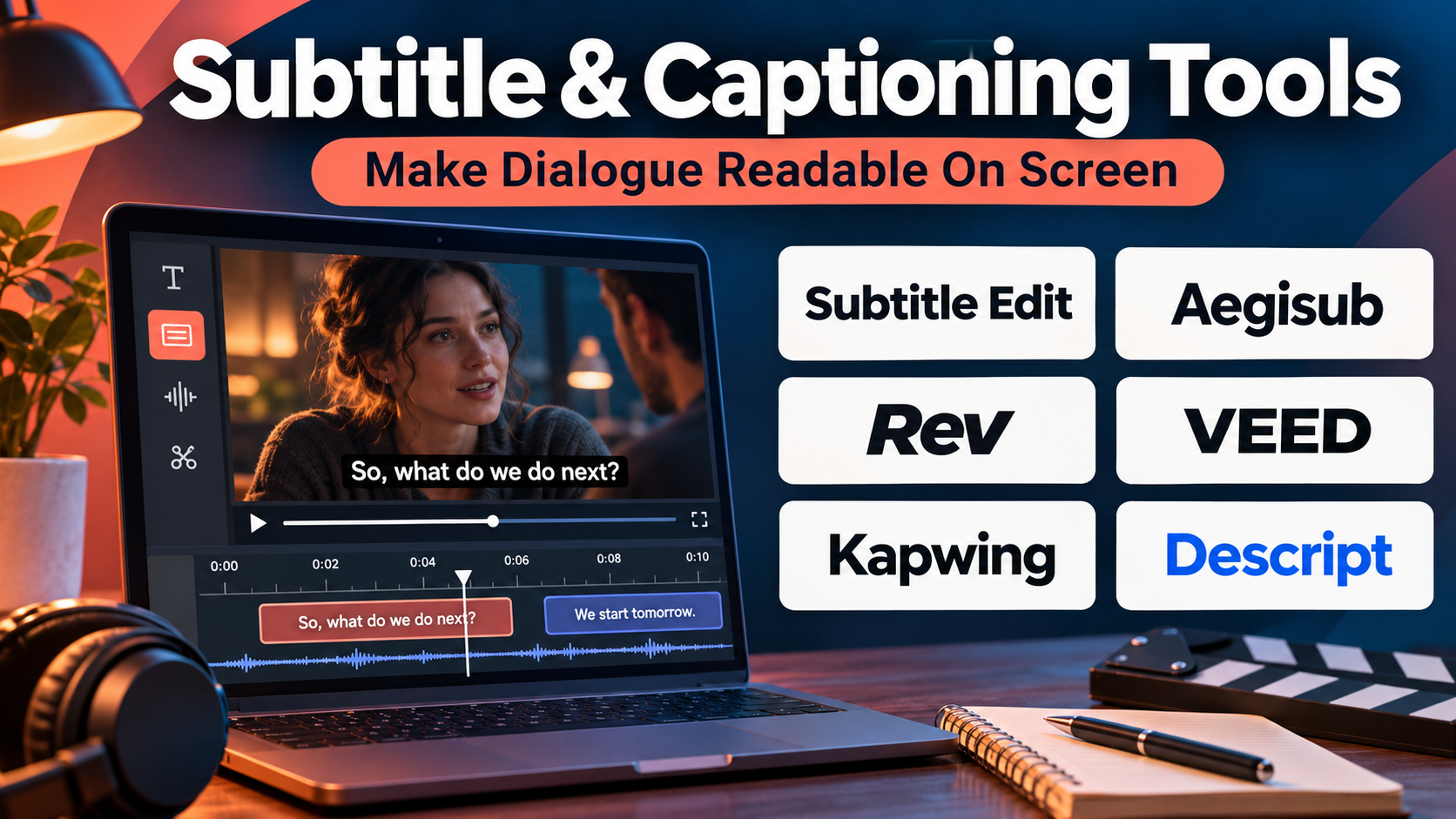
These applications convert spoken dialogue into readable text, synchronize it with video playback, and provide tools for editing timing, formatting, and language.
Modern platforms increasingly combine automatic speech recognition with manual correction, translation, collaborative editing, and video publishing.
However, not every tool provides the same level of accuracy, accessibility, or professional control.
A social media creator may need fast animated captions, while a broadcaster may require precise subtitle timing, speaker identification, and support for professional delivery formats.
This guide compares ten subtitle and captioning tools, examines their capabilities, and explains how to select software for different content production requirements.
What Are Subtitle & Captioning Tools?
Subtitle and captioning tools are software applications that create, edit, synchronize, translate, and export text associated with video or audio content.
Their primary purpose is to make spoken information accessible in written form.
Although subtitles and captions are often discussed together, they serve slightly different purposes.
Subtitles vs. Closed Captions
Subtitles generally display spoken dialogue as text. They are commonly used for translating content into another language or helping viewers understand speech.
Closed captions are designed to represent important audio information, including dialogue, speaker identification, music, and meaningful sound effects.
Closed captions can usually be enabled or disabled by the viewer.
Open captions are permanently visible because they are embedded directly into the video image.
How Subtitle and Captioning Software Works
A typical workflow includes:
- Uploading or importing a video.
- Detecting spoken dialogue through automatic speech recognition or human transcription.
- Dividing the transcript into readable subtitle segments.
- Synchronizing text with the corresponding audio.
- Correcting recognition errors and punctuation.
- Adding speaker labels and relevant sound descriptions.
- Translating subtitles when necessary.
- Exporting caption files or producing captioned videos.
Common subtitle formats include SRT, WebVTT, TTML, and professional broadcast formats.
The right format depends on the destination platform and accessibility requirements.
Top 10 Subtitle & Captioning Tools
1. Rev
Best For: Businesses, educators, media producers, and organizations requiring accurate captions with human review options.
Short Description
Rev provides transcription, captioning, and subtitle services that combine automated technology with human-supported workflows.
It is particularly useful for organizations that require more than basic automatic captions. Teams can use Rev to prepare video transcripts, create caption files, and support accessibility requirements across different content types.
The platform serves a wide range of users, including educational institutions, corporate training departments, video producers, and publishers.
Rev’s major advantage is the availability of both automated and human-generated services. This allows customers to choose a workflow based on accuracy requirements, turnaround expectations, and budget.
For content involving specialized terminology, multiple speakers, or important accessibility obligations, human review can be especially valuable.
Key Features
- AI transcription: Converts speech into text using automatic speech recognition.
- Human captioning services: Provides professionally prepared captions for supported workflows.
- Subtitle translation: Supports multilingual subtitle services.
- Caption file exports: Provides delivery formats suitable for supported video platforms.
- Speaker identification: Helps distinguish speakers in transcripts and captions.
- Timestamp synchronization: Aligns written text with spoken dialogue.
- Editing and review: Allows users to inspect and correct transcription output.
- API capabilities: Supports integration into automated media workflows.
Benefits
Rev helps organizations reduce the manual effort involved in producing accessible video content.
The availability of human captioning provides an alternative when automated recognition alone is insufficient.
Its transcription and subtitle services also support reuse of spoken content in written formats.
Pros
- Offers automated and human-supported services.
- Suitable for professional captioning.
- Supports multiple content types.
- Useful for accessibility workflows.
- Provides transcription and subtitle options.
Cons
- Human services cost more than basic automated captioning.
- Turnaround depends on the selected service.
- Complex terminology may still require review.
- Less focused on advanced visual caption animation.
Use Cases
Educational videos: Prepare accurate captions for recorded lectures.
Corporate training: Improve accessibility for employee learning materials.
Media production: Generate subtitles for interviews and documentaries.
Webinars: Convert recorded presentations into captioned content.
Best Suited For
Organizations prioritizing caption accuracy, accessibility, and flexible human-review options.
2. Descript
Best For: Content creators, podcasters, and marketing teams combining transcription with video editing.
Short Description
Descript is an audio and video editing platform built around a text-based editing workflow.
Instead of requiring users to edit every recording through a traditional timeline, Descript converts speech into text and allows editors to work directly with the transcript.
This approach makes it easier to remove unwanted dialogue, reorganize content, and prepare captions.
Descript also provides caption styling and video production features, making it suitable for creators who want to manage editing and captioning in the same environment.
The platform is particularly useful for podcasts, interviews, tutorials, webinars, and social media videos.
However, teams requiring highly specialized broadcast subtitle workflows may need additional tools.
Key Features
- Automatic transcription: Converts recorded dialogue into editable text.
- Text-based editing: Allows video and audio edits through transcript changes.
- Caption generation: Creates synchronized captions from spoken content.
- Caption styling: Supports visual customization for published videos.
- Speaker detection: Helps organize multi-speaker recordings.
- Audio enhancement: Provides tools for improving spoken audio.
- Collaborative workflows: Supports team-based content editing.
- Video publishing: Helps creators prepare content for distribution.
Benefits
Descript reduces the separation between transcription, captioning, and editing.
Its transcript-based workflow can save time when working with dialogue-heavy recordings.
Creators can also maintain consistent caption presentation across multiple videos.
Pros
- Combines editing and captioning.
- Accessible text-based workflow.
- Useful for podcasts and interviews.
- Supports collaborative production.
- Includes audio improvement capabilities.
Cons
- Automatic transcripts require proofreading.
- Advanced broadcast subtitle controls are limited.
- Processing capabilities depend on plan and usage.
- Complex visual editing may require dedicated software.
Use Cases
Podcast clips: Turn interviews into captioned short videos.
Tutorials: Edit instructional recordings through transcripts.
Marketing videos: Create branded captioned content.
Webinars: Repurpose long recordings into shorter clips.
Best Suited For
Creators and teams seeking an integrated video editing and captioning workflow.
3. VEED
Best For: Social media creators, marketing teams, and businesses needing browser-based automatic captions.
Short Description
VEED is an online video editing platform with integrated subtitle generation and caption styling capabilities.
Its browser-based approach allows users to upload videos, generate captions, correct text, and produce finished content without installing professional desktop editing software.
VEED is especially relevant to social media production, where captions are frequently embedded directly into videos.
The platform also supports broader video editing activities, including trimming, resizing, and visual customization.
Its main advantage is convenience. Users can complete common captioning and publishing tasks within one accessible interface.
For complex broadcast workflows, however, specialized subtitle software may provide greater technical control.
Key Features
- Automatic subtitles: Generates captions from spoken dialogue.
- Subtitle editor: Allows text corrections and timing adjustments.
- Caption styling: Provides fonts, colors, and visual formatting options.
- Multilingual support: Offers translation and language-related capabilities.
- Browser-based editing: Eliminates the need for local installation.
- Video resizing: Prepares content for different social platforms.
- Subtitle exports: Supports caption-related delivery workflows.
- AI-assisted video tools: Provides additional automated production features.
Benefits
VEED simplifies caption production for teams without dedicated video editors.
Its integrated workflow reduces the need to transfer files between multiple applications.
The visual caption features are especially useful for short-form content.
Pros
- Easy to learn.
- Browser-based access.
- Strong social media orientation.
- Customizable caption appearance.
- Integrated video editing.
Cons
- Some exports and features require paid plans.
- Automatic captions need review.
- Less suitable for specialized broadcast workflows.
- Cloud processing depends on internet connectivity.
Use Cases
Social media: Create captioned short-form videos.
Marketing: Produce accessible promotional content.
Internal communication: Add subtitles to announcements.
Online education: Prepare instructional videos quickly.
Best Suited For
Small businesses and creators prioritizing speed, convenience, and visual caption styling.
4. Kapwing
Best For: Collaborative online video production and captioned social media content.
Short Description
Kapwing is a browser-based creative platform that combines video editing, subtitle generation, and collaborative production tools.
It allows teams to create captions, adjust timing, edit videos, and prepare content for multiple publishing channels.
Kapwing is particularly useful for marketing departments and content teams that frequently repurpose long videos into shorter formats.
Its collaborative environment makes it easier for several contributors to review and update creative projects.
The platform emphasizes accessible editing rather than highly specialized broadcast subtitling.
Key Features
- AI subtitle generation: Creates text from spoken audio.
- Subtitle editing: Supports corrections and timing adjustments.
- Caption customization: Allows visual styling for branded content.
- Translation tools: Supports multilingual content workflows.
- Collaborative editing: Enables shared production activities.
- Video resizing: Adapts content to different aspect ratios.
- Browser-based workspace: Supports editing without desktop installation.
- Content repurposing: Helps create clips from longer recordings.
Benefits
Kapwing combines several common video production activities within one environment.
Its collaboration features are valuable for teams that need shared access to creative projects.
Pros
- Accessible interface.
- Useful collaborative workflows.
- Integrated caption generation.
- Suitable for social content.
- Supports video repurposing.
Cons
- Advanced features may require subscriptions.
- Automated output requires quality checks.
- Less suited to complex subtitle engineering.
- Cloud workflows may be restrictive for sensitive media.
Use Cases
Content marketing: Produce captioned promotional clips.
Team collaboration: Review and edit videos together.
Educational content: Add readable captions to lessons.
Best Suited For
Creative teams seeking collaborative online captioning and video editing.
5. Subtitle Edit
Best For: Professional subtitle editors, translators, and users requiring precise subtitle timing.
Short Description
Subtitle Edit is a free, open-source subtitle editing application designed for detailed subtitle creation and correction.
It supports a wide range of subtitle formats and provides tools for synchronizing text with video and audio.
Unlike social media caption generators, Subtitle Edit emphasizes precise timing, formatting, conversion, and subtitle quality.
Its waveform and synchronization features help editors align subtitles accurately with spoken dialogue.
The application is particularly useful for translators, subtitle specialists, and technical users who need detailed control over subtitle files.
It can also integrate with speech recognition and translation-related workflows, although output quality depends on the selected services and configuration.
Key Features
- Subtitle timing editor: Adjusts start and end times precisely.
- Waveform visualization: Helps synchronize subtitles with audio.
- Format conversion: Supports numerous subtitle file types.
- Spell checking: Helps identify written errors.
- Synchronization tools: Corrects timing drift and offsets.
- Subtitle validation: Detects selected timing and formatting problems.
- Speech recognition integration: Supports automated transcription workflows.
- Translation assistance: Helps prepare multilingual subtitles.
- Batch processing: Supports repetitive subtitle operations.
Benefits
Subtitle Edit gives users detailed control over subtitle quality without requiring commercial licensing.
Its timing and validation capabilities are useful for professional subtitle delivery.
Pros
- Free and open-source.
- Extensive subtitle format support.
- Precise timing controls.
- Useful quality-checking tools.
- Suitable for professional editing.
Cons
- Interface can feel technical.
- Requires manual work for high-quality output.
- Not a complete cloud collaboration platform.
- Some automated functions require external services.
Use Cases
Film subtitling: Create and synchronize dialogue subtitles.
Localization: Prepare translated subtitle files.
Subtitle repair: Correct timing and formatting problems.
Media archives: Convert older subtitle formats.
Best Suited For
Subtitle professionals, translators, and technical editors who need precise control.
6. Aegisub
Best For: Advanced subtitle timing, typesetting, and visually complex subtitle projects.
Short Description
Aegisub is an open-source subtitle editing application known for its detailed timing and typesetting capabilities.
It is particularly associated with projects requiring precise subtitle positioning, styling, and synchronization.
Editors can use audio waveforms and visual tools to align subtitles with speech and other events.
Aegisub supports Advanced SubStation Alpha subtitle workflows, which provide extensive styling and positioning options.
Its strengths make it useful for specialized subtitling, although it is less suitable for users seeking an all-in-one AI caption generator.
Key Features
- Precise timing controls: Aligns subtitle events with audio.
- Waveform display: Supports detailed synchronization.
- Advanced styling: Controls fonts, positioning, and visual effects.
- ASS subtitle support: Enables complex subtitle formatting.
- Video preview: Shows subtitles in context.
- Automation scripting: Supports repeatable editing tasks.
- Translation editing: Helps manage translated subtitle lines.
- Subtitle quality tools: Supports consistency and timing review.
Benefits
Aegisub provides detailed creative control over subtitle presentation.
It is especially useful when ordinary caption formatting cannot meet project requirements.
Pros
- Free and open-source.
- Strong timing functionality.
- Advanced typesetting capabilities.
- Suitable for specialized subtitle projects.
- Supports scripting.
Cons
- Steep learning curve.
- Limited built-in AI transcription.
- Development and platform support should be evaluated.
- Not designed for enterprise collaboration.
Use Cases
Animation subtitles: Create visually styled subtitle tracks.
Film localization: Adjust dialogue timing and placement.
Specialized caption design: Produce complex on-screen text.
Best Suited For
Experienced subtitle editors requiring detailed typesetting and synchronization.
7. Happy Scribe
Best For: Multilingual transcription, subtitling, and collaborative media localization.
Short Description
Happy Scribe provides transcription and subtitle services for creators, businesses, and media organizations.
Its platform supports automated speech recognition, subtitle editing, translation-related workflows, and professional language services.
Users can upload recordings, generate transcripts, review text, and prepare subtitles for distribution.
Happy Scribe is especially relevant to organizations producing content in multiple languages.
Its combination of automated and human-supported options allows teams to choose different quality and cost levels.
Key Features
- Automatic transcription: Converts speech into editable text.
- Subtitle generation: Creates timed subtitle segments.
- Multilingual support: Handles numerous supported languages.
- Translation workflows: Supports subtitle localization.
- Interactive editor: Allows corrections and synchronization.
- Subtitle exports: Provides compatible file formats.
- Collaboration: Supports shared review workflows.
- Human language services: Offers professional assistance for supported tasks.
Benefits
Happy Scribe helps teams manage transcription and multilingual subtitling in one environment.
Its editing tools reduce the effort required to prepare translated video content.
Pros
- Strong multilingual orientation.
- Automated and professional service options.
- Accessible online editor.
- Useful subtitle exports.
- Suitable for localization projects.
Cons
- Costs increase with processing volume and services.
- Automatic translation requires review.
- Specialized broadcast workflows may need additional tools.
- Language quality varies with source audio.
Use Cases
International marketing: Localize promotional videos.
Education: Prepare subtitles for multilingual courses.
Interviews: Convert recordings into transcripts and captions.
Best Suited For
Organizations creating multilingual video content.
8. 3Play Media
Best For: Enterprises and educational institutions with substantial video accessibility requirements.
Short Description
3Play Media provides captioning, transcription, audio description, and related accessibility services.
Its platform is designed for organizations that manage significant volumes of video and need structured accessibility workflows.
Educational institutions, media organizations, and enterprises use services of this type to improve access to recorded and live content.
3Play Media combines technology, workflow integrations, and professional service options.
Its emphasis on accessibility makes it particularly relevant when captions must meet formal organizational standards rather than simply improve social media engagement.
Key Features
- Closed captioning: Produces captions for supported video workflows.
- Live captioning: Supports real-time accessibility requirements.
- Transcription services: Converts audio into written text.
- Audio description: Supports accessibility for visual content.
- Video platform integrations: Connects with supported hosting systems.
- Caption editing: Provides review and correction capabilities.
- Workflow automation: Helps manage recurring accessibility tasks.
- Accessibility services: Supports organizations implementing inclusive media practices.
Benefits
3Play Media helps organizations establish repeatable accessibility workflows.
Its service-oriented model is useful when internal teams lack sufficient captioning resources.
Pros
- Strong accessibility focus.
- Suitable for institutional workflows.
- Supports live and recorded content.
- Professional service options.
- Useful integrations.
Cons
- May cost more than basic AI caption generators.
- Less focused on social media caption animation.
- Service selection requires planning.
- Turnaround and pricing vary by workflow.
Use Cases
Universities: Caption educational recordings.
Enterprise training: Improve access to learning materials.
Public communication: Support accessible video publishing.
Best Suited For
Organizations with formal accessibility and compliance requirements.
9. Amara
Best For: Collaborative subtitle creation, volunteer translation, and multilingual educational content.
Short Description
Amara is a web-based subtitling platform designed to support collaborative subtitle creation and translation.
It is especially useful for projects where multiple contributors work on language accessibility.
Organizations can coordinate subtitle work across teams, communities, and translation contributors.
Amara’s approach is particularly relevant to educational initiatives, nonprofit projects, and international communication.
Rather than focusing primarily on animated captions or video editing, the platform emphasizes subtitle collaboration and language accessibility.
Key Features
- Web-based subtitle editor: Allows subtitles to be created online.
- Collaborative workflows: Supports multiple contributors.
- Subtitle translation: Helps localize content into other languages.
- Timing controls: Synchronizes text with video.
- Team management: Supports organized subtitle projects.
- Language support: Enables multilingual content initiatives.
- Subtitle exports: Supports compatible caption formats.
- Project coordination: Helps manage translation and review activities.
Benefits
Amara enables organizations to distribute subtitle work across contributors.
It is particularly valuable when translation and community participation are central requirements.
Pros
- Collaboration-oriented.
- Useful for multilingual projects.
- Browser-based editing.
- Suitable for educational initiatives.
- Supports distributed contributors.
Cons
- Less focused on automated visual captions.
- Human coordination can require time.
- Advanced enterprise features may require paid services.
- Not a full video editing suite.
Use Cases
Nonprofit education: Translate instructional videos.
Community projects: Coordinate volunteer subtitling.
International outreach: Prepare multilingual video resources.
Best Suited For
Educational organizations and collaborative translation projects.
10. YouTube Studio
Best For: YouTube creators requiring integrated subtitle management for published videos.
Short Description
YouTube Studio provides caption and subtitle management capabilities within YouTube’s creator environment.
Creators can review automatically generated captions, edit subtitle text, adjust timing, and manage supported language tracks.
Because captioning is integrated directly into YouTube publishing, creators do not always need separate software for basic caption workflows.
The platform is particularly convenient for channels that publish primarily on YouTube.
However, creators distributing content across several platforms may still require independent subtitle files and specialized editing tools.
Key Features
- Automatic captions: Generates captions for supported videos and languages.
- Caption editing: Allows corrections to generated text.
- Subtitle uploads: Supports compatible caption files.
- Language management: Organizes supported subtitle languages.
- Timing adjustment: Helps align text with dialogue.
- Video integration: Connects captioning with published content.
- Creator dashboard: Centralizes channel administration.
- Accessibility support: Helps make videos more understandable to wider audiences.
Benefits
YouTube Studio provides a convenient caption workflow for existing YouTube channels.
Its integrated interface reduces the need to manage basic captions separately from video publishing.
Pros
- Included within YouTube creator tools.
- Convenient for YouTube publishing.
- Supports automatic captions.
- Allows manual corrections.
- Supports multiple subtitle languages.
Cons
- Primarily tied to YouTube.
- Automatic captions can contain errors.
- Limited advanced subtitle typesetting.
- Not a complete enterprise caption management platform.
Use Cases
YouTube education: Caption tutorials and lessons.
Creator channels: Improve accessibility of published videos.
Multilingual publishing: Add supported language tracks.
Best Suited For
Creators whose primary video distribution channel is YouTube.
Comparison Table: Top 10 Subtitle & Captioning Tools
| Tool | Primary Strength | Best For | Main Limitation |
|---|---|---|---|
| Rev | AI and human captioning | Professional accuracy | Human services cost more |
| Descript | Transcript-based editing | Creators and podcasters | Limited broadcast controls |
| VEED | Styled automatic captions | Social media | Paid feature restrictions |
| Kapwing | Collaborative video captions | Marketing teams | Less specialized timing |
| Subtitle Edit | Precise subtitle editing | Subtitle professionals | Technical interface |
| Aegisub | Advanced typesetting | Specialized subtitles | Learning curve |
| Happy Scribe | Multilingual subtitles | Localization teams | Usage costs |
| 3Play Media | Accessibility services | Institutions | Service-oriented pricing |
| Amara | Collaborative translation | Community projects | Coordination effort |
| YouTube Studio | Integrated YouTube captions | YouTube creators | Platform-specific |
How to Choose the Right Subtitle & Captioning Tool
1. Identify the Main Publishing Platform
YouTube creators may find integrated caption tools sufficient.
Businesses publishing across websites, learning platforms, and streaming services should prioritize export compatibility.
2. Determine Accuracy Requirements
Automatic captions are useful for generating initial drafts.
Professional, educational, legal, or accessibility-sensitive content may require thorough human review.
3. Evaluate Subtitle Timing
Readable subtitles require appropriate synchronization, line length, and display duration.
Professional subtitle editors provide more detailed timing controls than basic social media caption generators.
4. Consider Accessibility
Captions should include important non-speech audio information when needed.
Organizations should also evaluate relevant accessibility standards and platform requirements.
5. Review Language Support
International projects require accurate translation, terminology consistency, and language-specific formatting.
Automatic translation should not replace qualified review when meaning is important.
6. Examine Export Formats
Confirm support for SRT, WebVTT, TTML, or other required delivery formats.
7. Assess Collaboration
Large projects may require multiple editors, translators, reviewers, and approval stages.
8. Compare Total Cost
Consider transcription minutes, human services, translation, storage, team seats, and export restrictions.
Best Subtitle & Captioning Software by User Type
| User Type | Recommended Tool | Reason |
|---|---|---|
| Professional captioning teams | Rev | Human-supported accuracy |
| Podcasters | Descript | Transcript-based editing |
| Social media creators | VEED | Styled captions |
| Marketing teams | Kapwing | Collaborative editing |
| Subtitle professionals | Subtitle Edit | Timing precision |
| Advanced subtitle designers | Aegisub | Detailed typesetting |
| Localization teams | Happy Scribe | Multilingual workflows |
| Universities | 3Play Media | Accessibility services |
| Nonprofit translation teams | Amara | Collaborative subtitling |
| YouTube creators | YouTube Studio | Native publishing integration |
Practical Example: Creating Accessible Training Videos
Consider a company producing 40 employee training videos.
The recordings include technical terminology, multiple speakers, and instructional demonstrations.
Step 1: Define Accessibility Requirements
The company identifies caption accuracy, speaker identification, and relevant sound descriptions as priorities.
Step 2: Select a Captioning Workflow
The team evaluates automated transcription combined with professional review.
Step 3: Upload Source Videos
Recordings are transferred to the selected captioning environment.
Step 4: Generate Initial Captions
Automatic speech recognition creates the first transcript and timing segments.
Step 5: Correct Technical Terminology
Reviewers compare captions with the original recordings.
Step 6: Check Timing and Readability
Editors correct line breaks, synchronization, and display duration.
Step 7: Add Accessibility Information
Relevant speaker changes and meaningful non-speech audio are represented where required.
Step 8: Export Caption Files
The team produces formats compatible with its learning management system.
Step 9: Test Playback
Captions are reviewed on desktop and mobile devices.
Step 10: Establish Quality Control
Future training videos follow the same captioning standards.
Expected Outcome
The organization gains more accessible learning materials and a repeatable caption production process.
Frequently Asked Questions
1. What is the best subtitle and captioning software?
The best choice depends on the workflow. Rev is useful for professional captioning, Subtitle Edit for precise editing, and VEED for social media captions.
2. Are subtitles and closed captions the same?
No. Subtitles primarily represent dialogue, while closed captions also communicate relevant non-speech audio information.
3. Can AI generate accurate captions?
AI can produce useful drafts, but accuracy varies with audio quality, accents, background noise, and specialized vocabulary.
4. What is an SRT file?
An SRT file is a text-based subtitle format containing numbered subtitle segments, timestamps, and text.
5. What is WebVTT?
WebVTT is a timed-text format commonly used for captions and subtitles in web video environments.
6. Can captioning software translate subtitles?
Many platforms support translation, but translated output should be reviewed for accuracy and cultural context.
7. Which subtitle editor is free?
Subtitle Edit and Aegisub are free, open-source options. YouTube Studio also provides caption management for YouTube content.
8. Do captions improve accessibility?
Yes. Accurate captions improve access for viewers who are deaf or hard of hearing and can help people viewing content without audio.
9. Should captions be embedded into videos?
Embedded captions are useful for some social platforms. Separate caption tracks provide greater flexibility and allow viewers to enable or disable captions.
10. How should businesses evaluate captioning costs?
Compare processing volume, editing requirements, translation, human review, supported exports, and integration costs.
Conclusion
Subtitle and captioning tools help organizations make video content more accessible, understandable, and reusable.
Rev and 3Play Media are relevant to professional captioning and accessibility workflows. Descript, VEED, and Kapwing combine caption generation with content editing.
Subtitle Edit and Aegisub provide detailed subtitle control, while Happy Scribe and Amara support multilingual workflows.
YouTube Studio offers convenient caption management for YouTube creators.
The best solution depends on accuracy requirements, publishing channels, language needs, accessibility standards, and available production resources.
Organizations should treat automated captions as a starting point and establish review processes appropriate to the importance of their content.