Introduction
Sharing passwords is a common requirement for families, businesses, and teams managing shared accounts.
However, sending credentials through ordinary messages, emails, or spreadsheets can create unnecessary security risks.
Passwords may remain in message histories, be forwarded to unintended recipients, or become difficult to revoke when access requirements change.
Password sharing tools provide a more structured way to distribute credentials and control access.
Many solutions use encrypted vaults, shared collections, access permissions, and administrative controls to protect sensitive information.
Some applications are designed for personal and family use. Others focus on enterprise identity management, team collaboration, and secure credential administration.
The best password sharing solution should protect credentials while making legitimate access practical.
Organizations should also consider whether passwords need to be shared at all. Individual accounts, single sign-on, passkeys, and delegated access are often safer than multiple people using one login.
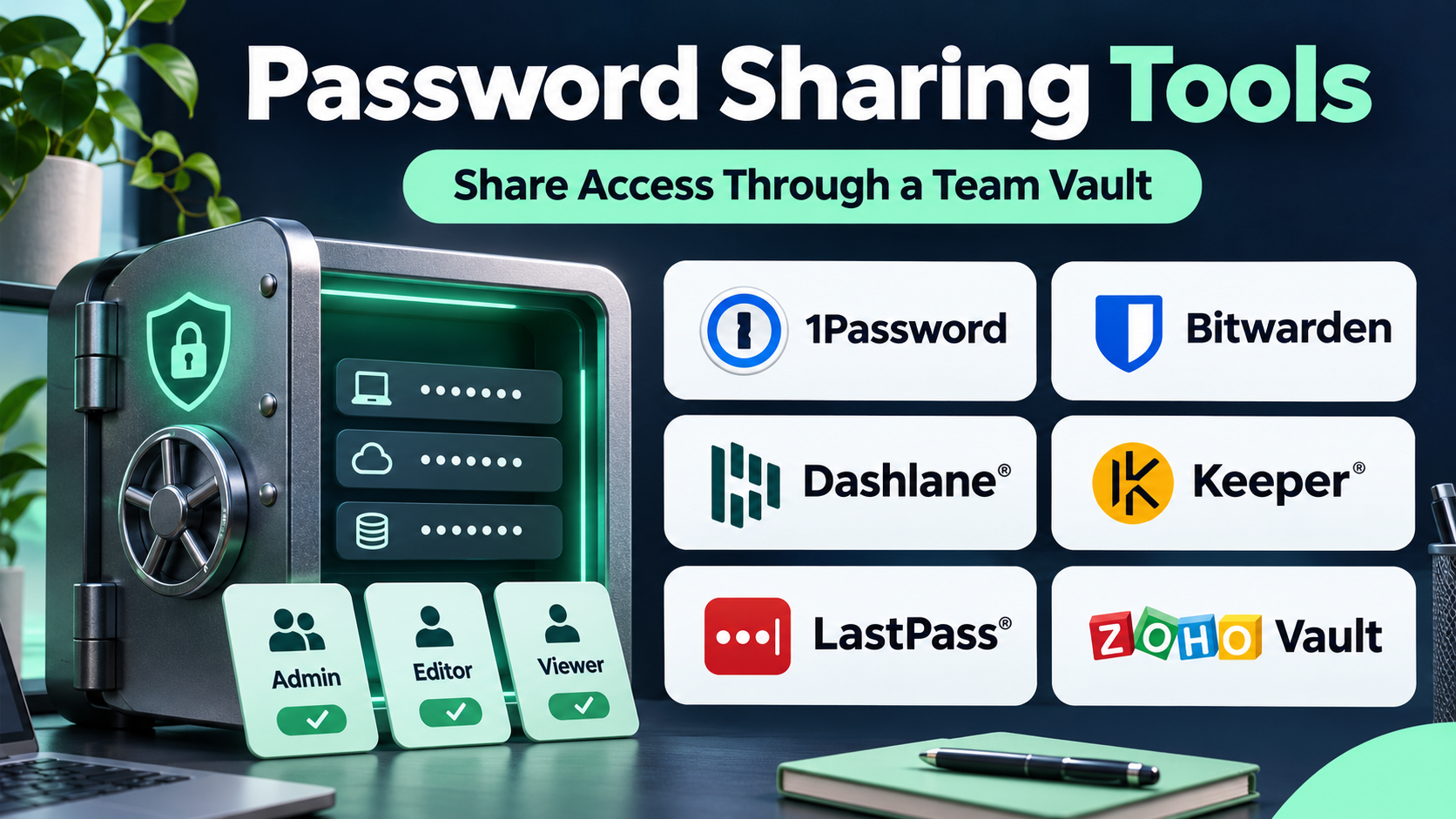
This guide compares ten password sharing tools, explains their capabilities and limitations, and provides practical guidance for selecting and implementing a secure solution.
What Are Password Sharing Tools?
Password sharing tools are security applications that allow users to provide authorized access to stored credentials.
They typically use encrypted password vaults and permission-controlled sharing mechanisms.
Unlike ordinary messaging applications, dedicated password sharing tools can support structured access management and reduce unnecessary credential exposure.
Common capabilities include:
- Encrypted password storage.
- Shared vaults and collections.
- Individual user permissions.
- Secure credential sharing.
- Password generation.
- Multi-factor authentication.
- Administrative controls.
- Access revocation.
- Activity reporting.
- Browser extensions.
- Cross-device synchronization.
- Enterprise identity integrations.
Not every password manager supports the same sharing model.
Some provide shared family vaults. Others offer business collections, temporary sharing links, or privileged access workflows.
Security also depends on implementation. Strong encryption does not eliminate risks from compromised devices, phishing, weak authentication, or poorly managed permissions.
Top 10 Password Sharing Tools
1. 1Password
Short Description
1Password is a password management platform that supports encrypted credential storage, secure sharing, and organizational access management.
It is used by individuals, families, and businesses that need to manage passwords and other sensitive information.
Users can store credentials in vaults and share selected information through supported mechanisms.
Business offerings provide additional administrative capabilities for managing employee access and organizational policies.
1Password also supports passkeys and other modern authentication workflows.
Its broad functionality makes it suitable for organizations that want password sharing within a larger credential security system.
Key Features
- Encrypted Vaults: Protects stored credentials.
- Shared Vaults: Organizes credentials for authorized groups.
- Secure Item Sharing: Supports selected sharing workflows.
- Access Permissions: Controls access to organizational information.
- Password Generator: Creates strong unique passwords.
- Multi-Factor Authentication Support: Helps secure account access.
- Passkey Support: Supports compatible passwordless authentication workflows.
- Administrative Controls: Provides business account management.
- Security Reporting: Offers selected credential security insights.
Benefits
1Password provides structured credential management for households and organizations.
It reduces reliance on insecure messages and helps administrators organize shared access.
Pros
- Strong password management capabilities.
- Shared vault functionality.
- Business administration features.
- Broad device support.
- Passkey compatibility.
- Useful security monitoring.
Cons
- Subscription required for many use cases.
- Administrative setup requires planning.
- Shared accounts can still create accountability problems.
- Some advanced features depend on plan selection.
- Users need training in safe sharing practices.
Use Cases
1Password is useful for family accounts, small businesses, and organizations managing shared service credentials.
For example, a marketing team can place authorized shared account credentials in a dedicated vault rather than sending passwords through group messages.
Best For: Families and businesses seeking comprehensive password management and sharing.
2. Bitwarden
Short Description
Bitwarden is an open-source password management platform that supports encrypted credential storage and controlled sharing.
It offers personal, family, and organizational password management workflows.
Users can store credentials and organize shared items through supported collections and organizations.
Bitwarden is particularly appealing to users who value transparency, cross-platform compatibility, and flexible deployment options.
Business offerings provide additional administrative and access management capabilities.
Its self-hosting options can also be relevant to technically capable organizations, although self-hosting introduces infrastructure and maintenance responsibilities.
Key Features
- Encrypted Password Vault: Stores credentials securely.
- Organizations and Collections: Supports structured credential sharing.
- Access Permissions: Controls organizational access.
- Password Generator: Creates unique credentials.
- Bitwarden Send: Supports secure information sharing workflows.
- Multi-Factor Authentication: Protects account access through supported methods.
- Open-Source Codebase: Supports transparency and independent review.
- Self-Hosting Options: Allows eligible organizations to manage deployment.
- Cross-Platform Support: Works across supported browsers and devices.
Benefits
Bitwarden combines accessible password management with flexible organizational sharing.
Pros
- Open-source approach.
- Cross-platform compatibility.
- Flexible sharing.
- Business administration options.
- Self-hosting availability.
- Competitive pricing structure.
Cons
- Advanced features may require payment.
- Self-hosting requires technical expertise.
- Permission design requires attention.
- Users must manage recovery and authentication carefully.
Use Cases
Bitwarden is useful for families, small businesses, technical teams, and organizations seeking flexible credential management.
Best For: Security-conscious users seeking open-source password sharing.
3. Dashlane
Short Description
Dashlane is a password management platform that combines credential storage, password sharing, and security-oriented reporting.
It is designed for individuals and businesses seeking a managed password security environment.
Users can store credentials, share selected information, and monitor password-related risks through supported features.
Business offerings provide administrative capabilities and integrations for organizational deployment.
Dashlane also supports modern authentication technologies, including passkeys in compatible environments.
Its security-focused interface makes it relevant to organizations that want to improve password hygiene alongside controlled sharing.
Key Features
- Encrypted Credential Storage: Protects saved passwords.
- Secure Sharing: Supports authorized credential distribution.
- Password Health Monitoring: Identifies selected password risks.
- Password Generation: Creates strong passwords.
- Administrative Dashboard: Supports business management.
- Multi-Factor Authentication: Provides compatible account protection.
- Passkey Support: Supports eligible passwordless workflows.
- Security Alerts: Provides selected risk notifications.
- Browser Integration: Simplifies credential use.
Benefits
Dashlane combines password sharing with security awareness and administrative oversight.
Pros
- User-friendly interface.
- Strong security reporting.
- Business administration.
- Secure sharing features.
- Modern authentication support.
Cons
- Subscription costs.
- Feature availability varies by plan.
- Browser-centered workflows may not suit everyone.
- Sharing permissions require regular review.
Use Cases
Dashlane is useful for businesses seeking password management with security monitoring.
Best For: Organizations prioritizing credential security reporting and ease of use.
4. Keeper
Short Description
Keeper is a password management and privileged access security platform offering encrypted vaults, credential sharing, and enterprise administration.
It serves individuals, businesses, and organizations with more demanding access control requirements.
Keeper supports shared folders and permission-based credential access.
Its business offerings include administrative policies, reporting, and integrations with enterprise identity systems.
Additional products address privileged access and secrets management requirements.
This makes Keeper relevant to organizations seeking a broader credential security platform rather than a basic password vault.
Key Features
- Encrypted Vaults: Protects stored credentials.
- Shared Folders: Organizes authorized credential access.
- Role-Based Permissions: Supports access control.
- Administrative Policies: Manages organizational security requirements.
- Security Reporting: Provides selected monitoring capabilities.
- Multi-Factor Authentication: Supports account protection.
- Enterprise Integrations: Connects with supported identity systems.
- Password Generation: Creates unique passwords.
- Privileged Access Products: Offers additional capabilities for advanced environments.
Benefits
Keeper provides controlled password sharing alongside enterprise-oriented security administration.
Pros
- Strong enterprise capabilities.
- Granular sharing controls.
- Broad security functionality.
- Administrative reporting.
- Suitable for complex organizations.
Cons
- Advanced offerings can increase cost.
- Configuration may be complex.
- Some features require separate products or licenses.
- Enterprise deployment requires governance.
Use Cases
Keeper is useful for businesses managing shared credentials, administrative accounts, and access policies.
Best For: Organizations requiring advanced credential administration.
5. NordPass
Short Description
NordPass is a password management application designed to provide encrypted credential storage and convenient password sharing.
It serves individual, family, and business users.
The platform emphasizes accessible password management across supported devices.
Users can organize passwords and share selected credentials through eligible features.
Business offerings provide administrative controls and organizational management capabilities.
NordPass also supports passkey-related workflows in compatible environments.
Its interface can appeal to teams seeking a relatively straightforward credential management solution.
Key Features
- Encrypted Vault: Stores credentials.
- Password Sharing: Supports authorized sharing.
- Password Generator: Creates unique credentials.
- Password Health Features: Identifies selected credential risks.
- Business Administration: Supports organizational management.
- Multi-Factor Authentication: Helps secure account access.
- Passkey Support: Provides compatible passwordless functionality.
- Cross-Device Access: Synchronizes eligible information.
- Autofill: Simplifies credential entry.
Benefits
NordPass provides a practical password management environment with sharing and security features.
Pros
- Accessible interface.
- Family and business options.
- Secure sharing.
- Modern authentication support.
- Useful password health features.
Cons
- Some features require premium plans.
- Advanced enterprise capabilities vary by offering.
- Shared credentials still require access governance.
- Integration support should be verified.
Use Cases
NordPass is useful for households and small businesses seeking straightforward password sharing.
Best For: Users prioritizing simplicity and everyday credential management.
6. Proton Pass
Short Description
Proton Pass is a password manager from Proton that emphasizes encrypted credential management and privacy-oriented workflows.
It supports password storage, passkeys, and secure sharing features.
Users can organize credentials and access them through supported devices and browser extensions.
Selected plans provide vault sharing and additional account security functionality.
Proton Pass is particularly relevant to users who value privacy and want password management within the Proton ecosystem.
However, privacy-oriented architecture does not remove the need for strong account authentication and device security.
Key Features
- Encrypted Vaults: Protects stored credentials.
- Vault Sharing: Supports eligible shared access.
- Password Generator: Creates unique passwords.
- Passkey Support: Supports compatible passwordless logins.
- Email Aliases: Provides eligible email identity protection.
- Multi-Factor Authentication: Supports secure account access.
- Cross-Platform Applications: Works across supported environments.
- Autofill: Simplifies credential use.
- Privacy-Oriented Design: Emphasizes protection of stored information.
Benefits
Proton Pass combines password sharing with privacy-focused credential management.
Pros
- Privacy-oriented design.
- Encrypted storage.
- Passkey support.
- Email alias functionality.
- Cross-platform access.
Cons
- Some sharing capabilities require paid plans.
- Enterprise features vary by offering.
- Smaller integration ecosystem than some established competitors.
- Users must manage account recovery carefully.
Use Cases
Proton Pass is useful for individuals, families, and privacy-conscious teams.
Best For: Users seeking privacy-oriented password management.
7. LastPass
Short Description
LastPass is a password management platform offering credential storage, sharing, and organizational administration.
It has historically served individuals and businesses through browser-based password management workflows.
LastPass provides shared folders and business access management features in eligible offerings.
However, its security incident history is an important consideration during evaluation.
Prospective customers should review current independent security assessments, incident remediation information, administrative controls, and contractual requirements.
Organizations should not base security decisions solely on feature lists or brand familiarity.
Key Features
- Password Vault: Stores credentials.
- Shared Folders: Supports organizational credential access.
- Password Generator: Creates unique passwords.
- Administrative Controls: Manages business users.
- Multi-Factor Authentication: Supports account security.
- Security Dashboard: Provides selected password risk information.
- Browser Extensions: Supports credential entry.
- Cross-Device Synchronization: Makes credentials available on supported devices.
Benefits
LastPass offers established password management workflows, although security due diligence is especially important.
Pros
- Familiar password management interface.
- Shared folder capabilities.
- Business administration.
- Broad browser support.
- Password generation tools.
Cons
- Significant historical security incidents.
- Requires careful vendor risk assessment.
- Subscription requirements.
- Shared credentials need ongoing permission review.
- Organizations may prefer alternatives after security evaluation.
Use Cases
LastPass may be considered by organizations evaluating password management platforms, subject to comprehensive security review.
Best For: Organizations willing to conduct detailed vendor security due diligence.
8. Zoho Vault
Short Description
Zoho Vault is a password management platform designed for individuals and organizations that need controlled credential storage and sharing.
It is particularly relevant to businesses using the Zoho software ecosystem.
Zoho Vault supports password organization, sharing, and administrative access management.
Business features can help teams control access to shared credentials and review relevant activity.
Its integration with selected business systems makes it useful for organizations seeking centralized credential management.
However, permissions and account recovery procedures should be planned before deployment.
Key Features
- Password Vault: Stores credentials securely.
- Team Sharing: Supports authorized access to shared passwords.
- Role-Based Access: Controls organizational permissions.
- Administrative Dashboard: Manages users and policies.
- Password Generator: Creates strong credentials.
- Activity Reporting: Provides selected audit information.
- Browser Extensions: Simplifies credential use.
- Zoho Integrations: Connects with supported ecosystem services.
- Access Management: Supports selected organizational workflows.
Benefits
Zoho Vault helps businesses organize shared credentials and manage employee access.
Pros
- Business-oriented sharing.
- Role-based permissions.
- Useful administrative controls.
- Zoho ecosystem compatibility.
- Competitive positioning for small teams.
Cons
- Interface preferences vary.
- Some features require paid plans.
- Integration benefits are greatest within supported ecosystems.
- Permission management requires ongoing review.
Use Cases
Zoho Vault is useful for small businesses, administrative teams, and organizations using Zoho applications.
Best For: Businesses seeking structured password sharing and Zoho integration.
9. Passbolt
Short Description
Passbolt is an open-source password management platform designed primarily for team credential sharing.
It emphasizes collaboration, security, and organizational control.
Passbolt allows teams to manage shared credentials through permission-based workflows.
It is particularly relevant to technical teams, IT departments, and organizations that value open-source infrastructure.
Passbolt offers deployment and service options suited to different organizational requirements.
However, self-hosted deployments require technical expertise, operational maintenance, and reliable backup procedures.
Key Features
- Team Password Sharing: Supports collaborative credential access.
- Encrypted Credential Management: Protects stored secrets.
- Granular Permissions: Controls access to shared resources.
- Open-Source Software: Supports code transparency.
- Self-Hosting: Provides deployment flexibility.
- Administrative Controls: Manages organizational users.
- Activity Information: Supports selected audit workflows.
- Browser Integration: Simplifies credential access.
- Business Features: Provides additional capabilities in eligible offerings.
Benefits
Passbolt offers a team-focused password sharing system with open-source flexibility.
Pros
- Designed for team sharing.
- Open-source approach.
- Granular permissions.
- Self-hosting options.
- Suitable for technical organizations.
Cons
- Setup may require technical expertise.
- Self-hosting adds maintenance responsibility.
- Less oriented toward casual family use.
- Advanced capabilities may require paid offerings.
Use Cases
Passbolt is useful for IT teams, development organizations, and businesses managing shared operational credentials.
Best For: Technical teams seeking open-source password sharing.
10. TeamPassword
Short Description
TeamPassword is a password management platform focused on simplifying shared credential access for business teams.
It is designed for organizations that need a straightforward way to organize and distribute shared account credentials.
Users can store passwords in groups and provide access to authorized team members.
Its simplified approach can be useful for small businesses that do not require extensive enterprise identity management functionality.
However, organizations should still evaluate authentication controls, auditing, administrative features, and security documentation.
A simple interface should not replace appropriate credential governance.
Key Features
- Shared Password Groups: Organizes team credentials.
- User Access Management: Controls group membership.
- Password Storage: Maintains credentials in a managed environment.
- Browser Access: Supports convenient credential retrieval.
- Password Generator: Helps create strong credentials.
- Team Collaboration: Reduces repeated credential requests.
- Administrative Controls: Supports user management.
- Credential Organization: Groups passwords by team or purpose.
Benefits
TeamPassword simplifies credential sharing for organizations with relatively straightforward requirements.
Pros
- Team-focused interface.
- Simple password organization.
- Convenient group sharing.
- Suitable for small businesses.
- Reduced reliance on informal messages.
Cons
- Fewer advanced enterprise capabilities than some competitors.
- Subscription costs.
- Security controls require evaluation.
- Less suited to complex privileged access management.
- Shared accounts can weaken individual accountability.
Use Cases
TeamPassword is useful for small marketing agencies, administrative departments, and businesses managing shared online accounts.
Best For: Small teams seeking straightforward credential sharing.
Password Sharing Tools Comparison Table
| Tool | Primary Strength | Sharing Approach | Best For |
|---|---|---|---|
| 1Password | Comprehensive credential management | Shared vaults and items | Families and businesses |
| Bitwarden | Open-source flexibility | Organizations and collections | Security-conscious teams |
| Dashlane | Security reporting | Secure sharing and administration | Businesses |
| Keeper | Enterprise security | Shared folders and permissions | Large organizations |
| NordPass | Simplicity | Managed credential sharing | Small teams |
| Proton Pass | Privacy-focused design | Shared vaults | Privacy-conscious users |
| LastPass | Established workflows | Shared folders | Security-reviewed deployments |
| Zoho Vault | Business administration | Role-based team sharing | Zoho users |
| Passbolt | Open-source team sharing | Permission-controlled credentials | Technical teams |
| TeamPassword | Simple group sharing | Team password groups | Small businesses |
How to Choose the Right Password Sharing Tool
Step 1: Determine Whether Password Sharing Is Necessary
Where possible, use individual accounts, delegated access, or single sign-on.
Shared passwords should be reserved for situations where better access methods are unavailable.
Step 2: Evaluate Encryption and Security Architecture
Review the vendor’s security documentation, encryption design, independent assessments, and incident history.
Step 3: Check Access Permissions
Choose a solution that allows users to access only the credentials required for their responsibilities.
Step 4: Review Authentication
Require strong multi-factor authentication or phishing-resistant authentication where supported.
Step 5: Test Employee Offboarding
Confirm how access is revoked when someone leaves a team.
For shared credentials, revocation may also require changing the underlying password and invalidating active sessions.
Step 6: Evaluate Audit Capabilities
Organizations may need records of administrative changes and access-related events.
Step 7: Review Integrations
Check compatibility with identity providers, directories, browsers, and existing security systems.
Step 8: Consider Recovery and Backups
Ensure that legitimate users can recover access without creating insecure recovery procedures.
Step 9: Compare Total Cost
Include subscriptions, administration, training, migration, and security maintenance.
Best Password Sharing Tool by User Type
| User Type | Recommended Tool | Reason |
|---|---|---|
| Families | 1Password | Shared vaults |
| Open-source enthusiasts | Bitwarden | Transparent codebase |
| Security-focused businesses | Dashlane | Credential health features |
| Enterprises | Keeper | Administrative controls |
| Small teams | NordPass | Accessible sharing |
| Privacy-conscious users | Proton Pass | Privacy-oriented design |
| Zoho organizations | Zoho Vault | Ecosystem integration |
| IT teams | Passbolt | Team-oriented open-source sharing |
| Simple business workflows | TeamPassword | Group-based sharing |
| Organizations evaluating LastPass | Security review required | Incident history warrants diligence |
Practical Example: Securing Shared Credentials for a Small Business
Consider a company with fifteen employees using shared accounts for marketing, customer support, and administration.
Step 1: Inventory Shared Accounts
Identify accounts currently accessed by multiple employees.
Step 2: Replace Shared Logins Where Possible
Create individual accounts or delegated access for services that support them.
Step 3: Select a Password Manager
Evaluate 1Password, Bitwarden, or Passbolt according to business requirements.
Step 4: Create Access Groups
Organize credentials by department and responsibility.
Step 5: Apply Least-Privilege Permissions
Give each employee access only to the credentials needed for their work.
Step 6: Enable Strong Authentication
Require appropriate multi-factor authentication for password manager accounts.
Step 7: Import Existing Credentials
Move passwords from spreadsheets and informal records into managed vaults.
Step 8: Rotate Exposed Passwords
Replace credentials previously shared through insecure channels.
Step 9: Document Offboarding
Define procedures for revoking access, rotating shared passwords, and ending active sessions.
Step 10: Review Permissions Regularly
Audit shared access when employees change roles or leave the organization.
This approach reduces unnecessary credential exposure and improves accountability.
Frequently Asked Questions
1. What is the best password sharing tool?
1Password and Bitwarden are strong general-purpose options, while Passbolt focuses on team sharing.
2. Is it safe to share passwords?
Sharing credentials introduces risk. Dedicated password managers can reduce exposure, but individual accounts are preferable when available.
3. What is a shared password vault?
A shared vault is a controlled collection of credentials accessible to authorized users.
4. Can password managers prevent employees from seeing passwords?
Some tools offer restricted sharing or autofill workflows, but hiding a password does not guarantee that a determined authorized user cannot extract or misuse credentials.
5. Can access be revoked immediately?
Access to a vault can often be revoked quickly. Previously copied passwords or active sessions may remain usable until separately invalidated.
6. Are open-source password managers secure?
Open-source software can support transparency, but security also depends on implementation, audits, configuration, and maintenance.
7. What is the difference between password sharing and privileged access management?
Password sharing focuses on distributing credentials. Privileged access management provides broader controls over sensitive administrative access.
8. Should businesses use multi-factor authentication?
Yes. Strong authentication is an important protection for password manager accounts.
9. Can password managers share passkeys?
Some support passkey storage and selected sharing workflows, but compatibility varies by platform and service.
10. Is sending a password by email safe?
Ordinary email is generally not an appropriate channel for distributing sensitive credentials.
11. What happens when an employee leaves?
Administrators should revoke vault access, rotate affected shared credentials, and terminate relevant sessions.
12. Can password managers replace single sign-on?
No. Password managers and single sign-on address different access management needs and may complement each other.
Conclusion
Password sharing tools help families and organizations manage shared credentials more securely than informal messages or spreadsheets.
1Password and Bitwarden provide broad password management capabilities, while Keeper and Dashlane offer business-oriented security features.
Proton Pass emphasizes privacy, Zoho Vault supports business administration, and Passbolt provides open-source team sharing.
The best solution depends on security requirements, administrative complexity, deployment preferences, and budget.
Above all, password sharing should be minimized where individual accounts, delegated access, and modern authentication methods are available.
A secure credential management strategy combines appropriate software with strong authentication, least-privilege permissions, regular access reviews, and reliable offboarding procedures.