Introduction
Digital photography has made capturing memories and creating visual content easier than ever. However, managing thousands of images across phones, computers, cameras, and cloud services can become challenging.
Photographs are often scattered across folders, devices, and storage accounts. Duplicate files consume space, inconsistent filenames complicate searches, and important images can become difficult to locate.
Photo organization tools help solve these problems by providing structured systems for importing, categorizing, searching, managing, and preserving digital images.
Some applications focus on cloud-based photo libraries and automatic grouping. Others provide professional digital asset management, metadata editing, facial recognition, or local storage control.
The right photo organization software depends on the size of the collection, the devices involved, privacy requirements, editing needs, and long-term storage preferences.
A family organizing personal memories may prioritize automatic backups and shared albums. A photographer may require RAW file support, detailed metadata, and non-destructive editing. A business may need collaborative asset libraries and controlled permissions.
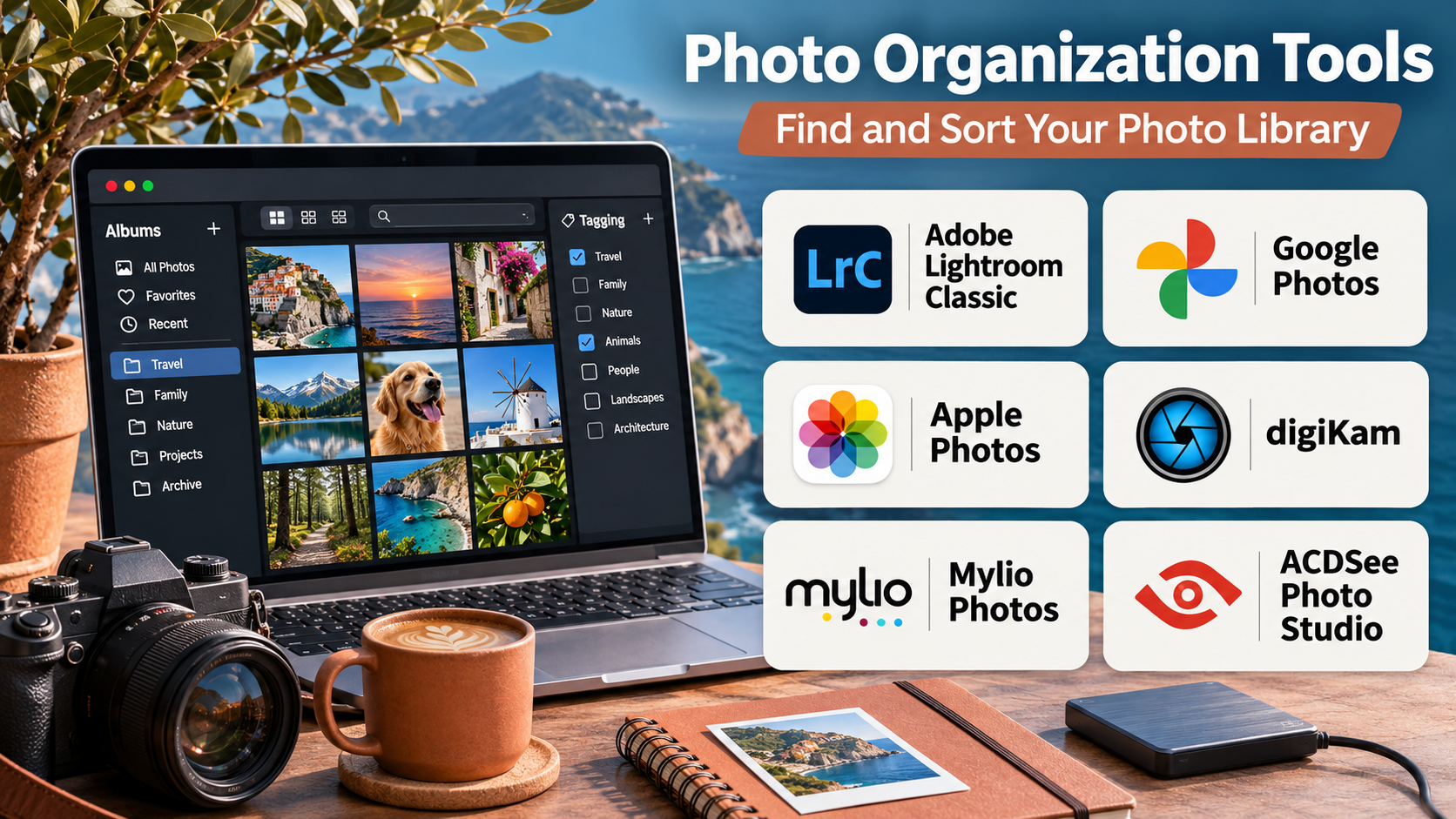
This guide compares ten photo organization tools, examines their features and limitations, and explains how to choose an effective system for managing digital photographs.
What Are Photo Organization Tools?
Photo organization tools are applications designed to help users manage digital image collections.
They provide capabilities for importing, categorizing, searching, sorting, editing, and retrieving photographs.
Many tools also support metadata management, duplicate detection, facial grouping, and cloud synchronization.
Common features include:
- Photo importing and cataloging.
- Albums, folders, and collections.
- Keyword tagging.
- Facial recognition or people grouping.
- Location-based organization.
- Duplicate identification.
- Metadata editing.
- RAW image support.
- Cloud synchronization.
- Backup integration.
- Photo sharing.
- Search and filtering.
Photo organization and photo backup are related but different activities.
Organization makes images easier to locate and manage. Backup protects against accidental deletion, device failure, and other forms of data loss.
An effective photo management workflow should address both.
Top 10 Photo Organization Tools
1. Google Photos
Short Description
Google Photos is a cloud-based photo storage and organization platform designed for personal image libraries.
It provides automatic backup options, searchable collections, albums, and image discovery features.
Users can access their photographs across supported devices through a Google account.
Google Photos uses automated processing to help organize images by people, places, and visual subjects, depending on available features and settings.
Its convenience makes it particularly appealing to smartphone users who want their photo libraries available without manually transferring files.
However, users should consider storage limits, privacy settings, account security, and the implications of relying on a cloud service.
Key Features
- Automatic Backup: Uploads selected photographs from compatible devices.
- Smart Search: Helps locate images using subjects, locations, and other recognized information.
- People Grouping: Organizes recognizable faces where supported and enabled.
- Albums: Creates collections for events, projects, and memories.
- Shared Albums: Allows selected photographs to be shared with others.
- Photo Editing: Provides cropping, adjustments, and eligible editing tools.
- Cross-Device Access: Makes synchronized photographs accessible through supported devices.
- Storage Management: Helps users review cloud storage consumption.
- Location Organization: Uses available geographic metadata to support searching.
Benefits
Google Photos reduces manual organization and provides convenient access to large personal collections.
Its automated search can make finding older photographs considerably easier.
Pros
- Convenient automatic backup.
- Strong photo search.
- Accessible interface.
- Shared albums.
- Cross-device availability.
- Useful automatic grouping.
Cons
- Cloud storage limits.
- Additional storage may require payment.
- Privacy considerations.
- Internet access is important for cloud features.
- Less suitable for advanced professional cataloging.
Use Cases
Google Photos is useful for families, travelers, and smartphone users organizing personal photographs.
For example, a family can automatically back up vacation photographs, create a shared album, and search the collection by location or subject.
Best For: Everyday users seeking cloud-based photo organization.
2. Apple Photos
Short Description
Apple Photos is the built-in photo management application for Apple’s ecosystem.
It combines photo organization, editing, albums, search, and synchronization through compatible Apple services.
The platform is particularly convenient for users who capture photographs with an iPhone and manage them on a Mac or iPad.
Apple Photos supports automated grouping, people recognition, and location-based browsing.
Its integration with iCloud Photos can keep a library synchronized across devices.
However, users should understand that synchronization is not equivalent to maintaining an independent backup.
Key Features
- Photo Library Management: Organizes images within a central library.
- iCloud Photos: Synchronizes photographs across compatible devices.
- People and Pets Recognition: Groups recognized subjects in supported environments.
- Albums: Creates custom collections.
- Smart Search: Retrieves images using supported search criteria.
- Editing Tools: Provides non-destructive adjustments.
- Shared Albums and Libraries: Supports selected collaboration workflows.
- Location Browsing: Organizes images using available location data.
- RAW Support: Handles compatible professional image formats.
Benefits
Apple Photos provides a seamless organization experience for users already invested in Apple devices.
Pros
- Strong Apple ecosystem integration.
- Accessible interface.
- Useful automatic grouping.
- Integrated editing.
- Device synchronization.
- Good everyday organization.
Cons
- Best experience requires Apple devices.
- iCloud storage may require payment.
- Limited advanced metadata workflows.
- Library migration can require planning.
- Synchronization does not replace backup.
Use Cases
Apple Photos is suitable for iPhone photographers, families, and Mac users.
Best For: Apple ecosystem users.
3. Adobe Lightroom
Short Description
Adobe Lightroom is a photography application combining image organization, professional editing, and cloud-connected workflows.
It is designed for photographers who need to manage images while maintaining consistent editing processes.
Lightroom supports collections, ratings, search, metadata, and non-destructive adjustments.
Its cloud-oriented workflow makes it useful for photographers who work across compatible devices.
Lightroom also includes advanced editing and AI-assisted capabilities in eligible versions.
However, professional features and subscription costs may exceed the requirements of casual users.
Key Features
- Photo Cataloging: Organizes images into albums and collections.
- Non-Destructive Editing: Preserves original image data during adjustments.
- RAW Processing: Supports compatible camera RAW formats.
- Search and Filtering: Helps locate images.
- Ratings and Flags: Supports image selection workflows.
- Cloud Synchronization: Connects supported devices.
- Metadata Support: Maintains selected image information.
- AI-Assisted Editing: Provides eligible masking and enhancement features.
- Export Presets: Simplifies output preparation.
Benefits
Lightroom connects professional editing with structured image management.
Pros
- Strong editing capabilities.
- RAW support.
- Non-destructive workflow.
- Useful search and filtering.
- Cross-device features.
- Suitable for professional photographers.
Cons
- Subscription costs.
- Learning curve.
- Cloud storage requirements.
- Less focused on traditional local folder management.
- Advanced features may be unnecessary for casual users.
Use Cases
Lightroom is useful for photographers organizing shoots, selecting images, editing RAW files, and preparing client deliverables.
Best For: Photographers seeking integrated editing and organization.
4. Adobe Lightroom Classic
Short Description
Adobe Lightroom Classic is a desktop-focused photo management and editing application designed around a local catalog.
It provides extensive control over large image libraries, folder structures, metadata, and professional photography workflows.
Unlike the cloud-centered Lightroom application, Lightroom Classic emphasizes desktop catalog management.
Photographers can import images, apply keywords, assign ratings, create collections, and manage editing histories.
It is particularly useful for professionals maintaining extensive RAW archives.
However, its catalog architecture requires careful backup and file management.
Key Features
- Local Catalog Management: Maintains detailed image records.
- Folder Organization: Works with local and attached storage.
- Keyword Tagging: Supports detailed image classification.
- Ratings and Flags: Helps select and review photographs.
- RAW Editing: Provides professional processing.
- Non-Destructive Adjustments: Preserves original files.
- Smart Collections: Groups images using defined rules.
- Metadata Editing: Supports professional information management.
- Batch Processing: Applies adjustments and exports to multiple images.
Benefits
Lightroom Classic provides detailed control over professional photo archives.
Pros
- Powerful catalog management.
- Advanced metadata.
- Strong RAW editing.
- Flexible local storage.
- Batch workflows.
- Suitable for large libraries.
Cons
- Subscription required.
- Catalog maintenance is important.
- Learning curve.
- Less convenient for purely mobile workflows.
- Backup planning is essential.
Use Cases
Lightroom Classic is useful for wedding photographers, commercial studios, and photographers maintaining long-term archives.
Best For: Professional photographers managing large local libraries.
5. digiKam
Short Description
digiKam is a free, open-source digital photo management application designed for organizing large image collections.
It supports local photo libraries, metadata editing, tagging, and advanced search.
The application is particularly attractive to users who prefer managing images on their own computers rather than relying exclusively on cloud services.
digiKam supports multiple image formats and provides tools for identifying duplicates and organizing photographs.
Its detailed features make it suitable for technical users and serious photography enthusiasts.
However, its interface can feel more complex than consumer-oriented photo applications.
Key Features
- Photo Cataloging: Organizes large image collections.
- Tags and Albums: Supports hierarchical organization.
- Metadata Editing: Works with supported EXIF, IPTC, and XMP information.
- Face Recognition: Helps group people in photographs.
- Duplicate Search: Identifies visually similar or duplicate images.
- Advanced Search: Filters images using multiple criteria.
- RAW Support: Handles compatible camera formats.
- Batch Tools: Supports repetitive image operations.
- Open-Source Development: Provides a transparent software model.
Benefits
digiKam provides powerful local photo organization without requiring a commercial subscription.
Pros
- Free and open-source.
- Detailed metadata tools.
- Strong tagging.
- Duplicate detection.
- Local storage control.
- Suitable for large collections.
Cons
- Learning curve.
- Interface complexity.
- Performance depends on hardware and library size.
- Cloud collaboration is not its main focus.
- Requires user-managed backups.
Use Cases
digiKam works well for photography enthusiasts, archivists, and users maintaining large local collections.
Best For: Users seeking open-source photo management.
6. ACDSee Photo Studio
Short Description
ACDSee Photo Studio is a photo management and editing software family offering digital asset management capabilities.
It is designed for users who want detailed control over local image collections.
ACDSee provides cataloging, tagging, ratings, metadata management, and image editing tools.
Selected editions also include advanced RAW processing and AI-assisted organization features.
Its combination of browsing and editing makes it useful for photographers who want an alternative to Adobe’s subscription-centered ecosystem.
However, features and licensing differ between editions.
Key Features
- Digital Asset Management: Organizes photographs and image files.
- Keyword Tagging: Classifies images.
- Metadata Management: Supports detailed image information.
- Ratings and Labels: Helps organize selections.
- Face Detection and Recognition: Supports eligible people organization.
- RAW Processing: Available in supported editions.
- Batch Operations: Simplifies repetitive tasks.
- Advanced Search: Retrieves images through filters.
- Editing Tools: Provides image adjustments in eligible products.
Benefits
ACDSee combines local photo cataloging with image management and editing.
Pros
- Strong local file management.
- Useful metadata tools.
- Multiple product editions.
- Batch processing.
- Professional photography capabilities.
Cons
- Product editions can be confusing.
- Advanced features may require higher-tier licenses.
- Learning curve.
- Collaboration features are limited.
- Platform support varies by edition.
Use Cases
ACDSee is useful for photographers, designers, and businesses maintaining local image archives.
Best For: Users seeking professional local photo organization.
7. Mylio Photos
Short Description
Mylio Photos is a photo management platform designed to organize images across multiple devices and storage locations.
It emphasizes creating a unified view of a distributed photo collection.
Users can manage photographs stored on computers, external drives, and compatible connected sources.
Mylio’s approach is useful for people who want access to their images without placing every original file in one cloud library.
Its organization features include albums, search, metadata, and people-related workflows.
However, synchronization and backup settings require careful understanding.
Key Features
- Unified Photo Library: Connects images from multiple storage locations.
- Device Synchronization: Coordinates compatible devices.
- Local Storage Options: Supports user-controlled file locations.
- People Organization: Groups recognized subjects.
- Albums and Categories: Organizes collections.
- Metadata Management: Supports image information.
- Search and Filtering: Helps locate photographs.
- Duplicate Management: Provides tools for reviewing duplicate content.
- Backup-Oriented Workflows: Supports selected protection strategies.
Benefits
Mylio helps users organize photographs distributed across multiple devices and drives.
Pros
- Multi-device library management.
- Flexible storage approach.
- Useful family photo organization.
- Metadata support.
- Reduced dependence on a single cloud repository.
Cons
- Subscription considerations.
- Initial configuration requires planning.
- Synchronization rules can be complex.
- Backup responsibilities remain important.
- Less suited to advanced professional editing.
Use Cases
Mylio works well for families and photography enthusiasts managing photographs across phones, computers, and external drives.
Best For: Users with distributed photo collections.
8. PhotoPrism
Short Description
PhotoPrism is a self-hosted photo management application designed for organizing personal image libraries.
It provides browsing, search, categorization, and automated image analysis capabilities.
Users can deploy PhotoPrism on compatible infrastructure and manage their photographs through a browser-based interface.
Its self-hosted model appeals to users who want more control over storage and access.
PhotoPrism can also work with metadata and supported image formats.
However, installation, updates, security, and backup management require technical knowledge.
Key Features
- Self-Hosted Deployment: Runs on user-managed infrastructure.
- Photo Indexing: Catalogs stored images.
- Search: Retrieves photographs through available criteria.
- Automated Classification: Supports selected image categorization.
- Metadata Support: Uses available image information.
- RAW and Image Format Support: Handles compatible formats.
- Browser-Based Interface: Provides access through a web application.
- Album Organization: Groups photographs.
- Storage Control: Keeps file infrastructure under user management.
Benefits
PhotoPrism provides a customizable alternative to fully managed cloud photo libraries.
Pros
- Self-hosting flexibility.
- Storage control.
- Automated organization.
- Useful search.
- Suitable for technical users.
Cons
- Requires deployment expertise.
- Maintenance responsibility.
- Backup configuration is essential.
- Remote access must be secured.
- Some capabilities depend on edition and configuration.
Use Cases
PhotoPrism is useful for home servers, personal NAS environments, and privacy-conscious photo archives.
Best For: Technical users seeking self-hosted photo organization.
9. Immich
Short Description
Immich is an open-source, self-hosted photo and video management platform designed to provide a modern personal media library.
It emphasizes automatic mobile backup, browsing, search, and organization.
Users can deploy Immich on compatible servers and connect supported mobile applications.
Its experience is particularly appealing to users who want cloud-style photo management while retaining control over infrastructure.
Immich also provides features such as facial grouping and map-based browsing in supported configurations.
However, self-hosting requires ongoing attention to updates, storage, backups, and security.
Key Features
- Automatic Mobile Backup: Uploads media to a configured server.
- Self-Hosted Storage: Supports user-managed infrastructure.
- Timeline View: Organizes photographs chronologically.
- Facial Recognition: Supports people grouping.
- Search: Helps retrieve images.
- Map Browsing: Uses available location metadata.
- Shared Albums: Supports selected sharing workflows.
- Video Management: Organizes compatible video files.
- Multi-Device Access: Provides web and mobile applications.
Benefits
Immich offers modern photo library functionality with self-hosted storage control.
Pros
- Open-source project.
- Automatic mobile backup.
- Modern interface.
- Useful photo search.
- Self-hosting flexibility.
- Photo and video support.
Cons
- Requires technical administration.
- Server maintenance.
- Backup planning is essential.
- Features and deployment requirements evolve.
- Not a substitute for independent backups.
Use Cases
Immich is useful for families and technical users building private photo libraries on home servers.
Best For: Self-hosting enthusiasts seeking a modern photo experience.
10. Synology Photos
Short Description
Synology Photos is a photo management application available for compatible Synology NAS devices.
It provides personal and shared photo libraries, albums, browsing, and mobile backup functionality.
The platform is particularly useful for households and small organizations already using Synology storage hardware.
Users can organize images on their own NAS while accessing them through supported applications.
Its shared library features can simplify family photo management.
However, using Synology Photos requires compatible hardware, proper storage administration, and a separate backup strategy.
Key Features
- NAS-Based Storage: Maintains photos on compatible Synology devices.
- Personal Libraries: Supports individual photo collections.
- Shared Spaces: Provides collaborative photo organization.
- Mobile Backup: Uploads photographs from supported phones.
- Albums: Organizes images.
- Timeline Browsing: Displays photographs chronologically.
- Search and Filtering: Helps locate media.
- Permission Management: Controls selected shared access.
- Metadata Support: Uses available image information.
Benefits
Synology Photos connects photo organization with user-managed NAS storage.
Pros
- Integrated NAS workflow.
- Personal and shared libraries.
- Mobile backup.
- Storage control.
- Suitable for family collections.
Cons
- Requires compatible Synology hardware.
- Hardware and storage costs.
- Remote access requires security planning.
- Feature availability varies by device.
- NAS storage alone is not an independent backup.
Use Cases
Synology Photos works well for families and small teams using Synology NAS systems.
Best For: Synology owners seeking integrated photo management.
Photo Organization Tools Comparison Table
| Tool | Storage Approach | Main Strength | Best For |
|---|---|---|---|
| Google Photos | Cloud | Automatic search and backup | Smartphone users |
| Apple Photos | Device and iCloud | Apple integration | Apple users |
| Adobe Lightroom | Cloud-connected | Editing and organization | Photographers |
| Lightroom Classic | Local catalog | Professional asset management | Photography studios |
| digiKam | Local | Open-source cataloging | Advanced users |
| ACDSee Photo Studio | Local | Metadata and editing | Photographers |
| Mylio Photos | Distributed | Multi-device organization | Families |
| PhotoPrism | Self-hosted | Search and storage control | Technical users |
| Immich | Self-hosted | Mobile photo backup | Home server users |
| Synology Photos | NAS | Shared photo libraries | Synology owners |
How to Choose the Right Photo Organization Tool
Step 1: Evaluate Collection Size
Determine the number of photographs, total storage requirements, and expected growth.
Step 2: Choose a Storage Model
Compare cloud storage, local libraries, distributed collections, and self-hosted infrastructure.
Step 3: Check File Format Support
Professional photographers should confirm RAW format compatibility and metadata handling.
Step 4: Evaluate Search Capabilities
Test searching by date, location, people, keywords, and camera information.
Step 5: Review Duplicate Detection
Large collections often contain repeated exports, downloads, and backup copies.
Step 6: Consider Privacy
Review facial recognition settings, cloud processing, sharing permissions, and account security.
Step 7: Plan Independent Backups
Maintain recoverable copies outside the primary synchronized library.
Step 8: Test Migration
Import a sample collection and verify that metadata, albums, and original files remain intact.
Best Photo Organization Tool by User Type
| User Type | Recommended Tool | Reason |
|---|---|---|
| Android users | Google Photos | Automatic backup and search |
| Apple users | Apple Photos | Ecosystem integration |
| Cloud-based photographers | Lightroom | Editing and organization |
| Professional studios | Lightroom Classic | Detailed local cataloging |
| Open-source users | digiKam | Flexible local management |
| Local asset managers | ACDSee | Metadata and batch tools |
| Multi-device families | Mylio Photos | Distributed library |
| Self-hosted researchers | PhotoPrism | Storage control |
| Home server enthusiasts | Immich | Modern mobile backup |
| Synology NAS owners | Synology Photos | NAS integration |
Practical Example: Organizing a Library of 30,000 Photographs
Consider a family with photographs spread across phones, laptops, and external drives.
Step 1: Inventory Storage Locations
Identify every device and folder containing photographs.
Step 2: Create a Backup
Copy original files to a separate storage destination before reorganizing.
Step 3: Choose a Management Platform
Select Google Photos for cloud convenience or Immich for a self-hosted library.
Step 4: Import a Small Sample
Verify file formats, dates, and metadata.
Step 5: Consolidate the Collection
Import photographs from all identified locations.
Step 6: Review Duplicates
Use duplicate detection carefully and verify before deleting files.
Step 7: Create Albums
Organize important events, family milestones, and travel collections.
Step 8: Review Automated Grouping
Correct incorrect people or location groupings.
Step 9: Establish a Backup Routine
Maintain separate backups and periodically test recovery.
Step 10: Create an Ongoing Import Process
Define how new photographs will enter the collection.
Frequently Asked Questions
1. What is the best photo organization tool?
Google Photos is useful for everyday cloud libraries, while Lightroom Classic is strong for professional cataloging.
2. Are free photo organization tools available?
Yes. digiKam and Immich are open-source options, although hosting or storage may involve costs.
3. What is the difference between Lightroom and Lightroom Classic?
Lightroom emphasizes cloud-connected workflows, while Lightroom Classic emphasizes desktop catalog management.
4. Can photo organization tools detect duplicates?
Several platforms provide duplicate or similarity detection, although accuracy varies.
5. Do photo organization apps recognize faces?
Many support facial grouping, subject to platform capabilities and settings.
6. Is cloud photo storage safe?
It can be convenient, but account security, privacy settings, and independent backups remain important.
7. What is the best tool for RAW photographs?
Lightroom Classic, Lightroom, digiKam, and ACDSee are relevant options.
8. Can I organize photos without uploading them to the cloud?
Yes. Local and self-hosted tools support this approach.
9. Is synchronization the same as backup?
No. Synchronized deletions or corruption may affect multiple devices.
10. Can families share photo libraries?
Yes. Several tools support shared albums or shared libraries.
11. What is the best option for a home NAS?
Synology Photos is suitable for compatible Synology devices, while Immich and PhotoPrism offer other self-hosted approaches.
12. How should I preserve photographs long term?
Maintain original files, useful metadata, multiple backups, and a documented organization system.
Conclusion
Photo organization tools help transform scattered image collections into searchable and manageable libraries.
Google Photos and Apple Photos offer convenient everyday organization, while Lightroom and Lightroom Classic support professional photography workflows.
digiKam and ACDSee provide detailed local management, and Mylio Photos helps organize distributed collections.
PhotoPrism, Immich, and Synology Photos offer alternatives for users seeking greater control over storage infrastructure.
The best solution depends on collection size, device compatibility, privacy requirements, editing needs, and backup strategy.
A reliable photo management system should make images easy to find while protecting the original files for the future.