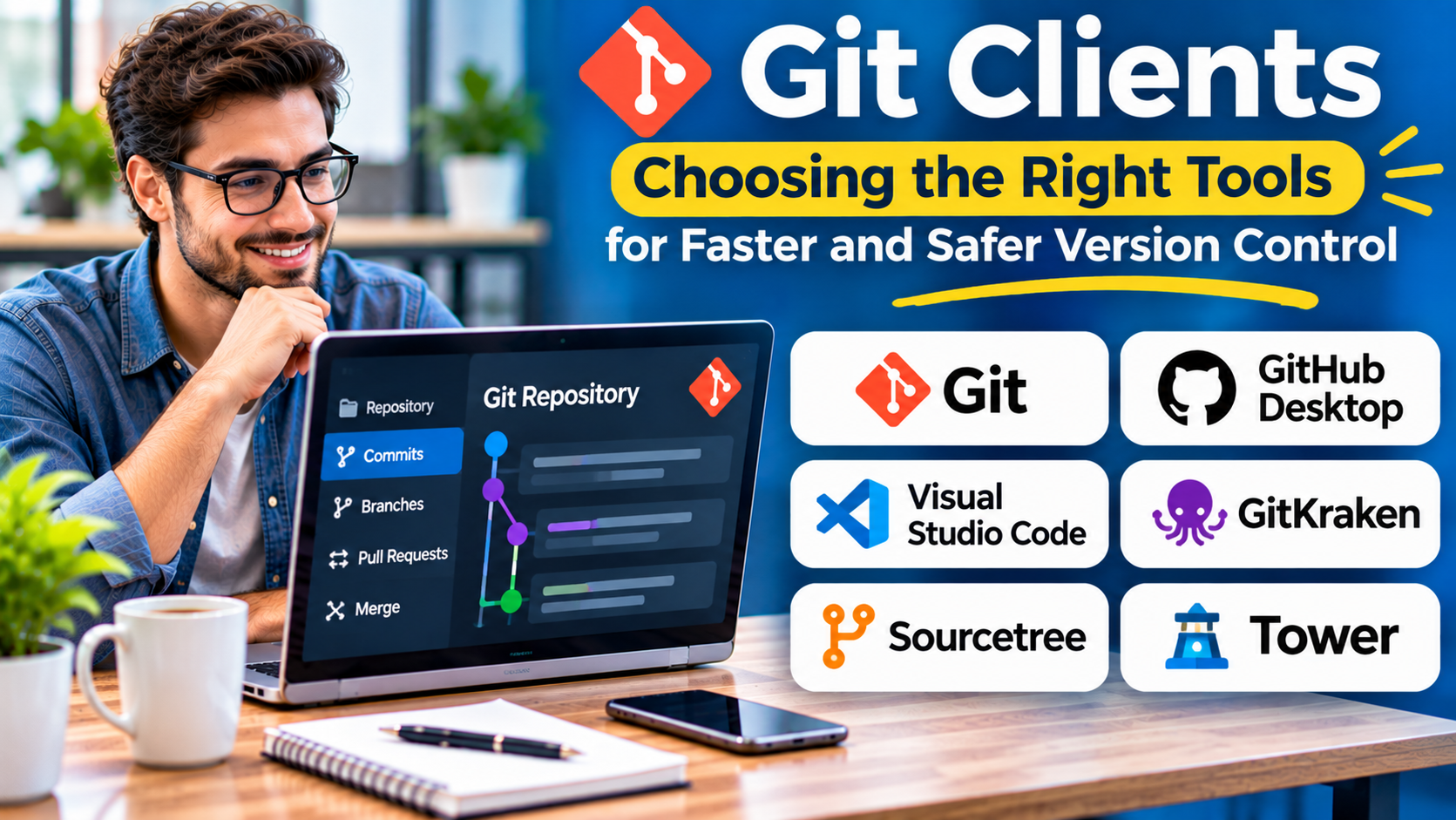
Git is one of the most important tools in modern software development. It helps developers track changes, manage branches, and collaborate without losing earlier versions of their work.
However, Git’s command-line interface can become difficult when developers need to manage complex branch histories, resolve merge conflicts, or review changes across multiple repositories.
Git clients make these tasks easier by providing interfaces for everyday version control operations.
Some offer simple visual workflows. Others provide advanced repository management, integrated code review, and powerful command-line features.
Choosing the right Git client depends on how your team works, not simply how attractive the interface looks.
What Is a Git Client?
A Git client is software that allows developers to interact with Git repositories.
Git itself is a distributed version control system. A Git client provides a way to perform operations such as committing changes, creating branches, merging code, and synchronizing repositories.
Git clients generally fall into three categories.
Command-line clients allow developers to execute Git commands directly.
Graphical Git clients provide visual interfaces for repository history, branches, commits, and conflicts.
Integrated Git tools operate inside code editors and development environments.
All three approaches can work with the same Git repositories, although individual clients may support different advanced features.
Why Developers Use Git Clients
Git clients can reduce the effort required to perform routine version control tasks.
A graphical history makes it easier to understand how branches relate to one another.
Visual diff tools help developers inspect changes before committing them.
Merge conflict interfaces can make competing changes easier to compare.
Some clients also integrate with repository hosting platforms such as GitHub, GitLab, and Bitbucket.
However, a graphical interface does not automatically make Git operations safer.
Developers still need to understand concepts such as commits, branches, rebasing, merging, and remote repositories.
Git Clients Worth Considering
Git Command Line
Git includes a command-line interface that provides direct access to version control operations.
It supports everyday tasks and advanced workflows without requiring a separate graphical application.
Best suited for: Developers who want maximum control, automation, and scripting capabilities.
Strengths: Broad functionality, portability, and compatibility with automated workflows.
Limitations: Complex commands can be difficult for beginners, and repository history is less immediately visual.
The command line remains valuable even for developers who prefer graphical clients.
GitHub Desktop
GitHub Desktop is a graphical Git client designed to simplify common repository operations.
It provides workflows for cloning repositories, committing changes, managing branches, and working with GitHub pull requests.
Best suited for: Beginners and developers working primarily with GitHub.
Strengths: Accessible interface, straightforward workflows, and GitHub integration.
Limitations: Developers needing specialized Git operations may still use the command line.
GitHub Desktop is particularly useful when a team wants a simpler introduction to version control.
Sourcetree
Sourcetree is a graphical Git client from Atlassian.
It provides visual branch management, commit history, and repository operations.
Best suited for: Developers who want a detailed graphical view of Git history.
Strengths: Branch visualization and support for common Git workflows.
Limitations: Interface complexity and platform compatibility should be evaluated against current requirements.
Sourcetree can be useful when understanding branching history is a frequent part of development.
GitKraken Desktop
GitKraken provides a graphical Git experience with branch visualization and collaboration-oriented capabilities.
Its interface emphasizes understanding repository history and managing changes visually.
Best suited for: Developers and teams seeking an advanced graphical Git workflow.
Strengths: Visual repository management and integrated development workflows.
Limitations: Commercial feature availability and licensing should be reviewed.
GitKraken is worth evaluating when developers regularly manage complicated branches.
Fork
Fork is a graphical Git client for Windows and macOS.
It provides repository history, staging, branch management, and merge conflict tools.
Best suited for: Developers seeking a focused desktop Git interface.
Strengths: Detailed repository operations and visual change management.
Limitations: Platform availability and licensing requirements may affect adoption.
Fork is relevant to developers who want substantial Git functionality without moving every operation into a terminal.
Tower
Tower is a commercial Git client for macOS and Windows.
It provides graphical workflows for commits, branches, merges, and other Git operations.
Best suited for: Professional developers seeking a polished desktop Git experience.
Strengths: Visual workflows, repository management, and support for advanced Git operations.
Limitations: Subscription or licensing costs should be compared with the value of its workflow features.
TortoiseGit
TortoiseGit is an open-source Git client for Windows.
It integrates Git functionality into Windows Explorer through shell extensions.
Best suited for: Windows developers who prefer repository operations within the file manager.
Strengths: Explorer integration and familiar Windows workflows.
Limitations: It is Windows-specific, and its interface differs from standalone graphical clients.
lazygit
lazygit is a terminal-based Git interface.
It provides interactive views for staging, commits, branches, and other repository operations.
Best suited for: Terminal-oriented developers who want visual assistance without leaving the command line.
Strengths: Keyboard-driven interaction and terminal integration.
Limitations: Users still need familiarity with Git concepts and terminal workflows.
Git Client Comparison
| Git client | Interface | Primary advantage |
|---|---|---|
| Git CLI | Command line | Complete Git control |
| GitHub Desktop | Graphical | Beginner-friendly GitHub workflow |
| Sourcetree | Graphical | Branch and history visualization |
| GitKraken | Graphical | Advanced visual workflows |
| Fork | Graphical | Focused desktop Git management |
| Tower | Graphical | Professional desktop experience |
| TortoiseGit | Windows shell | File Explorer integration |
| lazygit | Terminal UI | Keyboard-driven Git operations |
No single client is ideal for every developer.
Features That Matter Most
Clear Change Visualization
A useful Git client should show modified files and code differences clearly.
Developers need to understand what they are committing before those changes enter repository history.
Branch Management
Creating, switching, merging, and deleting branches should be straightforward.
Branch visualization becomes especially valuable in repositories with complex histories.
Conflict Resolution
Merge conflicts are unavoidable in collaborative development.
Evaluate whether the client makes conflicting changes easy to inspect and resolve.
Partial Staging
Developers sometimes need to commit only part of a file.
Support for staging individual changes can help create smaller, more meaningful commits.
Repository Hosting Integration
Integration with GitHub, GitLab, or Bitbucket may simplify authentication and collaboration.
However, Git compatibility should remain separate from dependence on a particular hosting platform.
Security
Review how clients handle credentials, authentication tokens, SSH keys, and stored repository information.
Use secure credential management and avoid unnecessary access permissions.
How to Choose a Git Client
Start with the developer’s daily workflow.
A beginner may benefit from GitHub Desktop.
A developer working with complicated branch structures may prefer GitKraken, Fork, Tower, or Sourcetree.
A terminal-focused engineer may prefer Git CLI or lazygit.
Teams should also consider operating system support, licensing, repository hosting, and the ability to perform advanced operations.
Try a client with a real repository before adopting it across the organization.
Common Git Client Mistakes
One mistake is using graphical operations without understanding their effects.
For example, rebasing changes commit history. Force-pushing can overwrite remote branch history.
Another mistake is creating large commits that combine unrelated changes.
Developers should also avoid assuming that a successful merge means the application works correctly.
Git manages source history. Automated tests and code review help verify software quality.
Best Practices for Everyday Git Work
Create focused commits with meaningful messages.
Review changes before staging them.
Synchronize branches regularly to reduce large integration conflicts.
Protect important branches through repository hosting controls.
Avoid committing passwords, API keys, or other secrets.
Use a Git client that supports these habits rather than encouraging unnecessary shortcuts.
Final Thoughts
Git clients make version control more accessible and help developers manage repositories efficiently.
GitHub Desktop, Sourcetree, GitKraken, Fork, Tower, TortoiseGit, and lazygit offer different approaches.
The Git command line remains an important foundation.
The best Git client is the one that helps developers understand their changes, manage collaboration safely, and maintain a reliable project history.
Frequently Asked Questions
What is the difference between Git and a Git client?
Git is the version control system. A Git client provides an interface for interacting with Git repositories.
Which Git client is best for beginners?
GitHub Desktop is a practical starting point, especially for developers using GitHub.
Can graphical Git clients replace the command line?
They can handle many everyday operations, but command-line Git remains useful for advanced tasks and automation.
Are Git clients free?
Some are free or open source. Others offer commercial licenses or paid features.