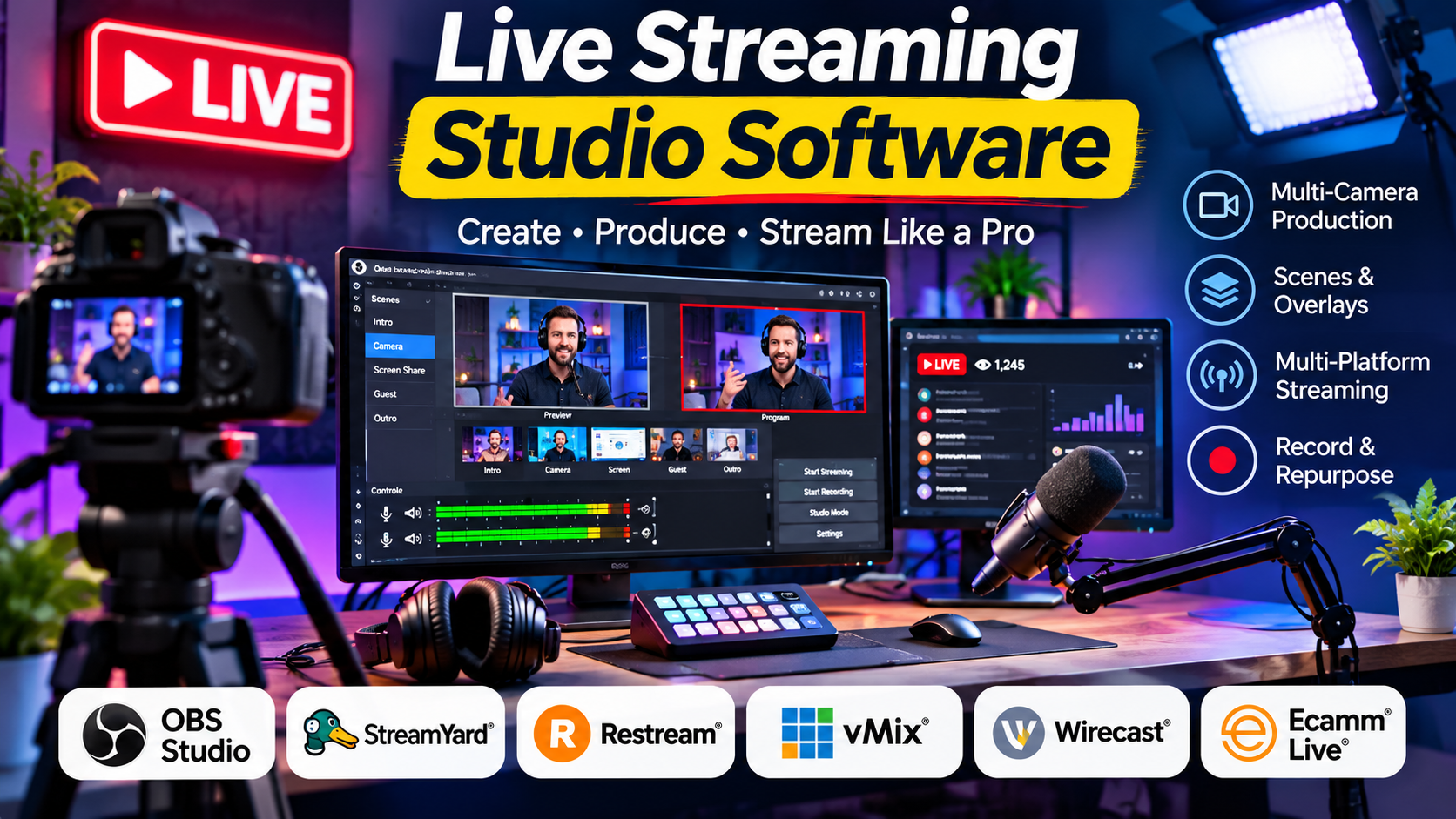
A live broadcast gives its producer very little room for correction. A muted microphone, an incorrect camera source, a delayed guest, or an unstable internet connection can affect the audience immediately.
Live streaming studio software helps manage these risks. It brings cameras, microphones, screen shares, graphics, video clips, and remote guests into a single production workflow.
However, a creator streaming a weekly interview has different needs from a church broadcasting services, an esports producer managing several cameras, or a company hosting a virtual event.
The most useful distinction is not simply which application can stream video. It is how much production control you need, where the production takes place, and who is responsible when something goes wrong.
Three Ways to Produce a Live Stream
Desktop Production Software
Desktop applications run on a production computer and manage local video and audio sources.
They often provide extensive control over scenes, transitions, capture devices, and encoding.
This approach is well suited to gaming, complex productions, and events where operators need direct access to hardware.
Its main challenge is operational responsibility. The production computer must have sufficient processing capacity, stable drivers, and reliable connectivity.
Browser-Based Streaming Studios
Browser-based services provide a production interface without requiring every participant to install specialized broadcasting software.
They are particularly useful for interviews, panel discussions, webinars, and marketing broadcasts.
Guests can often join through an invitation link.
The trade-off is greater dependence on browser compatibility, internet connections, and the provider’s cloud infrastructure.
Professional Video Production Systems
Advanced live productions may need sophisticated switching, instant replay, multiple outputs, external hardware, and broadcast-oriented routing.
These requirements go beyond what a basic browser studio is designed to handle.
Professional production software can offer deeper control, but it requires more preparation, technical knowledge, and often a larger equipment budget.
Live Streaming Studio Software Worth Considering
OBS Studio: Flexible, Free, and Open Source
OBS Studio is a free, open-source application for video recording and live streaming.
It runs on Windows, macOS, and Linux.
OBS organizes production around scenes and sources. A scene can combine a webcam, game capture, desktop window, graphics, browser content, and audio.
Producers can create multiple scenes and switch between them during a broadcast.
For example, an educational livestream might include:
- A full-screen presentation
- A presenter camera
- A presentation with picture-in-picture video
- A countdown screen
- A closing scene
OBS can manage these layouts without requiring a separate hardware video switcher.
Its audio mixer provides per-source controls and filters, making it useful when a production includes microphones, desktop audio, and other sound sources.
Where OBS stands out
OBS offers considerable flexibility without a software license fee. Its plugin ecosystem also supports specialized production workflows.
What requires attention
OBS is not a complete cloud guest-management service by itself. Remote guests, advanced routing, and certain multistream workflows may require additional tools.
Operators must also understand encoding, audio monitoring, and computer performance.
OBS is especially compelling for technically confident creators who want control over their production environment.
StreamYard: Remote Interviews and Browser-Based Shows
StreamYard focuses on live streaming and recording through a browser-based studio.
Its workflow is suited to creators who regularly invite remote guests or host conversational broadcasts.
Instead of asking every participant to configure professional broadcasting software, the producer can bring guests into a managed studio environment.
Branding elements, layouts, and supported streaming destinations can be managed through the service.
For a business hosting a weekly expert discussion, this can reduce the technical burden on presenters.
The producer can focus on the conversation, guest transitions, and audience presentation.
Trade-offs
Browser-based convenience comes with service dependencies. Available destinations, recording options, production limits, and branding features can vary by subscription.
Teams should also test guest connections and audio quality before a live event.
StreamYard is a strong candidate when remote participation matters more than complex local video routing.
Restream: Multichannel Distribution and Browser Production
Restream is associated with distributing live content to multiple supported destinations.
It also provides browser-based studio capabilities.
This combination makes it relevant to creators who want to manage a live show while reaching audiences across several streaming platforms.
For example, a company may want to broadcast a product demonstration to YouTube and other supported channels without maintaining a separate production for each destination.
Restream can simplify parts of that workflow.
However, simultaneous distribution does not guarantee equal audience engagement.
Comments, moderation, analytics, and platform-specific interactive features may behave differently across destinations.
Before committing, verify the supported platforms, channel limits, resolution policies, and recording capabilities for the intended plan.
vMix: Advanced Windows-Based Live Production
vMix is a professional live production application designed for Windows.
It combines video switching, recording, streaming, and a range of advanced production functions.
Its feature set is relevant to event producers, broadcasters, houses of worship, and organizations working with several video sources.
Depending on the edition and configuration, vMix supports production capabilities such as remote contribution, graphics, replay, and multiple video inputs.
A sports production might require camera switching, score graphics, replays, and separate program outputs.
Those needs are fundamentally different from a simple two-person interview.
What to evaluate
vMix places significant demands on hardware planning and operator knowledge.
Before selecting an edition, verify the supported number of inputs, output requirements, replay capabilities, and hardware compatibility.
It is a practical option when professional control justifies a more complex setup.
Wirecast: Software-Based Professional Broadcasting
Wirecast is a live video production application from Telestream.
It is designed for producers who need to combine multiple sources, create polished broadcasts, and stream or record their output.
Its professional production orientation makes it relevant to educational institutions, businesses, and event teams.
Wirecast supports workflows involving cameras, graphics, media assets, and production switching.
For a team producing recurring live events, it can provide a more structured production environment than a basic meeting application.
The trade-off is the cost and complexity associated with professional software.
Check edition-specific features, hardware requirements, supported inputs, and ongoing licensing conditions before deployment.
Ecamm Live: Mac-Focused Creator Production
Ecamm Live is a live streaming and video production application built for macOS.
It targets creators, educators, and businesses that want to combine presentation, camera, and screen content in a polished broadcast.
Its appeal lies in bringing several creator-oriented production functions into a Mac-based workflow.
A solo presenter can prepare scenes, introduce graphics, share a screen, and manage a live show without a conventional control room.
For Mac users, this can be a practical alternative to configuring a more technical broadcasting environment.
Its main limitation is platform compatibility: teams that rely on Windows or Linux need another solution.
Plan-specific capabilities and external service integrations should also be checked.
Riverside: Remote Recording with Live Production Capabilities
Riverside is especially relevant to creators who want high-quality recorded conversations as well as live production features.
Its remote recording approach distinguishes it from software designed primarily around switching local cameras.
For podcasters, interviewers, and content teams, the recorded version of a livestream may be as important as the live broadcast itself.
A recorded conversation can later become a podcast episode, short promotional clip, or edited video.
Riverside deserves consideration when recording and repurposing content are central goals.
However, teams should distinguish locally captured recordings, live-stream quality, cloud processing, and export options. These are separate technical concerns.
Comparison: Match the Software to the Production
| Software | Production approach | Suitable use case | Main consideration |
|---|---|---|---|
| OBS Studio | Desktop, open source | Gaming and custom broadcasts | Technical setup |
| StreamYard | Browser studio | Interviews and panels | Cloud dependence |
| Restream | Browser studio and distribution | Multichannel broadcasts | Destination restrictions |
| vMix | Professional Windows production | Complex events and sports | Hardware and expertise |
| Wirecast | Professional desktop production | Events and institutional broadcasts | Licensing and configuration |
| Ecamm Live | Mac-based production | Solo creators and educators | macOS requirement |
| Riverside | Remote recording and production | Interviews and repurposed content | Recording and live feature differences |
The Technical Decisions That Determine Stream Quality
Resolution Is Only One Part of Video Quality
A 1080p broadcast does not automatically look better than a well-configured 720p stream.
Actual quality depends on bitrate, frame rate, encoder settings, lighting, camera quality, and the stability of the connection.
For a talking-head interview, stable video and clear audio are usually more valuable than an ambitious resolution that causes buffering.
Fast-moving gameplay and sports require different encoding decisions from a static presentation.
Hardware Encoding Versus Software Encoding
Video encoding converts captured frames into a compressed stream.
Software encoding typically relies heavily on the CPU.
Hardware encoding uses dedicated capabilities in supported GPUs or processors.
Hardware encoding can reduce CPU load, but quality and feature support depend on the encoder and configuration.
Test the exact hardware and streaming settings rather than assuming one encoding method is always superior.
Audio Routing and Monitoring
Audio problems can be harder to notice than video problems.
A producer should know which sources are being transmitted, which sources are audible locally, and whether participants can hear themselves with a delay.
Important checks include microphone gain, echo prevention, system audio routing, and monitoring devices.
When possible, monitor the outgoing program audio rather than relying only on what the presenter hears.
Internet Reliability
A stable upload connection is essential.
Your available upload capacity should comfortably exceed the bitrate required by the broadcast, leaving room for network variation and other traffic.
For important events, consider a wired connection and a backup internet option.
A rehearsal should use the actual venue network, not merely a convenient office connection.
A Practical Workflow for a Professional Livestream
Consider a company presenting a new software product to customers.
Before the Event
Prepare the presentation, camera framing, branded graphics, and screen-sharing layout.
Create a starting scene, main presentation scene, demonstration scene, and closing scene.
Test the microphone, system audio, and any videos that will play during the event.
Invite remote speakers to a rehearsal.
Confirm the destination account and streaming permissions.
During the Event
Begin with a holding screen before introducing the presenter.
Monitor the program output, audio levels, and connection status.
Switch to screen sharing only when the demonstration environment is ready.
Keep a fallback scene available if the demonstration application stops responding.
Record a local or cloud copy where supported and appropriate.
After the Event
Review the recording for errors and sensitive information.
Edit reusable sections into shorter videos.
Evaluate audience engagement using the destination platform’s analytics.
Document any technical problems before the next production.
This workflow is more important than the number of visual effects a streaming application offers.
Security and Privacy in Live Production
Streaming software can capture information that was never intended for an audience.
Notifications, customer records, private browser tabs, and desktop messages can appear unexpectedly.
For business broadcasts, use dedicated demonstration accounts and clean desktop environments.
Remote guest services also introduce questions about recording consent, cloud storage, access permissions, and retention.
Organizations should review the applicable service terms and security documentation before transmitting confidential content.
Mistakes That Commonly Disrupt Livestreams
Using an untested production computer: A powerful computer can still experience driver conflicts, overheating, or audio routing failures.
Skipping a full rehearsal: Testing individual cameras is not the same as testing the entire live workflow.
Adding unnecessary complexity: Every additional plugin, browser source, and capture device creates another potential failure point.
Ignoring the audience’s experience: A polished studio layout cannot compensate for unclear speech or a poorly structured presentation.
Depending on a single connection: High-value events need a practical response to network failure.
Choosing a Live Streaming Studio
Choose OBS Studio when flexibility, open-source software, and control over local production are priorities.
Consider StreamYard for remote conversations and simple browser-based shows.
Evaluate Restream when simultaneous distribution is a central requirement.
Shortlist vMix or Wirecast for demanding multi-source productions.
Explore Ecamm Live for creator-focused Mac workflows.
Consider Riverside when recording quality and content repurposing matter alongside live broadcasting.
The right software should match the complexity of your show, the skills of your operators, and the consequences of failure.
Reliable audio, a rehearsed workflow, and a stable connection will usually contribute more to a successful livestream than an elaborate collection of visual effects.