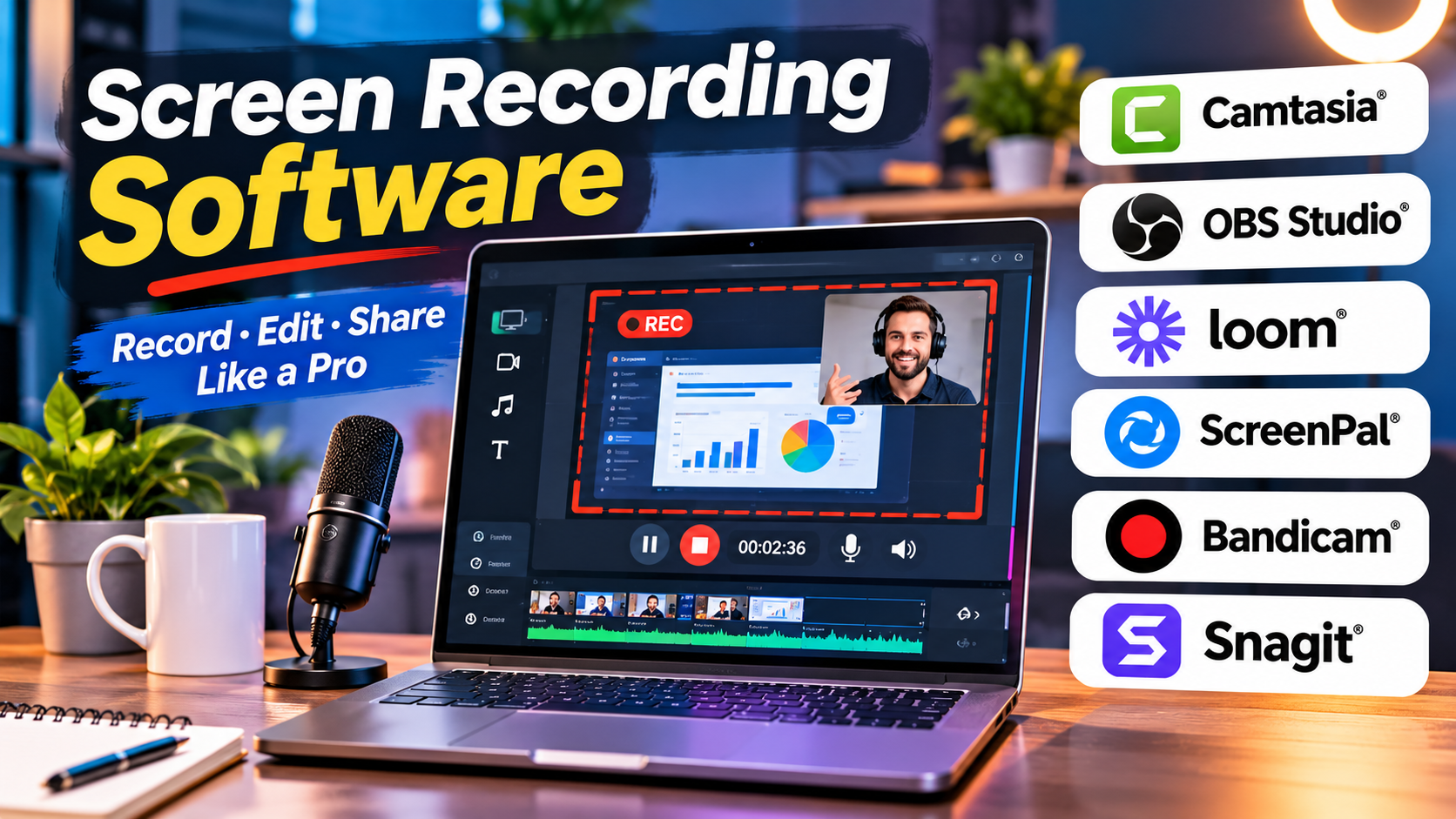
A screen recording can explain a complicated process more clearly than several paragraphs of instructions. But producing a useful recording involves more than pressing a record button.
The software must capture the right content, preserve readable text, record clear audio, and produce a file that viewers can access without difficulty.
A technical trainer may need precise cursor effects and a multitrack editor. A support engineer may want to send a two-minute recording through a link. A game creator may prioritize smooth capture at high frame rates.
These workflows call for different tools.
This guide examines screen recording software through the practical decisions that matter most: capture quality, editing, sharing, operating system support, and long-term content management.
What Makes Screen Recording Software Different?
Screen recording software captures activity on a computer display and converts it into video.
Depending on the application, it may also capture:
- Microphone narration
- System audio
- Webcam video
- Mouse movement and clicks
- Keyboard activity
- Individual application windows
- Multiple monitors
Some applications focus on capturing video files. Others provide editing, cloud hosting, transcription, and collaboration.
That distinction matters because recording is often only the first stage of the workflow.
A training video may require several rounds of editing. A quick support explanation may never need a traditional video editor.
Screen Recording Software for Different Workflows
Camtasia: Structured Tutorials and Training Videos
Camtasia combines screen recording with video editing.
Its strengths are especially relevant to people producing tutorials, educational videos, and software demonstrations.
Camtasia can capture screen content, camera footage, microphone audio, and other supported recording sources.
Its editor provides tools for trimming footage, arranging clips, adding callouts, emphasizing cursor activity, and creating visual explanations.
Imagine a software company preparing an onboarding course.
The trainer needs to show a workflow, zoom in on important controls, highlight mouse activity, and correct narration mistakes.
A recording-only application would require another editor to finish the job.
Camtasia’s integrated approach reduces that separation.
The trade-off
Its editing environment and commercial licensing may be excessive for users who only need occasional short recordings.
Camtasia is most compelling when recording and post-production are both regular activities.
OBS Studio: High-Control Recording Without a License Fee
OBS Studio is a free, open-source application for recording and live streaming.
Its scene-based architecture allows users to combine screen captures, application windows, cameras, and other visual sources.
OBS is useful for gaming, technical demonstrations, and recordings involving several inputs.
For example, a developer can prepare one scene showing an editor and another showing a browser demonstration.
OBS also provides detailed control over recording and encoding settings.
This makes it attractive to technically confident users who want to manage video quality, file formats, and hardware encoding.
However, OBS is primarily a capture and production application, not a complete nonlinear video editor.
Long-form editing usually requires another tool.
Its flexibility also means beginners may need time to understand scenes, sources, audio routing, and recording configuration.
Loom: Fast Asynchronous Video Communication
Loom is designed around recording and sharing short videos.
Its approach is useful for distributed teams, customer support, product feedback, and internal explanations.
A project manager can record a screen walkthrough, explain the required changes, and share the result without arranging a meeting.
This changes the purpose of screen recording.
Instead of creating a polished video asset, the recording becomes a communication tool.
Loom’s sharing and collaboration workflows can reduce the friction between recording and delivering an explanation.
Where it fits
Loom is particularly useful when speed and accessibility matter more than advanced editing.
What to consider
Cloud-hosted recordings introduce access management, retention, and organizational ownership questions.
Teams should verify workspace permissions, export options, recording limits, and plan-specific collaboration features.
ScreenPal: Accessible Recording and Editing
ScreenPal provides screen recording, video editing, and related content creation tools.
It is relevant to educators, independent creators, and organizations producing instructional content.
Its workflow can suit users who need more editing than a simple recording utility provides but do not require a complicated professional production environment.
For example, a teacher might record a lesson, remove mistakes, add captions, and distribute the final video to students.
ScreenPal can support this type of workflow.
Before selecting a plan, verify the recording limits, editing tools, storage allowances, and publishing options.
Bandicam: Performance-Oriented Windows Recording
Bandicam is a Windows screen recording application with an emphasis on capturing screen activity and gameplay.
It supports recording workflows involving desktop content, games, and external video devices under supported configurations.
Its appeal is strongest when capture performance and local video files matter.
A gaming creator may prioritize smooth frame rates, suitable hardware encoding, and predictable output formats.
Bandicam deserves evaluation in this context.
Its main limitation is platform scope. Users on macOS or Linux need alternatives.
It also should not be treated as a substitute for a complete editing suite.
Snagit: Short Screen Explanations and Visual Documentation
Snagit is primarily known for screenshots and visual communication.
It also supports screen video capture.
This combination is valuable when users regularly switch between static images and short recordings.
A technical support specialist might use a screenshot to identify a setting and a short video to demonstrate the next step.
Snagit’s annotation and capture workflows support that kind of communication.
For long training courses, however, a more extensive video editor may be preferable.
Snagit is particularly useful when documentation involves both images and brief videos.
ShareX: Open-Source Capture and Automation
ShareX is a free, open-source Windows application that supports screenshots, screen recording, and automated post-capture workflows.
It offers several capture modes and configurable actions.
Its automation capabilities are useful for technical users who repeatedly capture, save, process, or distribute visual material.
For example, a developer may configure a workflow to capture a selected region, save the result using a preferred naming pattern, and copy its location.
ShareX offers considerable flexibility, although configuration can be more involved than using a simple one-button recorder.
Its Windows focus also limits its suitability for mixed-platform teams.
Comparison of Screen Recording Tools
| Software | Main strength | Suitable users | Main limitation |
|---|---|---|---|
| Camtasia | Recording with detailed editing | Trainers and educators | Commercial cost |
| OBS Studio | Flexible recording control | Gamers and technical creators | Separate editing often needed |
| Loom | Fast sharing and communication | Distributed teams | Cloud and plan dependencies |
| ScreenPal | Recording and accessible editing | Teachers and small teams | Feature limits by plan |
| Bandicam | Windows screen and game capture | Gamers and local recorders | Windows focus |
| Snagit | Screenshots and short videos | Support and documentation teams | Limited long-form editing |
| ShareX | Capture automation | Technical Windows users | Configuration complexity |
Recording Quality: What Viewers Actually Notice
Text Readability
Software demonstrations often contain small interface labels, menus, and code.
If the recording is exported at a low resolution or compressed heavily, viewers may struggle to read them.
Before recording, enlarge important interface elements and close unnecessary panels.
Test the output at the size your audience will actually watch.
A 4K capture does not guarantee readable text when the video is displayed in a small embedded player.
Frame Rate
Frame rate determines how many images are captured each second.
A lower frame rate may be adequate for relatively static presentations.
Smooth mouse movement, animation, and gaming can benefit from higher frame rates.
However, increasing the frame rate can also increase processing demands and file sizes.
Select a frame rate based on the content rather than assuming the highest setting is always necessary.
Audio Quality
Viewers may tolerate modest video quality, but unclear narration makes instruction difficult.
Use a microphone positioned consistently and record in a quiet environment.
Monitor input levels and avoid clipping.
Where supported, capture microphone and system audio separately to make editing easier.
File Formats and Compatibility
Common recording workflows use formats such as MP4, often with H.264 video.
Other containers and codecs may offer advantages for specific editing or capture requirements.
The important question is whether your intended editor, hosting platform, and viewers can handle the exported file.
A recording format that performs well during capture may not be the ideal final delivery format.
Local Recording Versus Cloud Recording
Local recording stores video on your computer or another selected storage location.
It offers direct file control and can be useful for confidential material, offline work, and professional editing.
However, users must manage storage, backups, and sharing.
Cloud-oriented tools simplify distribution and collaboration.
They may offer browser playback, comments, transcription, and workspace management.
The trade-off is dependence on provider policies and internet access.
For sensitive business content, investigate where recordings are stored, who can view them, how access is revoked, and whether files can be exported.
A private sharing link is not necessarily equivalent to an enterprise-controlled document.
A Better Process for Recording Software Tutorials
1. Prepare the Environment
Close unrelated applications, disable notifications, and remove personal or confidential information.
Set the display resolution and scaling to suit the intended audience.
2. Outline the Demonstration
Write a short sequence of steps rather than improvising every action.
Identify the expected result of each stage.
3. Record a Short Test
Capture a sample containing speech, mouse movement, and the smallest text viewers will need to read.
Check audio levels and playback quality.
4. Record in Manageable Sections
For complex tutorials, shorter sections can be easier to correct than one uninterrupted recording.
5. Edit for Clarity
Remove unnecessary waiting, repeated actions, and mistakes.
Use callouts only when they help viewers understand an important action.
6. Add Accessibility Support
Captions, transcripts, and clear narration improve usability.
Review automatically generated captions for technical terms, names, and commands.
7. Export and Test
Watch the exported recording on another device or in the intended playback environment.
Check text readability, sound, and synchronization.
Privacy and Security Considerations
Screen recordings can reveal passwords, access tokens, customer information, email addresses, and internal systems.
Even a brief notification can expose sensitive information.
A dedicated demonstration account is often safer than recording from a production account.
When confidential information is accidentally captured, removing it from the final video may not eliminate copies stored in cloud history or earlier exports.
Organizations should establish rules for recording consent, storage, retention, and deletion.
When Built-In Screen Recording Is Enough
Not every task requires specialized software.
Windows and macOS provide built-in screen capture or recording capabilities, although supported recording scenarios and audio options vary.
For occasional, simple recordings, these tools may be sufficient.
Specialized software becomes more valuable when you need detailed editing, multi-source recording, automated capture, collaboration, or repeatable production workflows.
Which Screen Recorder Should You Choose?
Choose Camtasia when you regularly produce polished instructional videos.
Use OBS Studio when you want flexible recording controls and are comfortable managing technical settings.
Consider Loom for short team explanations and asynchronous communication.
Evaluate ScreenPal for educational recording and editing.
Look at Bandicam for Windows gaming and performance-oriented capture.
Choose Snagit when screenshots and short videos form one documentation workflow.
Explore ShareX when automation and configurable capture actions matter.
The most effective screen recording software is the one that minimizes the work between an idea and a clear, useful video.
For some users, that means a powerful editor. For others, it means pressing record, explaining the issue, and sharing the result in minutes.