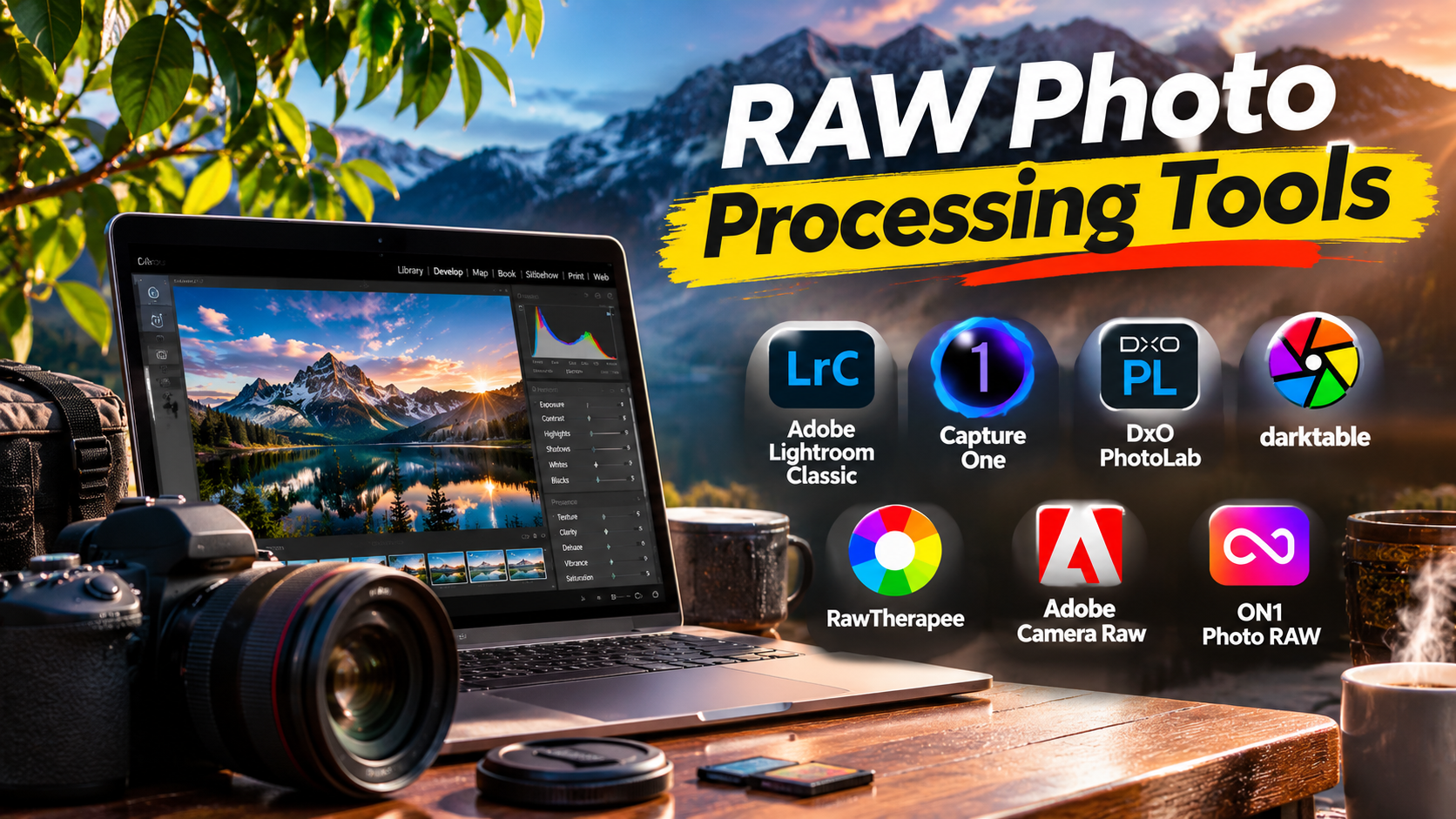
A photograph can look very different depending on how its RAW file is processed. Two applications may open the same camera file and produce different colors, contrast, noise levels, and fine details before the photographer makes a single adjustment.
That difference matters when editing wedding photographs, preparing commercial images, recovering difficult exposures, or processing hundreds of photographs from a single shoot.
RAW photo processing tools give photographers greater control over how their images are developed. However, choosing the right application involves more than comparing editing sliders.
Some tools focus on managing large photo libraries. Others specialize in image quality, color reproduction, noise reduction, or detailed manual adjustments.
This guide explains how RAW processing works, examines important software options, and shows how to choose a practical editing workflow.
Why RAW Processing Matters
A RAW file contains image data captured by a camera sensor, along with information needed to interpret that data.
Unlike a typical JPEG, a RAW image usually requires additional processing before it is ready for sharing or printing.
RAW processing software interprets the sensor data and lets photographers control the final appearance.
Common adjustments include:
- White balance and color temperature
- Exposure and contrast
- Highlight and shadow recovery
- Lens distortion correction
- Noise reduction
- Sharpening and detail enhancement
- Color grading
- Local adjustments and masking
- Cropping and perspective correction
- Export settings and color profiles
RAW files generally offer greater editing flexibility than camera-generated JPEGs, especially when correcting white balance and adjusting tonal information.
However, RAW does not guarantee unlimited highlight recovery or better results in every situation. The available information depends on the camera, exposure, sensor, and recording format.
What Makes a Good RAW Photo Editor?
Accurate color reproduction
A useful RAW processor should provide dependable color profiles, white balance controls, and flexible color adjustments.
Photographers working with products, clothing, artwork, and skin tones should pay particular attention to color consistency.
Effective noise reduction
Images captured at high ISO settings often contain visible noise.
Good processing software should reduce unwanted noise while preserving natural textures.
Excessive noise reduction can make skin, foliage, and fine details appear artificial.
Reliable camera compatibility
Not every RAW processor immediately supports every camera.
Before choosing an application, confirm that it supports the specific camera model and RAW format you use.
Non-destructive editing
Non-destructive workflows preserve the original image and store editing instructions separately.
This allows photographers to revisit their work without repeatedly degrading the original image.
Efficient batch processing
Photographers working with large collections benefit from synchronized adjustments, presets, filtering, metadata management, and batch export.
Color-managed output
Print photographers need accurate color handling, appropriate output profiles, and ideally soft-proofing capabilities.
A strong editing application should support the intended output workflow rather than simply making images look attractive on one screen.
RAW Photo Processing Tools Worth Considering
1. Adobe Lightroom Classic — For Large Photo Libraries
Adobe Lightroom Classic combines RAW development with photo organization.
It is particularly relevant to photographers who manage thousands of images across projects, clients, or shooting sessions.
Its catalog-based workflow allows users to organize photographs, apply ratings, create collections, and search metadata.
Notable capabilities
- Non-destructive RAW editing
- Catalog and collection management
- Advanced masking and local adjustments
- Lens and perspective corrections
- Batch editing and export
- Photoshop integration
- Noise reduction and color grading
- Print-oriented workflows
Where it stands out
Lightroom Classic is especially useful when editing and managing photographs are equally important.
A wedding photographer, for example, may need to select hundreds of images, apply consistent adjustments, and deliver multiple export sizes.
Lightroom Classic brings these tasks into one workflow.
Important trade-offs
The catalog requires careful management. Moving files outside the application without updating their locations can create missing-file problems.
Its subscription model also introduces an ongoing cost.
Best suited to: Wedding, portrait, event, commercial, and high-volume photographers.
Official website: https://www.adobe.com/products/photoshop-lightroom-classic.html
2. Capture One — For Studio Photography and Color Control
Capture One is a professional RAW editing application with a strong focus on color adjustments and studio workflows.
It is especially relevant to commercial photographers who work with controlled lighting and tethered camera capture.
Notable capabilities
- RAW conversion and editing
- Advanced color editing
- Layer-based adjustments
- Tethered capture for supported cameras
- Sessions and catalogs
- Image selection and organization
- Batch processing
- Professional export workflows
Why photographers choose it
Capture One’s session workflow is useful for projects that need to remain separate.
A product photographer can organize captures, selects, output files, and project assets without placing every job into one large catalog.
Its color tools also support targeted adjustments to specific color ranges.
Limitations to consider
The interface takes time to learn, and its licensing options require careful comparison.
Camera compatibility and tethering support should be checked before purchase.
Best suited to: Studio, fashion, product, portrait, and commercial photographers.
Official website: https://www.captureone.com/
3. DxO PhotoLab — For Optical Corrections and Image Quality
DxO PhotoLab focuses on RAW development, optical corrections, and computational image enhancement.
It is particularly interesting for photographers who regularly work with challenging lighting conditions or demanding camera-and-lens combinations.
Key capabilities
- Camera and lens correction profiles
- RAW processing
- Advanced noise reduction
- Exposure and tonal adjustments
- Local corrections
- Color management
- Image sharpening
- Export to standard image formats
Its main advantage
DxO’s approach emphasizes correcting optical imperfections and extracting useful detail from RAW data.
This can be valuable for wildlife, travel, sports, and low-light photography.
However, noise reduction quality depends on the source image, selected settings, and processing method.
Trade-offs
PhotoLab is not intended to replace every aspect of a large-scale digital asset management system.
Its support for particular cameras and lenses should also be verified.
Best suited to: Photographers prioritizing noise reduction, lens corrections, and RAW image quality.
Official website: https://www.dxo.com/dxo-photolab/
4. darktable — For Open-Source Photography Workflows
darktable is a free, open-source RAW developer and photography workflow application.
It provides non-destructive editing, image organization, and advanced processing controls.
Important features
- Non-destructive RAW development
- Exposure and tone adjustments
- Color management
- Parametric and drawn masking
- Image organization
- Lens correction capabilities
- Batch export
- Advanced processing modules
Why it matters
darktable offers an alternative to subscription-based photography software.
Its processing modules provide detailed control over image development.
It is particularly attractive to photographers who prefer open-source software and want greater independence from commercial ecosystems.
Challenges
Its interface and terminology may feel unfamiliar to users coming from Lightroom.
Some advanced workflows require a stronger understanding of digital image processing.
Best suited to: Technical photographers, open-source users, and enthusiasts willing to learn detailed processing controls.
Official website: https://www.darktable.org/
5. RawTherapee — For Detailed Manual RAW Development
RawTherapee is another free, open-source RAW processing application.
Its emphasis is on detailed image adjustments rather than building a complete commercial photography ecosystem.
Key capabilities
- RAW demosaicing controls
- White balance adjustment
- Tone curves
- Highlight and shadow processing
- Noise reduction
- Sharpening
- Color adjustments
- Lens-related corrections
- Batch processing
Where it excels
RawTherapee appeals to photographers who want to understand and control the technical aspects of image development.
It offers extensive adjustment options that can be valuable for difficult files.
Limitations
The number of controls can overwhelm beginners.
Its photo organization experience also differs from applications built around extensive catalog management.
Best suited to: Enthusiasts, technical users, and photographers seeking a free RAW development tool.
Official website: https://www.rawtherapee.com/
6. Adobe Camera Raw — For Photoshop-Centered Editing
Adobe Camera Raw is a RAW processing component integrated into Adobe’s photography workflow.
It is commonly used to prepare RAW images before opening them in Photoshop.
Useful capabilities
- RAW conversion
- Exposure and color corrections
- Masking
- Noise reduction
- Lens corrections
- Camera profiles
- Integration with Photoshop
Why it is useful
Some photographers need detailed pixel editing, compositing, retouching, or layered image manipulation after RAW development.
Camera Raw provides a natural starting point for those workflows.
Trade-off
It is not a complete photo cataloging replacement for Lightroom Classic.
Best suited to: Retouchers, compositors, commercial photographers, and Photoshop users.
Official website: https://www.adobe.com/products/photoshop.html
7. ON1 Photo RAW — For Combined Editing and Effects
ON1 Photo RAW combines RAW development, photo organization, masking, and creative editing tools.
It targets photographers who want several editing functions within one application.
Relevant capabilities
- RAW development
- Photo browsing and organization
- Layer-based editing
- Masking
- Noise reduction
- Creative effects
- Portrait-oriented adjustments
- Batch processing
Why consider it
Its integrated approach may reduce the need to move between several applications for common editing tasks.
Potential drawbacks
Users should evaluate performance with large RAW files and confirm that its organization and export workflows meet their needs.
Best suited to: Enthusiasts, portrait photographers, and creative editors.
Official website: https://www.on1.com/
RAW Processing Software Comparison
| Software | Main strength | Ideal workflow | Cost approach |
|---|---|---|---|
| Lightroom Classic | Library management and editing | High-volume photography | Subscription |
| Capture One | Color and studio workflow | Commercial photography | Commercial licensing |
| DxO PhotoLab | Optical correction and noise reduction | Image-quality-focused editing | Commercial licensing |
| darktable | Open-source editing and organization | Technical photography | Free |
| RawTherapee | Detailed RAW development | Manual image processing | Free |
| Adobe Camera Raw | Photoshop integration | Retouching and compositing | Adobe software ecosystem |
| ON1 Photo RAW | Integrated creative editing | General and creative photography | Commercial licensing |
Pricing, licensing, and feature availability can change. Check the current vendor terms before purchasing.
A Practical RAW Editing Workflow
A reliable workflow matters as much as the application.
Step 1: Import and protect the original files
Copy images from the memory card to primary storage.
Create a separate backup before formatting the card.
Step 2: Review and select photographs
Use ratings, flags, or color labels to identify strong images.
Remove obvious mistakes from the working selection without immediately deleting irreplaceable originals.
Step 3: Correct exposure and white balance
Begin with fundamental tonal and color corrections.
Avoid aggressive sharpening or creative effects before establishing a balanced image.
Step 4: Apply lens corrections
Review distortion, vignetting, and chromatic aberration.
Automatic profiles are helpful, but they should not replace visual inspection.
Step 5: Adjust color and contrast
Refine the photograph’s visual character while preserving natural detail where appropriate.
Step 6: Apply local corrections
Use masks to adjust subjects, skies, backgrounds, or other selected areas.
Step 7: Review noise and sharpening
Inspect images at useful magnifications.
An image that looks sharp when reduced may show artifacts at full resolution.
Step 8: Export for the intended destination
Web images often use JPEG or another supported delivery format with an appropriate color profile.
Professional print workflows may require high-quality TIFF files or printer-specific settings.
Always retain the original RAW file and editable processing instructions.
How to Test RAW Software Before Committing
Create a small test library containing:
- A high-ISO night photograph
- A portrait with natural skin tones
- A landscape with bright highlights
- An image captured with a wide-angle lens
- A photograph containing fine textures
- A batch of at least 100 images
Process these files in two or three applications.
Compare color, detail, noise, editing speed, export quality, and file organization.
Also test how easily you can move or restore the project.
This practical comparison is more useful than choosing software based only on feature counts.
Common RAW Processing Mistakes
Overprocessing images
Excessive clarity, sharpening, saturation, and noise reduction can produce unnatural results.
Ignoring monitor calibration
Editing on an inaccurate display makes consistent color difficult.
Relying only on presets
Presets can accelerate editing, but they rarely suit every lighting condition.
Failing to back up catalogs and sidecars
The RAW file alone may not preserve every edit, rating, or organizational decision.
Assuming all RAW converters produce identical results
Different processing engines interpret sensor information differently.
The starting image, color profile, and adjustment behavior may vary.
Which RAW Photo Processing Tool Should You Choose?
Choose Lightroom Classic when managing and editing large image libraries is the priority.
Consider Capture One for studio workflows, tethered shooting, and detailed color work.
Evaluate DxO PhotoLab when optical corrections and noise reduction matter most.
Use darktable when you want a free, open-source photography workflow with extensive editing capabilities.
Try RawTherapee if you prefer detailed manual RAW development.
Choose Adobe Camera Raw when Photoshop is central to your editing process.
Consider ON1 Photo RAW when you want RAW processing and creative image editing in one application.
The strongest choice is not necessarily the application with the most controls. It is the one that produces consistent results, supports your camera, protects your original files, and fits the way you actually photograph.
A carefully tested RAW workflow can improve image quality while reducing repetitive editing and long-term file management problems.