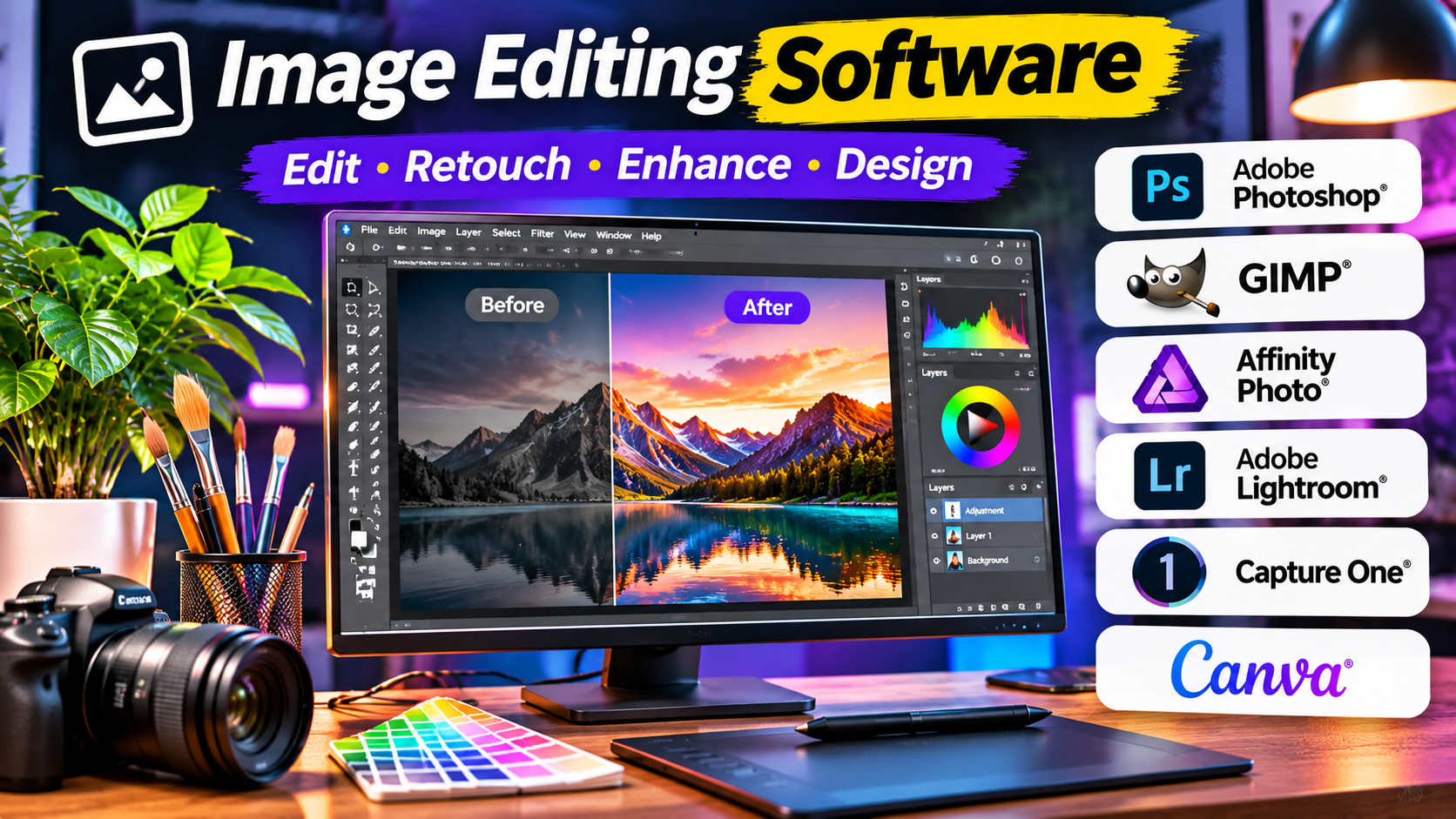
A photographer correcting exposure, a designer building a layered composition, and a marketer resizing product images may all use image editing software. Yet their requirements are very different.
A photographer may need accurate color management and support for RAW files. A designer may depend on layers, masks, and detailed selections. A marketing team may prioritize templates, brand consistency, and fast collaboration.
Choosing the wrong application can create unnecessary costs, slow production, and complicate file sharing.
The most useful approach is to understand how different editors work, which capabilities matter for your projects, and where specialized software offers genuine advantages.
The Main Types of Image Editing Software
Image editing is a broad category covering several distinct workflows.
Pixel-Based Image Editors
Pixel-based editors modify raster images made of individual pixels.
They are used for retouching, compositing, painting, object removal, and detailed visual adjustments.
These applications are particularly useful for photographs and complex image manipulation.
RAW Photo Editors
RAW editors process image data captured by digital cameras.
They focus on exposure, white balance, color, detail, lens corrections, and photo organization.
Many support nondestructive editing, which preserves the original image while storing adjustment instructions.
Browser-Based Image Editors
Browser-based tools provide editing functions without requiring a conventional desktop installation.
They are useful for quick adjustments, accessible workflows, and collaboration.
However, large files, browser performance, offline access, and advanced color requirements can affect suitability.
Template-Based Visual Editors
These tools focus on producing finished visual content such as social media graphics, presentations, banners, and promotional images.
They may include photo editing, but their primary purpose is often layout and content production rather than detailed photographic manipulation.
Understanding these differences prevents comparisons between products that solve different problems.
Image Editing Software Worth Evaluating
Adobe Photoshop: Detailed Image Manipulation and Compositing
Adobe Photoshop is a professional raster image editor widely used for photo manipulation, compositing, digital artwork, and design.
Its editing model supports layers, masks, selections, adjustment layers, filters, and other tools for detailed image control.
Photoshop is especially valuable when a project combines several visual elements.
Consider a product advertising image.
A designer may need to isolate a product, replace the background, correct reflections, adjust lighting, add shadows, and prepare the final composition for several output sizes.
This workflow requires more than basic exposure adjustments.
Photoshop provides tools for building and refining such compositions.
Its ecosystem also includes integration with other Adobe creative applications.
Where Photoshop fits
It is particularly relevant to professional designers, retouchers, agencies, and creative teams.
Important trade-offs
The subscription model creates an ongoing cost.
The application also has a learning curve, especially for users unfamiliar with layers, masks, and color management.
Photoshop is most valuable when detailed control justifies that investment.
GIMP: Free and Open-Source Image Editing
GIMP is a free, open-source image editor.
It provides tools for photo manipulation, selections, layers, masks, painting, and image composition.
GIMP is particularly relevant to users who want substantial raster editing capabilities without paying for a commercial subscription.
It is available across major desktop operating systems.
For example, a small organization may use GIMP to prepare website images, adjust photographs, and create promotional graphics.
Its open-source nature also appeals to users who value software freedom and control over their tools.
Limitations
GIMP’s interface, workflow conventions, and compatibility with certain commercial project formats differ from Photoshop.
Teams exchanging complex layered documents should test file compatibility carefully.
GIMP is a credible option for many editing tasks, but it should not be assumed to reproduce every commercial workflow identically.
Affinity Photo: Professional Editing with a Different Licensing Approach
Affinity offers professional creative tools with photo-editing capabilities.
Its image editing workflows include retouching, compositing, adjustments, and other operations used in professional raster work.
Affinity is relevant to designers and photographers seeking an alternative to Photoshop’s ecosystem.
Its editing approach is particularly appealing when users want sophisticated desktop-style image manipulation.
However, buyers should verify the current Affinity product lineup, licensing conditions, supported operating systems, and interoperability requirements.
Commercial creative software offerings can change, and past licensing arrangements should not be assumed to remain available.
Affinity deserves consideration when professional editing is required but the Adobe workflow is not mandatory.
Adobe Lightroom: RAW Photography and Large Photo Libraries
Adobe Lightroom focuses on photo editing and organization.
Its strengths include RAW processing, tonal adjustments, color correction, presets, and workflows for managing photographs.
Lightroom is particularly useful when a photographer needs to apply consistent adjustments across many images.
Imagine a wedding photographer returning with hundreds of photographs.
The primary task is not to create a separate layered composition for every image.
Instead, the photographer needs to select images, correct exposure, adjust color, maintain consistency, and export deliverables efficiently.
Lightroom is designed around that type of workflow.
Its nondestructive editing approach helps preserve the original photographs.
The key distinction
Lightroom and Photoshop are complementary rather than identical products.
Lightroom emphasizes photographic workflow and organization.
Photoshop provides deeper pixel-level manipulation and compositing.
Many professional photographers use both for different stages of production.
Capture One: Professional RAW Processing and Studio Photography
Capture One is a professional photo editing application with an emphasis on RAW processing, color control, and photography workflows.
It is particularly relevant to commercial photographers and studio environments.
Capture One supports workflows involving image adjustments, photo organization, and tethered capture with compatible cameras.
Tethered shooting allows supported cameras to transfer images into a computer-based workflow during a photo session.
This can be valuable for product photography, fashion shoots, and other studio productions where images need immediate review.
Its professional orientation can also introduce a steeper learning curve and higher operating costs than simpler editing tools.
Before adopting it, confirm camera compatibility, required tethering capabilities, licensing, and collaboration needs.
Capture One is worth evaluating when photographic precision and studio workflow matter more than general-purpose graphic design.
Photopea: Browser-Based Layered Image Editing
Photopea is a browser-based image editor that supports layered editing workflows.
It is useful for people who need image manipulation without installing a conventional desktop application.
Photopea supports several image and design file formats, including PSD-related workflows.
This makes it useful for opening or adjusting layered documents on a computer where a commercial desktop editor is unavailable.
For example, a freelancer may need to make a small change to an existing layered graphic while working on a borrowed computer.
A browser-based editor can provide a practical solution.
Limitations
Compatibility with complex project files is not guaranteed to be perfect.
Browser performance, memory availability, and advanced feature requirements may also affect the experience.
Photopea is particularly useful for accessible editing and occasional layered design work.
Canva: Fast Visual Content and Team Collaboration
Canva is primarily a visual design platform with image editing capabilities.
Its strengths include templates, layout tools, brand-oriented workflows, and collaborative content production.
Canva is relevant to marketers, educators, small businesses, and teams producing repeated visual assets.
A social media manager may need to prepare several campaign images using the same colors, fonts, and layout conventions.
A template-driven workflow can make this work faster and more consistent.
Canva also provides tools for basic photo adjustments and visual effects.
However, it is not a direct replacement for a professional RAW processor or a detailed pixel-editing application.
Its value comes from efficient content production rather than maximum photographic control.
Krita: Digital Painting and Illustration
Krita is a free, open-source digital painting application.
Its strengths include brushes, painting tools, layers, and workflows designed for illustration.
Krita is particularly relevant to digital artists, concept artists, illustrators, and people creating artwork with drawing tablets.
For example, an illustrator designing a fantasy environment needs expressive brush controls, layered painting, and a responsive drawing workflow.
These requirements differ significantly from those of a photographer adjusting exposure.
Krita can also perform image editing tasks, but its central identity is digital painting.
It is best evaluated as a specialist creative application rather than a universal photo management system.
Paint.NET: Straightforward Windows Image Editing
Paint.NET is an image editing application for Windows.
It offers a more approachable workflow than many large professional creative suites while supporting layers, effects, and common editing operations.
It is useful for people who need more capability than a basic paint utility but do not require an extensive professional application.
For example, a small business owner may need to crop product images, remove simple backgrounds, add text, and prepare website graphics.
Paint.NET can suit such tasks.
Its Windows focus is a limitation for mixed-platform teams.
Users should also distinguish its licensing and distribution options when selecting how to obtain the software.
Comparing Image Editing Software by Workflow
| Software | Primary focus | Particularly suitable for | Main consideration |
|---|---|---|---|
| Adobe Photoshop | Raster editing and compositing | Designers and retouchers | Subscription and learning curve |
| GIMP | Open-source image manipulation | Budget-conscious editors | Workflow compatibility |
| Affinity | Professional creative editing | Designers seeking alternatives | Current licensing and ecosystem |
| Adobe Lightroom | RAW processing and organization | Photographers | Less suited to complex compositing |
| Capture One | Professional photo workflows | Studio and commercial photographers | Cost and camera compatibility |
| Photopea | Browser-based layered editing | Occasional and flexible editing | Browser limitations |
| Canva | Template-based visual design | Marketing and business teams | Limited specialist editing depth |
| Krita | Digital painting | Illustrators and artists | Not primarily a photo catalog |
| Paint.NET | Accessible Windows editing | Everyday image tasks | Windows-only focus |
The strongest option depends on the work being performed, not on a universal ranking.
The Editing Capabilities That Matter Most
Nondestructive Editing
Nondestructive editing allows changes without permanently altering the original image data.
Examples include adjustment layers, masks, and RAW development settings.
This is important when clients request revisions or when an image must be adapted for several uses.
A workflow that preserves original information makes later changes easier.
Layers and Masks
Layers allow different image elements to be edited independently.
Masks control which parts of a layer remain visible.
These capabilities are essential for complex compositions.
For example, a product image may contain separate layers for the product, background, shadows, text, and color adjustments.
Editing each element independently is more flexible than flattening everything into one image.
Color Management
Color management helps maintain consistent color appearance across devices and output formats.
Professional workflows may involve color profiles, calibrated displays, and defined output requirements.
An image that looks attractive on one monitor may appear different on another.
For print work, confirm the requirements of the printing service, including supported color spaces and file formats.
For web graphics, consistent handling of sRGB is often a practical starting point.
RAW File Support
RAW files contain image data from a camera that offers more adjustment flexibility than many processed image formats.
RAW support matters to photographers working with exposure recovery, white balance, and detailed tonal corrections.
However, camera models and RAW formats vary.
Verify that the editor supports your camera and its file format.
Batch Processing
Batch processing applies operations to multiple images.
This can save substantial time when resizing, converting, renaming, or adjusting large collections.
An online retailer may need to prepare hundreds of product images in consistent dimensions.
A suitable batch workflow can reduce repetitive manual editing.
Export and File Compatibility
The editing process is only useful if the finished images work in their intended destination.
Common formats include JPEG, PNG, WebP, TIFF, and application-specific project formats.
Consider whether your collaborators need flattened images or editable source files.
Complex layered projects may not transfer perfectly between different editors.
Test interoperability before committing an entire team to a new application.
A Practical Image Editing Workflow
Consider an online store preparing photographs for a product launch.
The team has original camera images and needs consistent visuals for its website and marketing channels.
Step 1: Preserve the Originals
Store the original files separately from edited exports.
Use a clear folder structure and maintain backups.
Step 2: Select the Best Images
Remove duplicates, blurred photographs, and images with unsuitable framing.
Good selection reduces unnecessary editing work.
Step 3: Correct Exposure and Color
Adjust brightness, contrast, white balance, and other tonal properties.
Maintain consistency across photographs of the same product.
Step 4: Perform Detailed Retouching
Remove distracting dust or background imperfections where appropriate.
Avoid changes that misrepresent the product.
Step 5: Prepare the Composition
Crop images to the required aspect ratio.
Check alignment, spacing, and visual consistency.
Step 6: Export for Each Destination
Prepare appropriately sized files for the website, advertising placements, and other channels.
Choose image formats that balance quality and file size.
Step 7: Review the Final Output
Inspect images on different screen sizes.
Check whether text, product details, and important visual elements remain clear.
This workflow can be implemented with different software combinations.
The best choice is the one that supports the required steps efficiently.
How AI Features Affect Image Editing
AI-assisted tools can speed up certain editing tasks.
Examples include object selection, background removal, generative image modification, noise reduction, and automated retouching.
These functions can reduce manual work, especially for repetitive edits.
However, their output still requires review.
AI-generated changes may introduce incorrect details, unrealistic textures, or misleading visual information.
For product photography, journalism, and other accuracy-sensitive uses, such errors can have serious consequences.
Users should also review the terms governing uploaded images, cloud processing, commercial usage, and generated content.
AI features are useful when they support editorial judgment rather than replace it.
Cloud Editing Versus Desktop Editing
Cloud-oriented applications can simplify access and collaboration.
They may be suitable for distributed marketing teams and lightweight design workflows.
Desktop applications can offer advantages for large files, specialized hardware, offline work, and detailed editing.
However, desktop software still requires maintenance, storage planning, and backups.
A hybrid approach is often practical.
For example, a photographer might process images in a desktop RAW editor while a marketing team uses a browser-based design platform to prepare promotional layouts.
The applications serve different stages of the same content pipeline.
Common Mistakes When Choosing an Image Editor
Paying for Features You Never Use
A professional editing suite may be unnecessary if the primary task is resizing and cropping images.
Start with the actual workflow rather than the most extensive product.
Ignoring Source File Compatibility
A team may rely on layered project files created in a particular application.
Switching editors without testing those files can cause lost effects, altered layouts, or additional conversion work.
Treating Templates as a Substitute for Image Quality
A polished template cannot fix a poorly exposed or unsuitable photograph.
Good source images remain important.
Overediting Photographs
Excessive sharpening, saturation, skin smoothing, or artificial background effects can make images appear unnatural.
Editing should serve the purpose of the image.
Neglecting File Organization
Even excellent editing software cannot compensate for missing originals or confusing file versions.
Maintain clear naming conventions and backups.
How to Select the Right Software
Begin with the primary type of work you perform.
If you create complex layered compositions, evaluate Photoshop, GIMP, and Affinity.
If you process large numbers of camera photographs, compare Lightroom and Capture One.
If you need browser-based access to layered editing, explore Photopea.
If your work centers on branded social media graphics and marketing layouts, Canva may be a more efficient choice.
For digital painting, Krita deserves serious consideration.
For everyday Windows image editing, Paint.NET can provide a simpler alternative.
Before making a final decision, complete a realistic sample project.
Import an actual source image, perform the required edits, save an editable project, export the finished file, and reopen it.
If the software handles that process without unnecessary difficulty, it is a stronger candidate than one that merely advertises more features.
Final Perspective: Build the Right Editing Workflow
Image editing software should help turn visual ideas into reliable, reusable assets.
Professional photographers, digital artists, marketing teams, and occasional users do not need identical tools.
Some benefit from detailed pixel control. Others need RAW processing, fast templates, or simple annotation.
The strongest editing workflow may even involve several complementary applications.
Choose tools based on the images you create, the files you exchange, the people you collaborate with, and the amount of control your work requires.
When those needs guide the decision, image editing becomes faster, more consistent, and easier to manage.