A presentation can fail even when every slide looks attractive.
The speaker may struggle with awkward transitions. A shared file may display differently on another computer. Charts may become unreadable on a projector. Team members may accidentally overwrite one another’s changes.
These problems reveal an important distinction: presentation software is not simply a tool for arranging text and images.
It is also a system for organizing ideas, collaborating with others, delivering information, and maintaining control over the final experience.
The most suitable application depends on how presentations are created, reviewed, shared, and presented.
What Presentation Software Should Help You Accomplish
Presentation software allows users to organize information into a visual sequence.
Common applications include:
- Business proposals
- Sales presentations
- Classroom lessons
- Training sessions
- Product demonstrations
- Investor presentations
- Conference talks
- Project reviews
- Research presentations
- Marketing campaigns
Modern presentation platforms may include templates, multimedia, animations, collaboration, recording, and AI-assisted design.
However, more features do not automatically produce better presentations.
The most important question is whether the software supports the communication task.
Four Different Presentation Workflows
Individual slide creation
One person creates and delivers the presentation.
Offline reliability and familiar editing controls may be especially important.
Collaborative presentations
Several contributors edit or review the same deck.
Comments, permissions, and version history become essential.
Design-led storytelling
The presentation relies on strong visual layouts, brand consistency, and creative storytelling.
Templates and visual editing controls become more important.
Automated or recurring presentations
Teams produce frequent reports, sales decks, or data-driven updates.
Reusable layouts, integrations, and content maintenance can save substantial time.
Understanding the workflow makes software selection easier.
Presentation Software Worth Evaluating
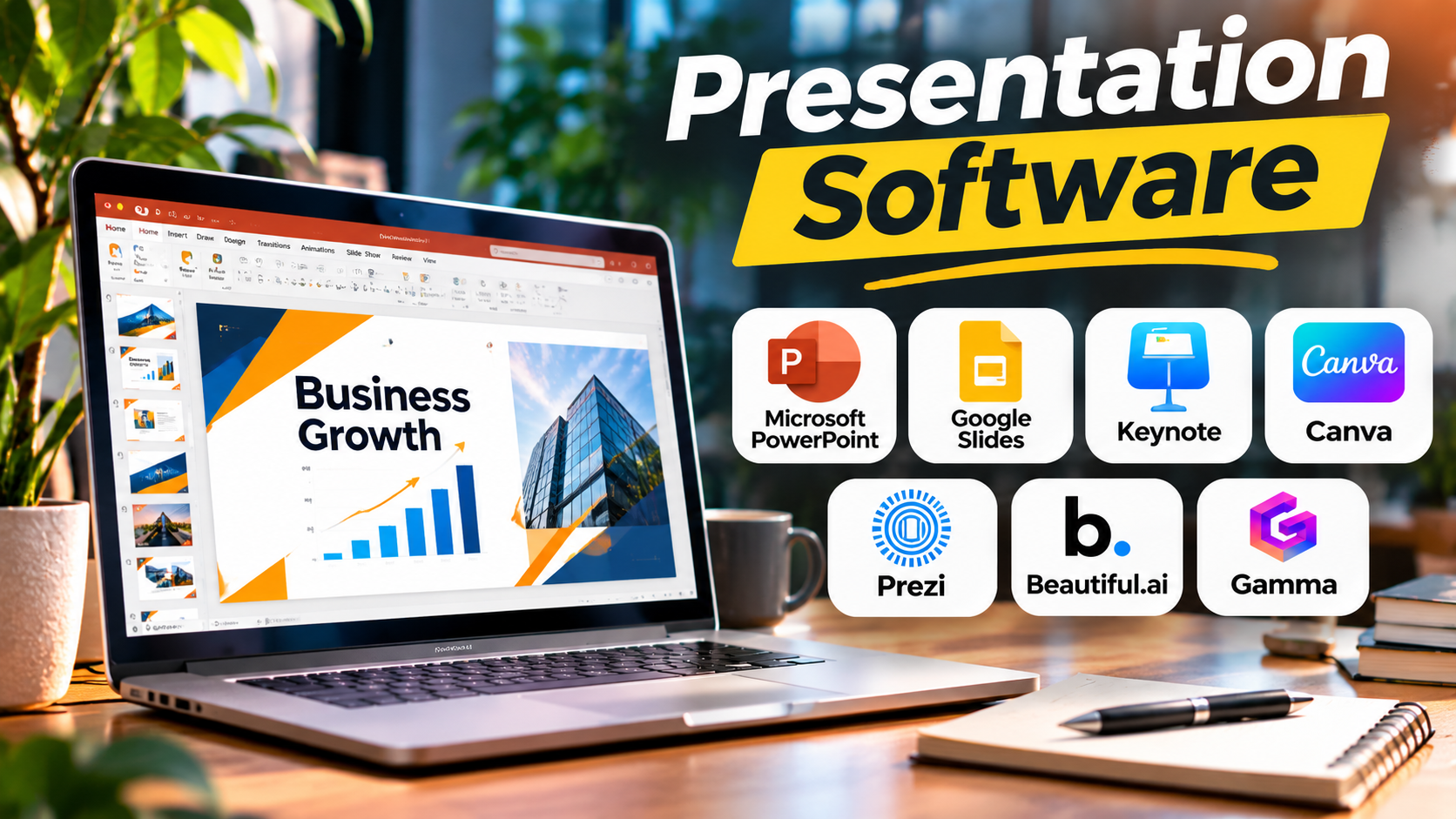
Microsoft PowerPoint — For Traditional Business Presentations
Microsoft PowerPoint remains a major presentation application for business, education, and professional communication.
It supports detailed slide editing, animations, charts, multimedia, and presenter tools.
Important capabilities
- Slide layouts and masters
- Animations and transitions
- Charts and tables
- Multimedia
- Speaker notes
- Presenter view
- Templates
- Collaboration through Microsoft services
- PDF and presentation export
- Offline editing in supported desktop versions
Where it excels
PowerPoint is particularly valuable when presentations must be exchanged with clients, colleagues, and organizations that use Microsoft Office.
Its mature editing environment supports both simple and complex decks.
Trade-offs
Presentation files can become difficult to maintain when users apply inconsistent formatting.
Advanced features also vary between desktop, web, and subscription environments.
Ideal users: Corporate teams, educators, consultants, sales professionals, and frequent presenters.
Official website: https://www.microsoft.com/microsoft-365/powerpoint
Google Slides — For Real-Time Collaboration
Google Slides emphasizes browser-based presentation creation and teamwork.
Multiple contributors can edit a deck while comments and version history support review.
Notable capabilities
- Real-time collaboration
- Comments and suggestions
- Version history
- Cloud-based sharing
- Templates
- Speaker notes
- Presentation mode
- Integration with Google Workspace
- Import and export of common presentation formats
Why teams choose it
Google Slides is especially useful when several people need to contribute without repeatedly exchanging files.
A project team can prepare a status presentation using one shared document.
Limitations
Complex PowerPoint animations, fonts, and layouts may not transfer perfectly.
Offline access also requires appropriate setup.
Ideal users: Distributed teams, students, educators, and Google Workspace organizations.
Official website: https://workspace.google.com/products/slides/
Apple Keynote — For Visual Presentations on Apple Devices
Apple Keynote focuses on polished slide design and presentation delivery.
It is particularly relevant to users working within Apple’s device ecosystem.
Relevant capabilities
- Presentation themes
- Animation effects
- Object transitions
- Charts and media
- Presenter tools
- Slide editing
- Apple ecosystem integration
- Export to common formats
Where it stands out
Keynote is appealing to presenters who want carefully controlled visuals and transitions.
Its templates can provide a strong starting point for visually focused presentations.
Trade-offs
Cross-platform collaboration and file exchange should be tested when colleagues primarily use Windows or PowerPoint.
Ideal users: Apple users, educators, creative professionals, and visual storytellers.
Official website: https://www.apple.com/keynote/
Canva — For Fast, Design-Oriented Presentations
Canva offers a template-driven approach to slide creation.
Its visual editing environment is designed to help users produce polished layouts without extensive design experience.
Useful capabilities
- Presentation templates
- Brand assets
- Stock media and graphics
- Drag-and-drop editing
- Collaboration
- Animation features
- Presentation delivery
- Export options
Why it is useful
Canva is particularly effective when teams need attractive marketing or educational presentations quickly.
Its templates reduce the need to create every layout from scratch.
Limitations
Complex business charts, advanced PowerPoint compatibility, and highly specialized presentation controls may require additional evaluation.
Ideal users: Marketers, educators, small businesses, and non-specialist designers.
Official website: https://www.canva.com/
Prezi — For Nonlinear Visual Storytelling
Prezi takes a different approach from conventional slide-by-slide presentations.
Its canvas-based presentation style allows speakers to move between topics and zoom into details.
Main capabilities
- Zoom-based navigation
- Visual storytelling
- Topic relationships
- Presentation templates
- Multimedia
- Online presentation workflows
Where it makes sense
Prezi can be useful when a presentation explains relationships between ideas rather than following a strictly linear sequence.
For example, a trainer might begin with a high-level business process and zoom into individual stages.
Trade-offs
Frequent movement can distract audiences if used excessively.
It is also less suitable when strict slide-by-slide compatibility is required.
Ideal users: Educators, trainers, workshop facilitators, and visual storytellers.
Official website: https://prezi.com/
Beautiful.ai — For Automated Slide Layout
Beautiful.ai emphasizes presentation design automation.
It helps users create slides using layouts that adjust as content changes.
Relevant capabilities
- Structured slide templates
- Automated layout behavior
- Brand styling
- Presentation collaboration
- Visual content creation
- Export options
Why it is different
Its design approach reduces some of the manual positioning work common in traditional presentation tools.
This can help users produce consistent decks without spending as much time adjusting spacing and alignment.
Limitations
Automated layouts can restrict highly customized compositions.
Users should also test exported files before relying on them for external delivery.
Ideal users: Business professionals, consultants, and teams producing frequent presentations.
Official website: https://www.beautiful.ai/
Gamma — For Rapid Presentation Drafting
Gamma is a presentation and document creation platform that emphasizes fast content organization and AI-assisted creation.
Its workflow differs from conventional manual slide editing.
Relevant capabilities
- AI-assisted content drafting
- Visual layouts
- Presentation creation
- Content organization
- Sharing
- Export options
Where it helps
Gamma can accelerate the creation of an initial presentation structure.
This is useful when the main challenge is turning a written brief into an organized visual story.
Important limitations
AI-generated content still requires human review.
Facts, figures, citations, and strategic claims must be checked before presenting.
Ideal users: Consultants, educators, startups, and professionals preparing frequent draft presentations.
Official website: https://gamma.app/
Presentation Software Comparison
| Platform | Primary strength | Suitable audience | Main consideration |
|---|---|---|---|
| PowerPoint | Detailed slide editing | Business and education | File and version management |
| Google Slides | Real-time collaboration | Distributed teams | Advanced compatibility |
| Keynote | Visual design and delivery | Apple users | Cross-platform exchange |
| Canva | Template-driven design | Marketing and education | Complex editing needs |
| Prezi | Nonlinear storytelling | Trainers and presenters | Motion and navigation |
| Beautiful.ai | Automated layouts | Business professionals | Customization flexibility |
| Gamma | Rapid content creation | Frequent deck creators | Content verification |
What Makes a Presentation Effective?
A clear narrative
The audience should understand the purpose of the presentation early.
Each section should support the central message.
Readable typography
Text must remain readable from the back of a room or on a small remote meeting screen.
Visual consistency
Use consistent fonts, colors, spacing, and chart styles.
Useful charts
Charts should communicate a specific insight.
Avoid adding complex visuals merely to make slides appear sophisticated.
Controlled animation
Animations should clarify information rather than distract.
Accessible design
Use sufficient color contrast, readable text, and meaningful descriptions where supported.
Do not rely on color alone to communicate important differences.
A Practical Presentation Creation Process
Step 1: Define the audience
A technical team, executive committee, classroom, and sales prospect require different levels of detail.
Step 2: Write the main message
Identify what the audience should understand or decide after the presentation.
Step 3: Create a simple outline
Arrange the key ideas before designing slides.
Step 4: Select an appropriate template
Choose a layout system that supports the content.
Avoid templates that force information into unsuitable structures.
Step 5: Build the visuals
Use charts, diagrams, photographs, and illustrations when they make information easier to understand.
Step 6: Review the content
Verify data, names, claims, and references.
Step 7: Test the delivery environment
Check fonts, videos, transitions, audio, and screen sharing.
Step 8: Prepare a backup
Export a PDF or another suitable fallback when appropriate.
A backup can prevent technical problems from disrupting the presentation.
AI Presentation Tools: Useful but Not Self-Verifying
AI-assisted presentation software can help with:
- Generating outlines
- Suggesting slide layouts
- Rewriting lengthy text
- Organizing ideas
- Creating visual drafts
- Adapting presentation structure
However, AI systems can introduce inaccurate statements, weak arguments, or misleading visuals.
A polished slide is not evidence that its contents are correct.
For business and academic presentations, review all important facts and claims independently.
Sensitive information also requires careful handling when uploaded to cloud-based AI tools.
Choosing Presentation Software by Scenario
For corporate presentations: Start with PowerPoint, particularly when Microsoft file compatibility matters.
For collaborative team projects: Google Slides is a practical option.
For Apple-centered presentations: Keynote deserves consideration.
For marketing presentations: Canva offers accessible visual design.
For nonlinear teaching and storytelling: Prezi provides a different navigation model.
For automated layout assistance: Evaluate Beautiful.ai.
For rapid first drafts: Gamma may reduce initial preparation time.
The best presentation software is the one that lets the presenter communicate clearly while reducing unnecessary design and delivery problems.
Presentation quality ultimately depends on the message, structure, accuracy, and audience experience—not the number of effects available in the application.