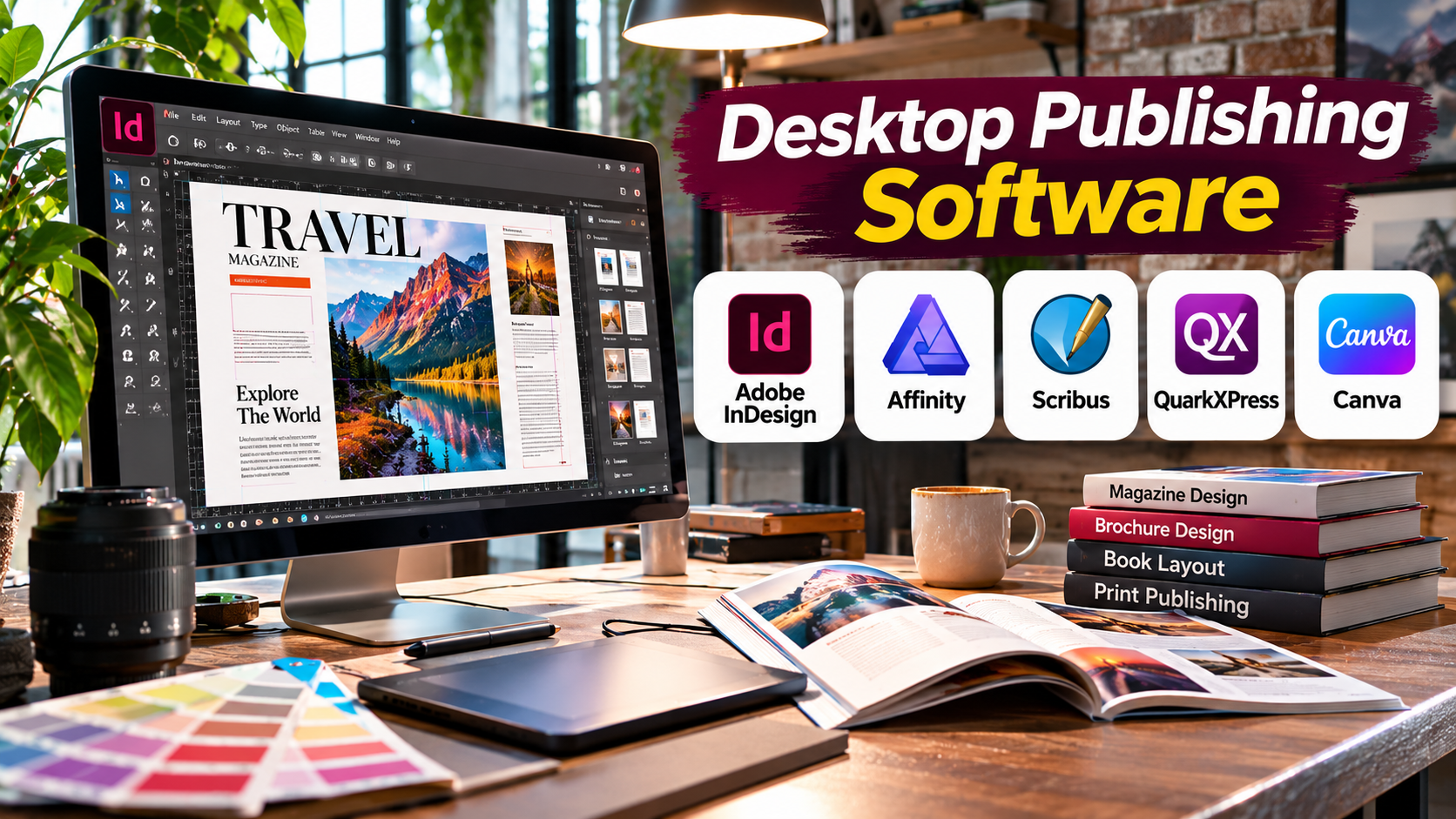
A 60-page magazine presents challenges that a normal word processor was not designed to solve.
Images must remain aligned. Text needs to flow across columns and pages. Headlines must follow a consistent style. Page numbers, margins, and print settings must stay accurate as editors make changes.
Desktop publishing software is designed to manage these tasks.
It combines typography, page layout, image placement, and production controls so designers can create structured publications.
The right application depends on whether the final product is a printed book, business brochure, digital magazine, marketing document, or another type of publication.
What Desktop Publishing Software Actually Does
Desktop publishing, often called DTP, is the process of designing documents for professional presentation and distribution.
DTP applications give designers precise control over how text and graphics appear on a page.
Typical projects include:
- Books and magazines
- Brochures and catalogs
- Newspapers and newsletters
- Annual reports
- Product manuals
- Corporate publications
- Posters and flyers
- Packaging inserts
- Educational materials
- Digital publications
Unlike a conventional word processor, a desktop publishing application typically emphasizes controlled page composition.
Text can flow through linked frames. Images can be positioned independently. Styles can maintain consistency across hundreds of pages.
The Difference Between Word Processing and Desktop Publishing
Word processors are designed primarily for writing and editing documents.
Desktop publishing tools focus on controlling the finished visual layout.
| Requirement | Word processor | Desktop publishing software |
|---|---|---|
| Writing and revising text | Strong | Supported, but varies |
| Complex page composition | Limited to moderate | Core capability |
| Multi-column layouts | Available | More precise control |
| Typography | General document controls | Advanced layout controls |
| Image placement | Basic to moderate | Precise positioning |
| Reusable page structures | Templates and styles | Parent pages and styles |
| Commercial print preparation | Limited | Often specialized |
| Long publication production | Possible | Designed for complex layouts |
Not every project requires DTP software.
A simple business letter may be easier to create in Word or Google Docs.
A professionally typeset magazine usually benefits from a dedicated layout application.
Desktop Publishing Software Options
Adobe InDesign — For Professional Editorial Production
Adobe InDesign is widely used for professional publication design.
It supports complex page layouts, typography, image placement, and production-ready exports.
Important capabilities
- Multi-page document management
- Parent pages
- Paragraph and character styles
- Linked text frames
- Tables
- Image placement
- Preflight tools
- PDF export
- Print production controls
- Interactive document features
Where it excels
InDesign is especially valuable for publications that require consistency across many pages.
A magazine designer can define paragraph styles for headlines, captions, and body text, then apply those styles throughout the document.
Changing one style can update many instances.
Its integration with Adobe Photoshop and Illustrator is also useful when publications contain edited photographs and vector graphics.
Trade-offs
InDesign requires a subscription and has a learning curve.
It is more complex than necessary for many one-page documents.
Ideal users: Publishing houses, agencies, editorial designers, and professional print teams.
Official website: https://www.adobe.com/products/indesign.html
Affinity — For Integrated Creative Publishing
Affinity’s creative platform combines page layout with broader design capabilities.
It is relevant to independent designers who produce publications alongside vector graphics and image-editing work.
Useful capabilities
- Page layout
- Typography
- Text and image frames
- Multi-page document design
- Vector artwork integration
- Image editing workflows
- PDF output
Why it is attractive
An independent designer creating a brochure may need to edit product photographs, build illustrations, and arrange the final pages.
An integrated creative environment can make these tasks easier to manage.
Limitations
Organizations should test file compatibility with existing production partners.
The current Affinity product and licensing structure should also be checked, particularly when comparing it with older Affinity Publisher releases.
Ideal users: Freelancers, small studios, independent publishers, and creative teams.
Official website: https://www.affinity.studio/
Scribus — For Free, Open-Source Page Layout
Scribus is an open-source desktop publishing application designed for page composition and print-oriented documents.
It provides a practical alternative for users who do not want commercial DTP licensing.
Key capabilities
- Page layout
- Text frames
- Image frames
- Typography controls
- Color management features
- PDF export
- Print-oriented design functions
- Multi-page documents
What makes it useful
Scribus gives users access to dedicated publishing tools without a subscription.
It is particularly relevant to community organizations, educators, independent publishers, and users of open-source software.
Challenges
Its workflow and interface may require more learning than simpler design applications.
Users should test professional printing requirements, font handling, and file exchange with their print providers.
Ideal users: Budget-conscious publishers, educators, nonprofits, and open-source enthusiasts.
Official website: https://www.scribus.net/
QuarkXPress — For Established Publishing Workflows
QuarkXPress is a professional publishing application with a long history in editorial and print production.
It supports document layout, typography, and publishing workflows.
Relevant capabilities
- Professional page layout
- Typography
- Multi-page publishing
- Print output
- Digital publishing options
- Reusable document structures
Why consider it
QuarkXPress can be especially relevant to organizations with established Quark-based documents and production processes.
Replacing a mature publishing workflow can introduce significant migration costs.
Trade-offs
Teams should evaluate current licensing, supported operating systems, and file interoperability.
Legacy projects may require conversion or additional quality checks.
Ideal users: Professional publishers and organizations maintaining QuarkXPress workflows.
Official website: https://www.quark.com/
Microsoft Publisher — A Legacy Option for Simple Publications
Microsoft Publisher historically served small businesses and office users creating brochures, flyers, cards, and newsletters.
Its familiar office-style environment made it accessible to users without professional design training.
However, Microsoft has announced the end of Publisher support after October 2026.
For new publishing workflows, it should therefore be treated as a legacy application rather than a long-term platform choice.
Organizations with existing Publisher files should prioritize migration and preservation.
Practical advice
Export important publications to PDF and preserve their original files.
Evaluate replacement tools based on whether editable layouts need to survive.
Official information: https://support.microsoft.com/
Canva — For Template-Based Marketing Publications
Canva is a browser-oriented design platform used for marketing materials, presentations, flyers, brochures, and social content.
It is not a direct replacement for every professional desktop publishing workflow.
However, it is useful for teams that prioritize speed, templates, and accessible collaboration.
Relevant capabilities
- Ready-made templates
- Drag-and-drop design
- Brand assets
- Team collaboration
- PDF export
- Image and text editing
- Marketing-oriented layouts
Where it works well
Canva can help a small business produce a promotional brochure without hiring a specialist layout designer.
Limitations
Complex books, advanced typography, highly controlled print production, and demanding editorial workflows may require dedicated DTP software.
Ideal users: Small businesses, marketing teams, educators, and non-specialist designers.
Official website: https://www.canva.com/
Comparing Desktop Publishing Tools
| Software | Primary use | Main advantage | Main limitation |
|---|---|---|---|
| Adobe InDesign | Professional publications | Advanced editorial and print workflows | Subscription |
| Affinity | Integrated creative publishing | Combined design and layout environment | Workflow compatibility requires testing |
| Scribus | Open-source DTP | Free professional layout tools | Learning curve |
| QuarkXPress | Established publishing | Mature publication workflows | Commercial licensing |
| Microsoft Publisher | Legacy office publications | Familiar historical workflow | End of support |
| Canva | Marketing materials | Templates and collaboration | Less specialized for complex publishing |
How a Professional Publishing Workflow Works
Consider a company preparing a 40-page annual report.
The project may involve writers, designers, reviewers, and a printing partner.
1. Prepare the content
Collect approved text, charts, photographs, tables, and brand assets.
Confirm that all content is ready for layout.
2. Establish document specifications
Define:
- Page dimensions
- Margins
- Bleed
- Column structure
- Typography
- Color requirements
- Image resolution
- Final delivery formats
A printer may provide specific requirements for trim size, bleed, and PDF settings.
3. Build reusable page structures
Create parent pages, paragraph styles, character styles, and standard image treatments.
This reduces inconsistency.
4. Place text and images
Import approved text and place images using linked assets where supported.
Avoid stretching low-resolution images beyond their useful size.
5. Review typography
Check line breaks, hyphenation, paragraph spacing, widows, orphans, and font consistency.
Small typography problems become more noticeable across a long publication.
6. Conduct preflight checks
Inspect missing fonts, image links, overset text, color settings, and document dimensions.
7. Export and review
Generate a suitable PDF and inspect it before delivery.
For printed publications, request a proof when appropriate.
Essential Features for Professional Publishing
Paragraph and character styles
Styles allow designers to maintain consistent typography throughout a document.
Parent pages
Reusable page structures reduce repetitive layout work.
Linked text frames
Long articles can flow across columns and pages without manually rebuilding every section.
Image linking
Linked image workflows make it easier to update source graphics.
Preflight checking
Preflight tools help identify production issues before exporting.
PDF standards
Professional printers may require specific PDF settings or PDF/X standards.
Compatibility should be confirmed with the printer.
Accessibility
Digital publications may need headings, reading order, alternative text, and accessible PDF structures.
A visually attractive document is not automatically accessible.
Print Publishing Versus Digital Publishing
Printed documents require attention to physical dimensions, bleed, trim, paper, ink, and color reproduction.
Digital publications place greater emphasis on screen readability, file size, navigation, accessibility, and device compatibility.
A PDF designed for printing may not be comfortable to read on a mobile phone.
Likewise, a screen-first design may not satisfy professional print requirements.
Decide on the primary output before building the layout.
Common Desktop Publishing Mistakes
Starting layout before content approval
Late structural changes can create substantial rework.
Using inconsistent typography
Manual formatting across many pages makes future changes difficult.
Ignoring bleed and trim
Important content may be cut off during printing.
Forgetting font licensing
Commercial font licenses may restrict particular uses or distribution.
Exporting without checking
Missing images, overset text, and incorrect colors may only become visible in the final file.
Depending on a discontinued application
Unsupported software creates compatibility and security risks over time.
How to Choose Desktop Publishing Software
For professional magazines, catalogs, and books, Adobe InDesign is a strong candidate.
For integrated creative work, consider Affinity.
For a free publishing environment, evaluate Scribus.
For organizations with established publishing infrastructure, QuarkXPress may remain relevant.
For quick marketing publications, Canva can be sufficient.
Organizations using Microsoft Publisher should plan migration rather than expand their dependence on the discontinued application.
The right DTP tool should be selected according to publication complexity, editing requirements, print standards, collaboration, and long-term file accessibility.
Good publishing software does more than make pages attractive. It makes documents easier to maintain, correct, reproduce, and deliver reliably.