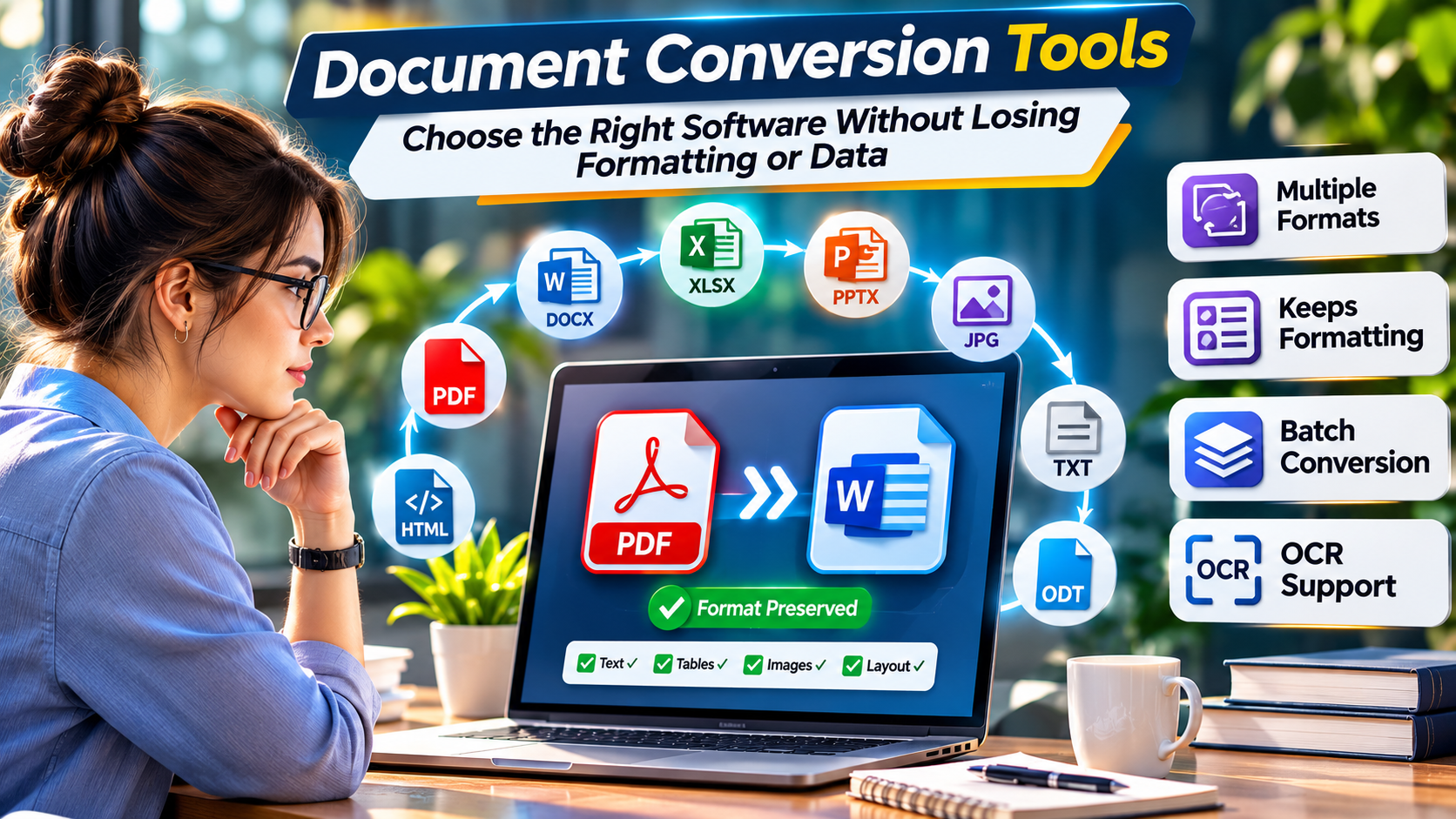
A customer sends a contract as a PDF, but your team needs to edit it in Word. A colleague shares an OpenDocument file that must be delivered as a DOCX. An archive contains hundreds of older documents that need conversion into accessible, searchable formats.
These tasks appear simple until formatting changes, tables break, fonts disappear, or important information is lost.
Document conversion tools transform files between formats while attempting to preserve their content, structure, and presentation.
The important word is attempting.
No conversion tool can guarantee perfect results for every document. Different file formats represent text, layout, images, and metadata in different ways.
Choosing the right software therefore requires more than checking whether it supports PDF, DOCX, HTML, or another extension.
Users must understand what they need to preserve, whether files contain sensitive information, and whether conversion is a one-time task or part of a larger workflow.
Why Document Conversion Is More Complicated Than It Looks
A Word document and a PDF may look identical on screen, but they store information differently.
A Word document generally contains editable structures such as paragraphs, tables, styles, and sections.
A PDF primarily describes how content should appear on a page. Some PDFs also contain tags and other structural information, but not all do.
Converting a Word document to PDF is therefore different from reconstructing an editable Word document from PDF.
The first task usually focuses on rendering.
The second may require the software to infer paragraphs, tables, columns, and other structures from page content.
This explains why PDF-to-Word conversion can produce unexpected line breaks or misplaced elements.
Scanned documents introduce another challenge.
A scanned PDF may contain images of text rather than actual selectable text. Converting it into an editable document generally requires optical character recognition, or OCR.
OCR quality depends on factors such as image resolution, language, handwriting, page orientation, and document condition.
Start With the Type of Conversion You Need
Document conversion software can be divided into several practical categories.
Office document conversion
This includes formats such as DOCX, ODT, RTF, and other word-processing files.
The main concern is preserving editable content and document structure.
PDF conversion
PDF workflows include creating PDFs from Office documents, extracting editable content from PDFs, and converting PDFs into images or other formats.
Layout preservation is often the main challenge.
Scanned document conversion
OCR-enabled tools convert images of printed text into machine-readable information.
These tools are useful for digitizing paper records and processing scanned documents.
Markup and publishing conversion
Developers, writers, and publishers may convert between Markdown, HTML, DOCX, EPUB, and other structured formats.
Semantic structure is often more important than reproducing an identical visual layout.
Batch and automated conversion
Organizations may need to convert hundreds or thousands of documents through scheduled jobs, scripts, or APIs.
Reliability, logging, file validation, and error recovery become important.
Document Conversion Tools for Different Workflows
Adobe Acrobat: PDF-Centered Conversion and Editing
Adobe Acrobat is a well-established option for PDF creation, conversion, and document processing.
Its conversion capabilities include supported workflows between PDF and common Office formats.
Acrobat is particularly relevant when users regularly work with PDFs and need related editing, review, and document preparation features.
Where it fits
Business teams that exchange contracts, reports, forms, and other PDF documents may benefit from using a dedicated PDF application.
What to consider
PDF-to-editable-format conversion is not always exact.
Complex tables, unusual fonts, multi-column layouts, and scanned pages should be tested.
Some capabilities depend on the Acrobat product or subscription being used.
Official website: Adobe Acrobat
CloudConvert: Broad File Conversion Through a Cloud Service
CloudConvert is an online file conversion service supporting many document and other file formats.
It is useful when users need a flexible converter without installing specialized desktop software.
Its API also makes it relevant to developers building file conversion into applications.
Where it fits
CloudConvert is worth evaluating for occasional conversions and application workflows that require a managed conversion service.
What to consider
Uploading files to a third-party service may be unsuitable for confidential or restricted information.
Organizations should review supported format pairs, conversion settings, file handling, usage limits, and applicable data protection requirements.
Official website: CloudConvert
Convertio: Browser-Based Conversion for Everyday Files
Convertio provides online conversion tools for documents and other file types.
Its browser-based approach is convenient for users who want to convert a file without configuring a local application.
Where it fits
Convertio is relevant to occasional conversions involving common formats such as DOCX, PDF, ODT, and RTF.
What to consider
Online convenience should be balanced against privacy and document sensitivity.
File size limits, supported conversions, and account requirements may vary.
For sensitive business information, users should verify the service’s handling and retention policies before uploading documents.
Official website: Convertio
LibreOffice: Free Desktop Conversion and Office Compatibility
LibreOffice is an open-source office productivity suite that can open, edit, and export several document formats.
Its Writer application supports common word-processing formats, while the broader suite handles spreadsheets and presentations.
LibreOffice can also be used for certain command-line and headless document conversion workflows.
Where it fits
It is particularly useful for organizations that want local document processing without relying on an online conversion service.
It can also support automated conversion tasks where its supported formats and rendering behavior meet requirements.
What to consider
Documents containing advanced Microsoft Office features, macros, specialized fonts, or complex formatting may not convert identically.
Batch workflows should be tested for stability, concurrency, and output consistency.
Official website: LibreOffice
Pandoc: Structured Document Conversion for Writers and Developers
Pandoc is a document conversion tool widely used in technical writing, publishing, and documentation workflows.
It can convert between numerous markup and document formats, including Markdown, HTML, DOCX, and other supported formats.
Its main strength is handling document structure.
Where it fits
Pandoc is useful for documentation teams, developers, researchers, and publishers who maintain content in structured formats.
For example, a team may write documentation in Markdown and produce HTML or Word output through an automated publishing process.
What to consider
Pandoc is not primarily designed to reproduce arbitrary page layouts with pixel-level accuracy.
PDF generation can also require an appropriate rendering engine or additional dependencies.
Official website: Pandoc
ABBYY FineReader PDF: OCR and Scanned Document Processing
ABBYY FineReader PDF focuses on PDF productivity and optical character recognition.
It is relevant when organizations need to work with scanned documents and extract editable or searchable content.
Where it fits
Businesses digitizing paper records, processing scanned agreements, or converting image-based PDFs may benefit from specialist OCR capabilities.
What to consider
OCR is not guaranteed to reproduce every character correctly.
Low-quality scans, unusual typography, handwritten annotations, and complex tables may require manual review.
Users should also verify language support and the features included in the selected product edition.
Official website: ABBYY FineReader PDF
PDF24 Creator: Local PDF Utilities for Windows
PDF24 Creator provides a collection of PDF tools for Windows, including PDF creation and related document processing functions.
It is useful for users who want local PDF utilities without depending entirely on browser-based services.
Where it fits
PDF24 Creator is worth considering for routine PDF tasks such as creating, merging, splitting, and manipulating PDF files.
What to consider
Not every PDF operation is equivalent to full document format conversion.
Users should confirm that the specific PDF-to-Office or other conversion they require is supported in the chosen PDF24 tool.
Official website: PDF24
Document Conversion Software Compared
| Tool | Primary strength | Processing approach | Main consideration |
|---|---|---|---|
| Adobe Acrobat | PDF conversion and editing | Desktop and cloud capabilities | Subscription and conversion fidelity |
| CloudConvert | Broad format conversion | Cloud service and API | Data processing and usage limits |
| Convertio | Convenient online conversion | Browser-based cloud service | Privacy and file limits |
| LibreOffice | Office document compatibility | Local desktop and command-line options | Complex layout compatibility |
| Pandoc | Structured text and publishing formats | Local command-line workflows | Not focused on exact visual reproduction |
| ABBYY FineReader PDF | OCR and scanned documents | Product-dependent desktop capabilities | Recognition accuracy |
| PDF24 Creator | Local PDF utilities | Windows desktop | Supported conversion scope |
The tools differ because document conversion is not a single technical problem.
A publishing team converting Markdown into HTML needs different capabilities from an accounting department processing scanned invoices.
The Three Types of Quality That Matter
A conversion can succeed technically while still producing an unusable document.
Evaluation should cover three separate dimensions.
Visual fidelity
Visual fidelity describes how closely the converted document resembles the original.
Important elements include:
- Fonts and text spacing
- Page margins
- Tables and columns
- Headers and footers
- Images and charts
- Page breaks
- Lists and numbering
Visual fidelity matters for contracts, presentations, formal reports, and branded documents.
Structural fidelity
Structural fidelity concerns whether the document retains meaningful editable elements.
A converted file may look correct but contain text boxes instead of ordinary paragraphs.
Tables may become images, and headings may lose their styles.
This matters when the output must be edited, searched, or processed by other software.
Data fidelity
Data fidelity means preserving the actual information.
A visually attractive conversion is still unacceptable if it changes a number, removes a footnote, or misreads a customer name.
This is particularly important for financial, legal, medical, and regulatory documents.
A reliable evaluation should check all three dimensions rather than judging conversion quality by appearance alone.
PDF to Word: Why Results Vary
PDF-to-Word conversion is one of the most common document conversion tasks.
It is also one of the easiest to misunderstand.
A digitally created PDF may contain selectable text and embedded font information.
A scanned PDF may contain only images.
A PDF created from a complex desktop publishing application may contain many independently positioned text elements.
These differences affect how accurately a converter can reconstruct an editable Word document.
For simple text documents
Conversion may produce usable paragraphs and basic formatting with relatively little correction.
For complex layouts
Columns, floating objects, tables, and decorative elements may need manual repair.
For scanned PDFs
OCR is often required before meaningful editing becomes possible.
For signed or regulated documents
Converting the file may not preserve the evidentiary or technical properties of the original signed document.
Organizations should retain the authoritative original and avoid assuming that an editable conversion carries the same legal or technical status.
When to Choose Local Conversion Instead of Cloud Conversion
Cloud services are convenient, but they introduce an external processing environment.
Local conversion may be preferable when documents contain confidential information, network access is restricted, or internal policy prohibits uploading files to third parties.
For example, an organization processing confidential employee records may prefer an approved desktop or internally hosted conversion system.
Cloud conversion can still be appropriate when the provider’s security, privacy, contractual, and operational controls meet the organization’s requirements.
The decision should be based on the sensitivity of the data and the applicable rules, not simply whether a vendor describes its service as secure.
Building a Reliable Batch Conversion Workflow
Manual conversion works for a few files. Large-scale conversion requires a controlled process.
A typical batch workflow should include the following stages.
Inventory the source files
Identify the formats, sizes, languages, and document types involved.
Do not assume that every file with the same extension has the same internal structure.
Select the appropriate conversion engine
Different document types may require different tools.
For example, an organization might use LibreOffice for supported Office conversions, Pandoc for structured publishing files, and specialist OCR software for scanned documents.
Preserve the originals
Keep authoritative source files until conversion results have been validated and retention requirements have been addressed.
Record conversion outcomes
A conversion process should capture whether each file succeeded or failed.
Where appropriate, record file identifiers, input and output formats, error messages, and processing information.
Validate the outputs
Check that the generated files exist, can be opened, and contain the expected information.
For critical documents, automated checks should be supplemented with human review.
Handle failures safely
A failed conversion should not silently produce an empty or incomplete document that enters the business workflow.
The system should identify failures and support controlled retries or manual intervention.
Common Conversion Mistakes
Assuming all PDFs are editable
Many PDFs are designed for presentation rather than editing.
A converter may need to reconstruct the document structure, which can introduce errors.
Ignoring missing fonts
If the original font is unavailable, the rendering engine may substitute another font.
This can change line breaks and page layout.
Converting scanned documents without OCR
An image-based PDF cannot automatically become searchable text through ordinary file format conversion alone.
Overlooking document metadata
Conversion may change or remove metadata, comments, revision history, embedded objects, and other document properties.
Uploading sensitive documents to unapproved websites
An online conversion tool may be convenient, but the organization’s privacy and security obligations still apply.
Deleting original files too early
Converted documents should be checked before source files are removed.
For important records, preservation and retention policies may require keeping the original regardless of conversion quality.
How to Test a Converter Before Adopting It
Create a representative test collection.
Include a simple Word document, a complex report, a scanned PDF, a spreadsheet with formulas, and a document containing tables and images.
Then assess:
- Whether each requested conversion is supported.
- Whether the output opens successfully.
- Whether text and numbers remain correct.
- Whether tables and images retain their intended meaning.
- Whether the output is editable when required.
- Whether searchable text is available.
- Whether sensitive information is processed appropriately.
- Whether batch failures can be detected and corrected.
For automated workflows, also test malformed files, password-protected documents, unusually large inputs, and unexpected file types.
A converter should be evaluated against the actual documents the organization handles.
Frequently Asked Questions
What is document conversion software?
Document conversion software changes files from one format into another, such as DOCX to PDF, PDF to Word, Markdown to HTML, or scanned documents to searchable files.
Which tool is suitable for converting PDF files to Word?
Adobe Acrobat and ABBYY FineReader PDF are options worth evaluating. The most suitable choice depends on whether the PDF contains selectable text, complex layouts, or scanned images.
Can I convert documents without uploading them online?
Yes. Applications such as LibreOffice, Pandoc, and suitable desktop PDF tools can perform supported conversions locally.
Is LibreOffice suitable for batch document conversion?
LibreOffice provides command-line conversion capabilities that can support batch workflows. Organizations should test compatibility, process management, and output accuracy before using it in production.
What is the difference between OCR and document conversion?
Document conversion changes a file’s format. OCR recognizes text from images or scanned pages. Some document workflows require both technologies.
Does converting a PDF remove digital signatures?
Conversion to another format generally should not be assumed to preserve the original PDF’s digital signature validity or verification properties. Keep the signed original when authenticity and evidence matter.
Can document conversion be automated with an API?
Yes. Some cloud conversion platforms provide APIs. Other tools can be integrated into scripts, applications, or internally managed processing systems.
Choosing the Right Converter for the Job
There is no universal document converter that handles every format and layout equally well.
Adobe Acrobat is relevant for PDF-focused business workflows. CloudConvert and Convertio provide browser-based conversion options. LibreOffice offers local Office document processing, while Pandoc serves structured publishing and documentation workflows.
ABBYY FineReader PDF is worth considering when OCR is central to the task. PDF24 Creator provides useful local PDF utilities for Windows users.
The right choice depends on the source format, desired output, required fidelity, document sensitivity, and conversion volume.
For occasional files, convenience may be the deciding factor. For enterprise workflows, reliability, privacy, automation, and validation become more important.
Successful document conversion means preserving the information people need—not merely producing a file with a different extension.