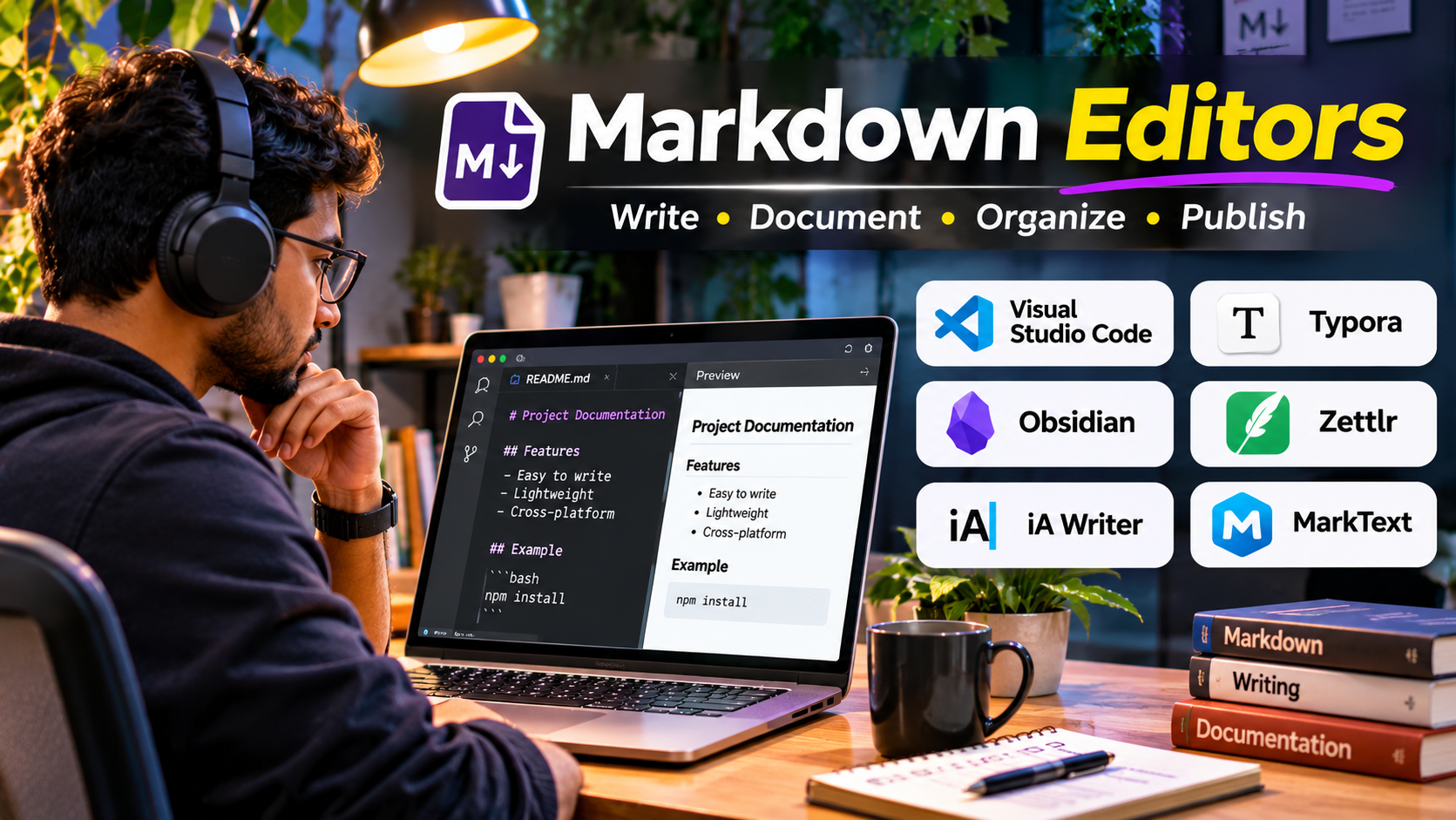
A technical writer updates documentation in a Git repository. A blogger drafts articles for a publishing platform. A researcher manages citations across a long manuscript.
All three may use Markdown, but their editing requirements are very different.
The technical writer needs version control and reliable links. The blogger may prefer a clean writing environment. The researcher needs structured documents, references, and dependable export options.
This explains why Markdown editors vary so widely.
Some behave like traditional text editors. Others hide formatting syntax and display the finished document while you type. More advanced applications connect Markdown files into larger knowledge systems.
Choosing the right editor begins with understanding the document’s destination.
Why Markdown Remains Useful
Markdown is a lightweight markup language for formatting plain text.
Instead of applying formatting through a toolbar, users can express common structures with simple characters.
For example:
#creates a heading.**bold**marks bold text.-creates a list item.[Link text](https://example.com)creates a hyperlink.- Backticks identify inline code.
A Markdown document can remain readable even without a specialized editor.
This makes the format attractive for software documentation, technical writing, knowledge bases, and publishing workflows.
However, Markdown is not a single universal rendering system.
Different applications support different extensions, including tables, task lists, mathematical notation, and diagrams.
A document that renders correctly in one environment may look different in another.
Compatibility therefore matters as much as the editing experience.
Three Approaches to Editing Markdown
Source-Based Editing
The writer sees Markdown syntax directly.
This approach is common in code editors and works well for developers who want precise control.
Live-Preview Editing
The application renders formatting as the writer types.
This creates a more document-like experience without abandoning Markdown files.
Knowledge-Oriented Editing
Markdown becomes part of a larger collection of linked documents.
The editor may provide backlinks, tags, navigation, and organizational features.
These approaches overlap, but understanding their differences helps narrow the options.
Markdown Editors for Different Types of Writers
Visual Studio Code: Markdown Alongside Software Projects
Visual Studio Code is a code editor with built-in Markdown support.
It is particularly useful when documentation lives alongside source code.
A developer maintaining a software library can edit README files, API documentation, and code within the same environment.
VS Code supports Markdown preview and benefits from an extensive extension ecosystem.
Its integration with Git workflows is especially relevant for documentation teams.
Where it fits
- README files
- Developer documentation
- Documentation repositories
- Static site content
- Technical editing workflows
Its main disadvantage is that the interface is designed around software development.
Writers who do not need coding tools may prefer a more focused application.
Typora: A Document-Like Markdown Writing Experience
Typora provides a live-preview Markdown editor.
Rather than requiring a permanent separation between source and preview, it renders formatting within the writing surface.
This can make Markdown feel more familiar to writers accustomed to conventional word processors.
Typora supports common document structures, including tables, images, code blocks, and mathematical content.
It is particularly appealing for articles, essays, notes, and technical documents that do not require a full development environment.
The trade-off is that visual convenience does not remove compatibility concerns.
Users should still check how the resulting Markdown behaves in their target publishing system.
Typora is a practical choice for writers who want Markdown’s portability without constantly looking at formatting symbols.
Obsidian: Markdown for Connected Knowledge
Obsidian stores notes as local Markdown files and supports connections between them.
Its primary value is not simply editing individual documents.
It helps users build a connected collection of knowledge.
For example, a technical author could maintain separate notes on authentication, API design, testing, and deployment.
Links between these notes make related material easier to discover.
Obsidian is particularly relevant for long-term research, personal knowledge management, and documentation planning.
However, Obsidian-specific links, plugins, and extensions may not behave identically in other Markdown applications.
Writers planning to publish their files elsewhere should test portability.
Zettlr: Markdown for Academic and Research Writing
Zettlr is an open-source Markdown editor designed with academic and structured writing in mind.
It supports workflows involving references, citations, and longer documents.
This makes it relevant to researchers, students, and technical authors who need more than basic text formatting.
Zettlr’s relationship with citation and document conversion workflows is a significant distinction from lightweight editors.
A researcher may need to draft text, manage references, and produce documents in formats required by a journal or institution.
That workflow deserves a different editor from one used for quick README changes.
Zettlr is worth evaluating when citations and document preparation are central requirements.
Users should test the complete export process with their own templates and reference material.
iA Writer: A Focused Environment for Prose
iA Writer emphasizes focused writing.
Its approach is particularly suitable for authors who want to reduce distractions and concentrate on text.
It can be useful for essays, articles, scripts, and long-form drafts.
The central advantage is workflow simplicity.
Rather than surrounding the writer with extensive project controls, the application prioritizes the writing experience.
This makes it less suitable for teams requiring extensive repository management or specialized technical extensions.
It is worth considering when the primary task is producing clear prose.
MarkText: An Open-Source Visual Markdown Editor
MarkText is an open-source Markdown editor with a visual editing approach.
It offers an alternative for users who want live rendering without choosing a proprietary writing application.
It is relevant to personal writing, Markdown learning, and lightweight documentation.
Because open-source projects can vary in release activity and maintenance resources, users should review current project status and compatibility before adopting an application for critical work.
MarkText is particularly interesting when a visual interface and open-source licensing are priorities.
Markdown Editor Comparison
| Editor | Editing Approach | Main Use Case | Important Consideration |
|---|---|---|---|
| VS Code | Source editing with preview | Developer documentation | Development-oriented interface |
| Typora | Live visual rendering | Articles and general writing | Commercial licensing |
| Obsidian | Linked Markdown workspace | Knowledge management | Application-specific extensions |
| Zettlr | Research-oriented Markdown editing | Academic writing | More specialized workflow |
| iA Writer | Focused plain-text writing | Essays and long-form prose | Fewer development-oriented features |
| MarkText | Open-source visual editing | General Markdown documents | Verify maintenance and compatibility |
The comparison is based on editing philosophy rather than an overall quality ranking.
Markdown Compatibility: The Issue Many Writers Overlook
A Markdown editor can support a feature that the final publishing platform does not.
This often affects:
- Tables
- Footnotes
- Task lists
- Mathematical equations
- Embedded HTML
- Diagram syntax
- Internal document links
- Metadata blocks
For example, a documentation platform may support Mermaid diagrams, while a conventional blog editor may not render them without additional processing.
Similarly, wiki-style links created inside a note application may require conversion before publication.
Before adopting an editor, test a document containing the features you actually use.
The output matters more than how attractive the preview looks.
A Practical Markdown Publishing Workflow
Consider a technical writer preparing documentation for a software project.
Step 1: Define the Output Format
Determine whether the final content will appear on GitHub, a documentation website, a blog, or in a PDF.
Each destination may support different Markdown features.
Step 2: Establish a Consistent Structure
Use clear headings, descriptive links, and logical sections.
Avoid formatting that depends on unusual extensions unless the publishing environment supports them.
Step 3: Manage Images Carefully
Keep image files in predictable locations.
Use meaningful filenames and alternative text.
Check whether the publishing platform requires relative paths, absolute paths, or uploaded media URLs.
Step 4: Preview in the Target Environment
The editor’s preview is useful, but the final renderer is authoritative.
Check headings, tables, links, code blocks, and images after publication or during a staging preview.
Step 5: Use Version Control Where Appropriate
For technical documentation, Git can help track changes and support reviews.
Writers working independently may prefer simpler backup and version-history systems.
Step 6: Preserve the Source Files
Keep the original Markdown files when practical.
This makes future migration and reuse easier.
Markdown Editors Versus Word Processors
Markdown editors are not always substitutes for Microsoft Word or Google Docs.
Markdown works especially well when content is structured around headings, paragraphs, lists, links, and code.
Traditional word processors are often more suitable for documents requiring complex page layouts, advanced review workflows, or precise print formatting.
The distinction becomes important for legal documents, elaborate reports, and heavily formatted publications.
A hybrid workflow can also be effective.
Writers may draft in Markdown and convert the content into another format for review or delivery.
The conversion process should be tested before it becomes part of a production workflow.
What to Check Before Choosing an Editor
File ownership: Does the editor save ordinary Markdown files that other applications can open?
Preview accuracy: Does the rendering match the intended destination?
Image handling: Are images stored and referenced in a predictable way?
Search: Can users locate information across multiple files?
Export: Does the editor support the required delivery formats?
Extensions: Are essential capabilities built in or dependent on plugins?
Collaboration: Is the workflow designed for individuals, shared folders, or repository-based review?
Maintenance: Is the application actively supported and compatible with current operating systems?
Cost: Does the licensing model suit the number of users and devices?
A short trial using real documents can answer these questions more effectively than a long feature checklist.
Common Markdown Writing Mistakes
Using Too Many Extensions
Specialized syntax can make documents difficult to move between platforms.
Prefer broadly supported formatting when portability matters.
Ignoring Heading Structure
Headings should reflect the document’s logical hierarchy.
Do not choose heading levels simply because they look visually attractive.
Forgetting Link Maintenance
Documentation can accumulate broken links when files are renamed or moved.
Repository-based workflows should include link checking where practical.
Treating Markdown as a Complete Publishing System
Markdown describes content structure. It does not automatically provide hosting, navigation, access control, search indexing, or publishing approval workflows.
Those capabilities come from the surrounding platform.
Frequently Asked Questions
What is the difference between Markdown and HTML?
Markdown is a lightweight format designed for readable text. HTML provides more detailed control over web document structure. Markdown is commonly converted into HTML for display.
Is Markdown suitable for beginners?
Yes. Basic Markdown uses a small number of readable formatting conventions. Beginners can start with headings, lists, emphasis, and links.
Which Markdown editor is suitable for developers?
VS Code is a practical choice for documentation stored alongside code. Its preview and repository-oriented workflow support technical writing.
Can Markdown editors create PDFs?
Some editors support PDF export directly or through document conversion tools. Export quality and formatting options vary.
Is Markdown useful for WordPress?
Yes. Markdown can be a convenient drafting format, but the final import and rendering behavior depends on the WordPress editor, plugins, and publishing workflow.
Conclusion
Markdown editors solve different writing problems.
VS Code connects documentation with software development. Typora offers a visual writing experience. Obsidian organizes linked knowledge. Zettlr supports academic workflows, while iA Writer emphasizes focused prose. MarkText provides an open-source visual alternative.
The right choice depends on where the content begins, how it is maintained, and where it must eventually appear.
For long-term flexibility, prioritize readable source files, reliable exports, and compatibility with the final publishing environment.
A good Markdown editor should make writing easier without making the resulting content harder to use elsewhere.